This is a solution for when you are building a survey which you want to be anonymous. However, if it is truly anonymous you cannot tell who has completed it and who needs to be reminded to complete it. This solution will help you in this situation.
In your Survey, select Options and then scroll down to Hidden Fields.
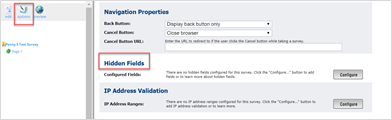
Choose Insert Hidden Field

I have chosen “Special_ID” to be the Key (this is the parameter that will be passed to the survey as a hidden field). Enter the Type as Querystring and the Display Name is Special ID (this is the how the hidden field name will be displayed in the survey reporting).
Save the options. No need to make the survey anonymous (just don’t ask for first name last name etc).
You can now either manually add the hidden field to the end of the URL when you send it out or use a Standalone or CRM send to add the field to the survey link.
To do this manually, get the survey link and add this to the end of the URL:
&Special_ID=12345
where 12345 is the unique identifier for your contact.
Alternatively use a unique id column in your Standalone List or Additional Field in your CRM and add the parameter to the survey link you are sending out to your list.
For standalone this would look something like:
https://myfirm.vuture.net/survey/TakeSurvey.asp?SurveyID=3128n33M9743& Special_ID={UniqueId}
Where {UniqueId} is the field with the unique identifier in your Standalone list.
For InterAction this would look something like
https://myfirm.vuture.net/survey/TakeSurvey.asp?SurveyID=3128n33M9743& Special_ID={IA:8888888888}
Where ={IA:8888888888} is the additional field id with the unique identifier.
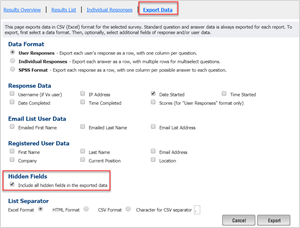
Once the survey has run, export the list and you will be able to identify those users who have not completed the survey.
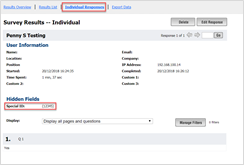
You will see from the image below that the unique identifier “Special ID” is showing up on the response I gave, but it doesn’t identify me.