Overview
This article will walk you through best practice for using tables within emails and web pages.
Content
Tables in emails
Creating tables in emails can give a variety of unpredictable results. This is because inserted tables can render differently in different email clients, particularly when viewed in responsive templates.
There is an Insert Table function in the text editor of emails:
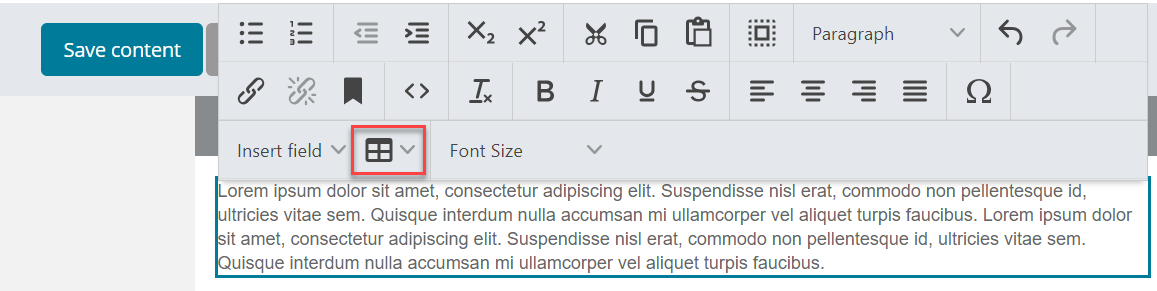
However, this Table Editor does not give you the full functionality which is normally given in Word. Once inserted, the table sometimes cannot be edited fully because the Cascading Style Sheet (CSS) instructions built into your template may override the formatting you try to apply.
See this article for information on the available options when inserting and editing tables.
Best Practice
For the reasons given above, Vuture’s recommendation is to work out what your regular table requirements are likely to be (two column, three column, etc.) and have a snippet built to these specifications. This table snippet will be fully tested in your responsive template and will have your firm’s branding applied.
Tables in Landing Pages/Web Pages
The insert table function works better in Landing Pages because they are not rendering in different email clients. It is therefore easier to predict how they will behave.
However, because of responsive design, it is still Vuture’s recommendation that you have a branded, purpose built snippet created for tables in Landing Pages.
Tables FAQ
1. How can I change the background colours in my table?
To change the background colour of a table, you need to begin by clicking into an area on the campaign in which you would like to insert the table. From there click the table icon to insert your table. After you have added your table with the proper amount of columns and rows you can begin to populate each cell with the appropriate data. Click on the cell in which you wish to add a colour. Select the drop down arrow on the table icon and then select Table Cell Properties. From there you can see there are many options to edit the cells in your table. If you select the Advanced tab you will see towards the bottom it allows you to select a colour for the background.
See this article for information on the available options when inserting and editing tables.
2. Why would my table look acceptable on screen, but appear skewed when sent as a Test Email?
Tables should never be copied and pasted in to your email page. If you do that, you will bring unwanted formatting into your template which will cause your table to look wrong when you send it as an email. The safest way to get a table into your email page is to have a branded table snippet built. If you cannot wait for that then use the Insert Table icon in the Text Editor.
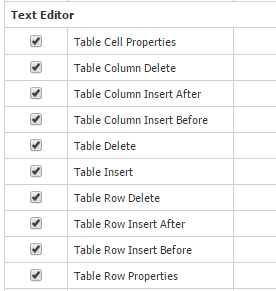
3. Is there any way to lock down the Insert Table functionality to prevent my Admin or Publisher level users from accessing it?
Yes it is possible to lock down various different parts of the Insert Table functionality. Discuss this with your Customer Success Manager or the Support team and they can remove access to the table functions by Role.
4. Can I insert a wider table than my template normally allows? Will the page expand to accommodate this?
No, this is not advisable. Most email templates are about 660 pixels wide and you should ensure that your table is less than that. If you use a wider table there is no guarantee that it will render correctly in different email formats.
5. What is the best way to work with tables in the Vuture platform?
The safest and most reliable way to work with tables in the Vuture platform is to get a table snippet built which is styled and branded for you and tested to work correctly with your responsive templates.
