Keywords: preview; email; testing; contact details; InterAction contacts; OnePlace; Dynamics; Salesforce; ContactEase; Dynamics; personalisation
Overview
The "Preview as Contact" feature is functionality that allows you to test emails and landing pages by previewing them in your browser as particular contacts will see them. For those integrated with InterAction, you may also send yourself a copy of an email to preview how your contacts will see it.
Note: This currently works not just for InterAction but for all our CRM integrations as well as with Vuture (csv) lists or "standalone".
The preview includes:
- Personalisation fields in emails and landing pages such as {First Name}
- Form field pre-population with the contact's details, allowing you to test prefilled forms as a specific contact
Content
How To Enable Preview As Contact
Please contact Vuture Support or your Customer Success Manager to enable this feature if you do not already have it enabled. They can enable:
How To Use Test and preview As contact
The new Campaign Editor UI has replaced the old "test email and "test page" icons with the "Test and preview" drop down menu. The old icons were unclear as to their purpose whereas the new menu groups together the View email, send test, and check email functions into a single location.
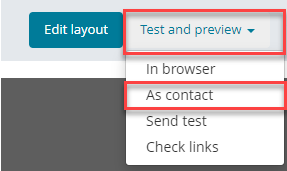
Clicking on option will open a screen where you can choose the data source, folder/list and contacts to preview. You can then select an individual record to display the Email or Landing Page with that individuals details.
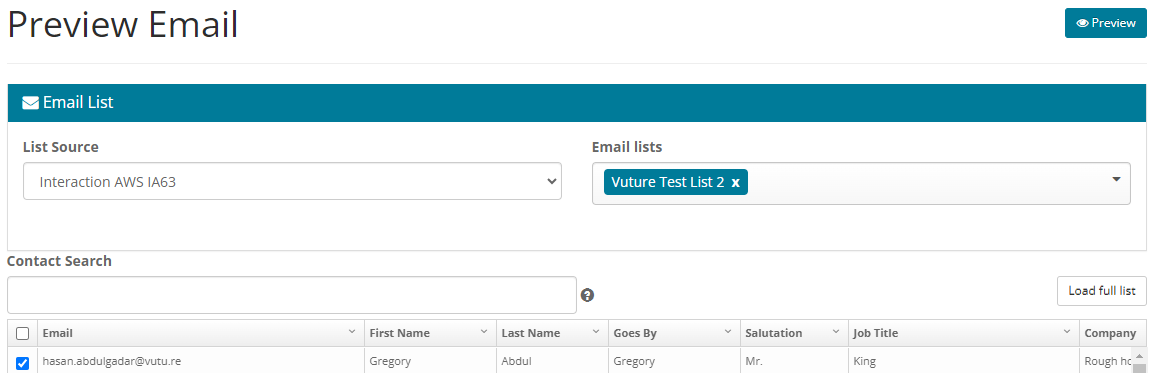
Select the required contact and click "Preview Checked Users" or "Preview" in the spacelab version of the page.
A new window will open displaying the email or landing page with the relevant contact-specific information populated.
You can continue the user journey for each contact by clicking on links or submitting the form but note that any form submissions will create a CRM activity and populate any additional fields.
Please note, you can't click on a form through an email. If you want to view a Landing page (e.g. prefilled form) as a specific contact, you must preview the page from the actual landing page.
How To Send An Email To Yourself As A Contact Will See It
Note: This currently works for InterAction.
It is possible to send yourself a test email as any of your contacts will see it.
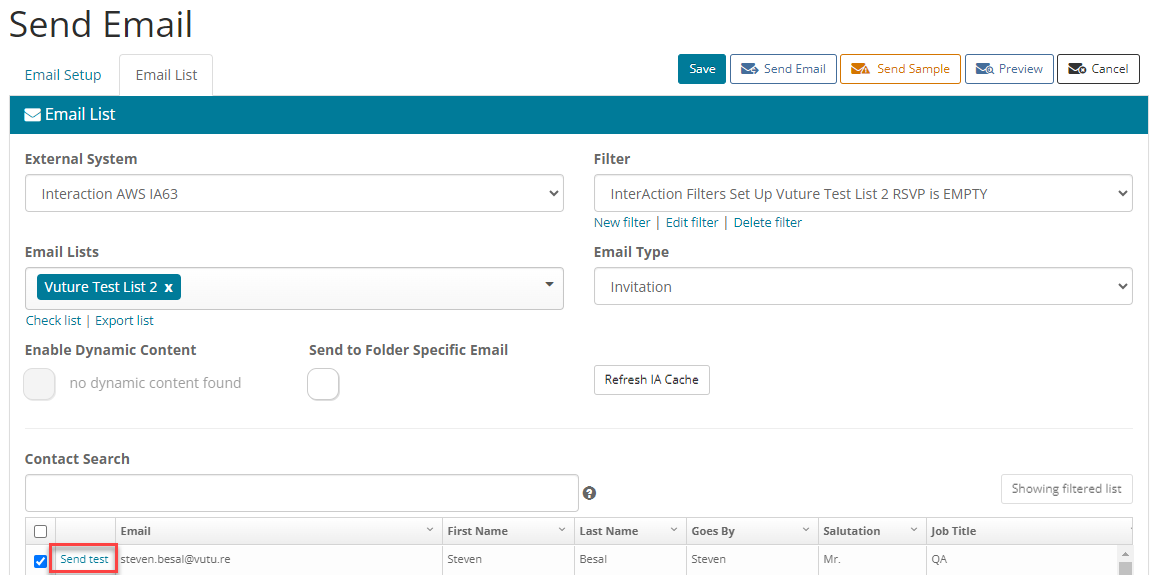
When you click "Send Email" and choose an InterAction List, by selecting the Email List tab you will see a "Send test" option in the contact list. Clicking "Send test" for a given contact will send you a copy of the email as that contact will see it, including all personalisation. You can click through to a landing page or forms and they will pre-populate and submit to InterAction. The contact will not receive the email.
Note that any form submissions will create a CRM activity and populate any additional fields.
