Overview
Template Campaigns are designed to make it easy to manage Sub Templates in Vuture, by automatically creating a corresponding Email Campaign for each template. Changes to templates can now be made directly in the matching campaign and published back to the template with a single click. Each time the template campaign is published, it is given a new version number.
Template Campaigns may contain Campaign Variables, and Triggers (if you have them enabled) making them more efficient when creating mailings.
Version numbers allow Vuture to know which version of a template each campaign was created from and this sets us up for a future development which will allow template updates to be pushed to existing campaigns on an older version of the template.
Contents
History
Prior to the release of Template Campaigns:
- You had to create a new email campaign from your template each time you wanted to make a change. Publishing the template required multiple clicks, and for you to remember which Template Category and Template you were updating.
Using Template Campaigns :
- There is a corresponding Template container holding the Template Campaign. You edit the Template Campaign as you edit any campaign. Once editing is complete there is a single click to Publish the Template.
Note: The old and new systems co-exist so you can use either system or both.
Road map
This feature is the first step on a set of improvements to template management. The next update is not ready to be released yet but it will allow you to push updates to templates to existing campaigns based on earlier versions of the same template.
Enabling Template Campaigns
To use this feature Vuture Support or your AM will:
1. Set a "Template Root Container". This is the container under which the template categories will exist. For example, you could create a new Campaign Templates container. This is set at Admin.System.Templates.Template root container.
Please do not use your root container as your template root container. Make sure you have a specified "Templates" container from which to branch out.
Note: If you are a brand new client with no currently existing sub templates, Support or your AM will place a copy of your Master template in this new container.
2. Enable the feature for your role in "Admin.Roles.Template Manager.Template Campaign".


Creating Template Containers
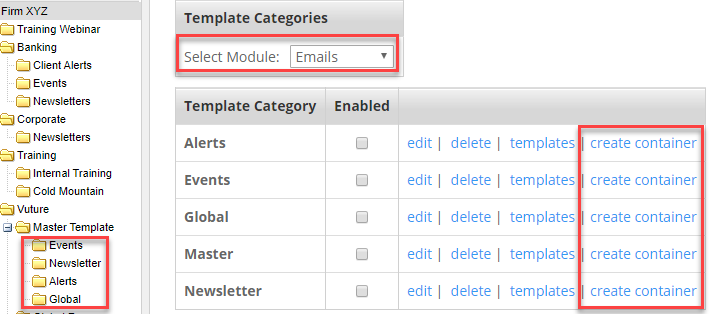
Once enabled, you will see the create container link in the "Admin.Containers & Users.Templates" tab. Clicking on "Create container" will create a one-to-one version of the Templates as Campaigns in the correct sub-container.
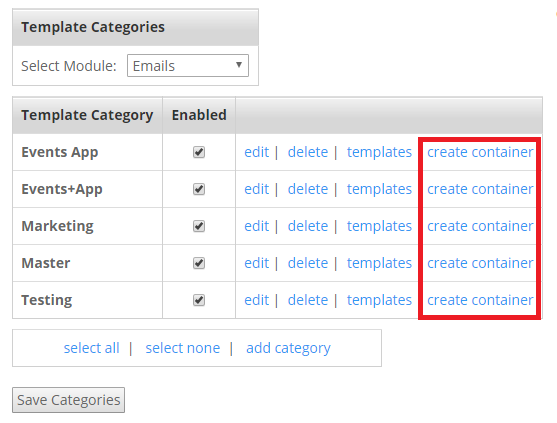
The sub-container is defined, or named, by the category.
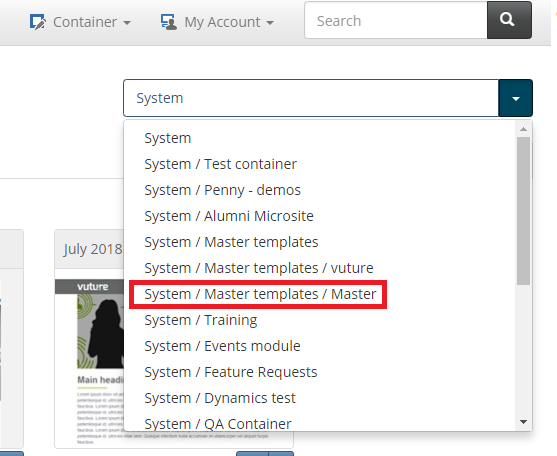
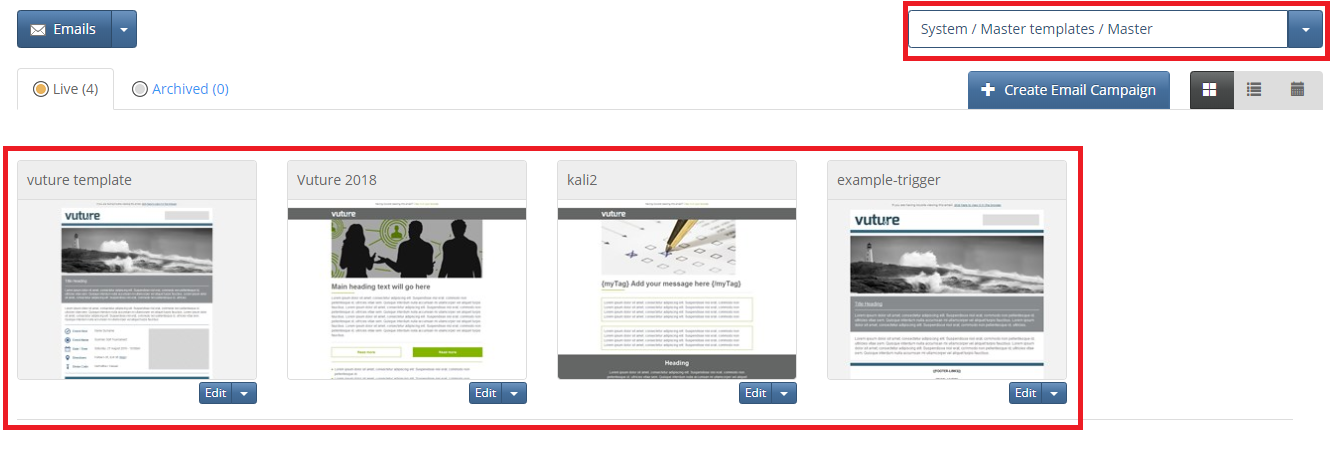
For example, the "Master" category will show as a sub-container under the selected root container: "System/Master Templates/Master".
Containers have their own privacy settings and you will be able to choose which users can see these new containers in the drop down list, in the same way that you currently choose for standard containers.
The Template Campaign
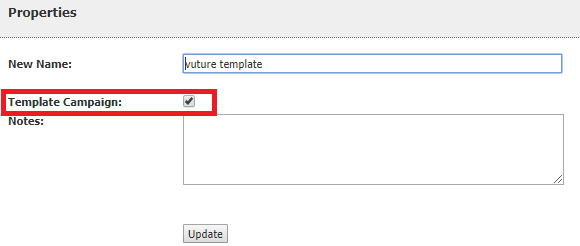
The Template Campaign is your template. You will notice it is different to other Email Campaigns as it has a "Publish Template" button. If you were to check in the campaign Properties you would see the "Template Campaign" is enabled.
To Create and Publish a new Template Campaign
- Firstly navigate to desired Template Container
- Create a new Campaign
- Remove snippets not required
- Create the desired layout
- Add default text, or prompts for content
- Save the Layout of each of the emails and landing pages (removing those not being used)
- Option > Save Template from this site
- Create a Category (e.g. Newsletters) or select from existing
- Type the Template name and Create Template
- Then click Properties and select to save as a Template Campaign.
Possible content you may wish to include with your Template Campaign:
- If you have an image at the top of the mailing, you could include a hyperlink to your company website.
- Create the hyperlink for Call to Action buttons to the Registration RSVP Prefill Landing page.
- Additional emails, such as a Booking confirmation Reminder to Register, or It's tomorrow.
- Campaign Variables, such as Event name, Date, Time, and Venue, (the value could be a reminder to update the variable).
- Triggers; while the CRM list and dates will of course change for each event, it will be useful to have the commonly used Triggers for a typical event structure saved, such as:
- Date Trigger: to Send the Invitation
- Date Trigger: to send Reminder to Register
- Recurring Trigger: for New names added to the list
- Date Trigger: to send the Reminder the Event is tomorrow
- To change it from a regular campaign to a Template Campaign, click the Options, and select .Properties, then place a check mark beside Template Campaign.
- Once saved, this will display the Publish Template button to allow you to quickly update the Template Campaign when changes are made.
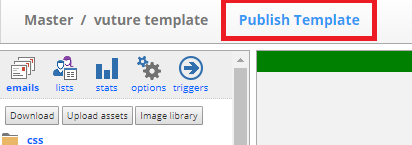
You edit your template by editing the corresponding template campaign, all the same snippets and features exist. It is not until you publish the template that the change is actually made to the template. If after publishing you want to revert the changes, since it works like a normal campaign you can use the page history to restore the pages back to their previous versions then republish the template. Once you publish an edited version, any future Email Campaign created with this template will have your changes.
Please note, at this point changes made to a template cannot be pushed to Email Campaigns that were created before a new published version.
Process for existing clients using Template Campaigns
After Account Manager specifies your new Master Template container in the Admin area and enables the feature for your role.
- In Admin > Containers and Users > Template Categories > Module Emails, click create container for each Template Category for any existing sub-template that you want to continue using.
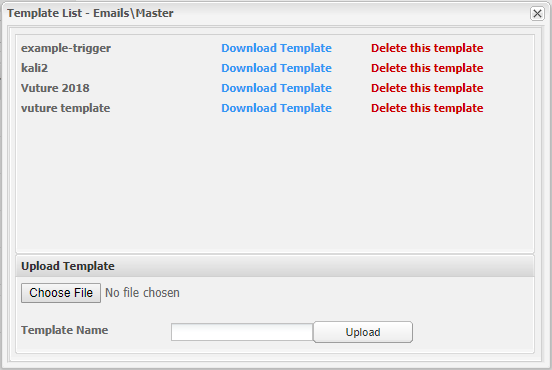
Note: To view the templates in each Template Category, click the template link. This will open a window listing all templates in that Category.
This will create a series of containers as a sub-container below the Master Template, named by Category. You will only need to do this once.
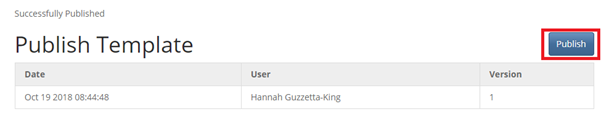
- When you want to edit any Template Campaign, navigate to the correct container and template campaign, make the change the click Publish Template.
All versions of the Template are displayed, showing the date and time created, and who made the change.
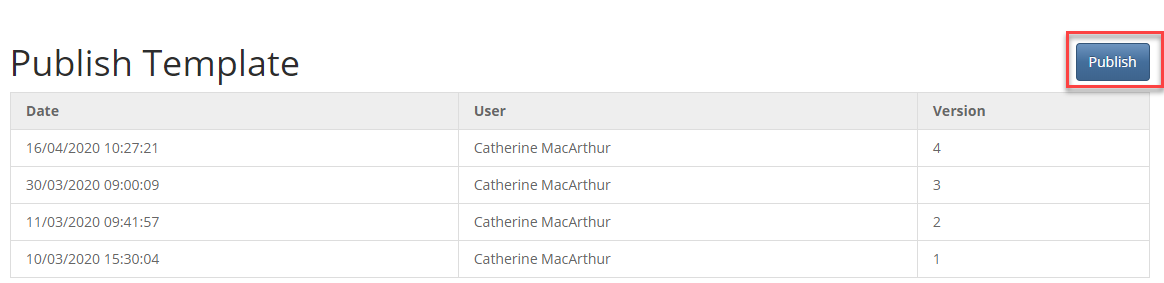
New campaigns created after and Template Campaign has been Published will automatically have the changes that you have made.
Process using Sub templates
(Note: Master templates are generally only edited by Vuture staff)
- Create a Sub-templates container called Sub-templates.
- In the Sub-templates container, using a copy of the Master template, create a Sub-template by creating a campaign as if for a normal email campaign, create landing pages, forms, reminder pages or other pages as necessary; include variables with placeholder values; add triggers if desired, then save the campaign
- In the new campaign, in Options, save the new campaign as a Sub-template and assign it to a Category.
- In the Admin area, make the sub-template available to the appropriate containers by allocating the Categories to containers.
- Repeat as often as required from 2. above, for as many Sub-templates as you need.
Points to note:
- If you update a page but don't publish the page, the draft version will not be available when you create a new campaign from the template
- If you "copy" a template campaign, you must rename the copy version before completing the process. Failure to do so will not create a copy campaign as templates cannot have the same name under the same category
- If you send an email from a template campaign, you must remember to hit "resend" to keep the page in the compose folder. Once you save a template campaign, any pages in the sent folders will be removed
- This feature is currently available for Email templates, not Website templates
You can send emails from Template Campaigns for testing but these are not saved with the templates. Sent items should be removed periodically from Template Campaigns but the volumes will be very low so will have negligible effect on reporting
If you update the layout of a page in the Template Campaign, you must "Save Layout" so that preview can be viewed when selecting the Template Campaign for a new mailing.
If you create a sub-template through Options.Create Template, you will need to re-click "Create Container" in the Containers and Users area as in step 2, to see it as a Template Campaign in the container.
