As part of our work towards helping users be more efficient, reduce reliance on the Support team and allow users to see more in their platform for themselves, we have shared some useful tools, on a series of Roles. We believe these tools will save our users time and effort; giving our users a clearer picture of the way their platform is being used and a quick way to analyse recent changes on the platform.
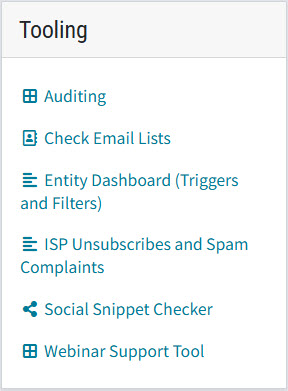
We have put these tools together in a menu under Help, Tooling.
Select Tooling and the menu will open for you.
Prerequisites
-
Your user account must have the main Tooling Role enabled at Admin>Help>Tooling.
-
For some items in the list of Tools, you will only see them if your account is connected to an instance that has that integration. For example the InterAction and Intapp tools require the user to have the relevant Role or access enabled, as described in the sections below, and the platform to be integrated to that CRM.
-
For all CRMs, the Entity Dashboard for viewing Triggers and Filters requires that an additional Role is enabled at Admin.Roles.Reports.Entity Dashboard Tool Access.
- The ISP Feedback Loop and Spam Complaints Dashboard requires that an additional Role is enabled at Admin.Roles.ISP Feedback Loop.
- The Webinar Support Tool only applies to client platforms which have a webinar integration and the corresponding webinar integration enabled in Roles.
-
The six tools which could apply to all client platforms, irrespective of CRM in use, are as shown in the image above. If your platform is integrated with either InterAction or Intapp you will see additional items in the menu, as described in further sections of the Knowledge Base.
To find out more, search Tooling in the Knowledge Base or use these Links to Knowledge Base articles:
Auditing (look below on this page)
Check Email Lists
Entity Dashboard (Triggers and Filters)
ISP Unsubscribes and Spam Complaints
Social Snippet Checker
Webinar Support Tool
Possible Actions
Q. What can you do with this information?
A. The tools have been created to give visibility only; to help clients understand what has happened in different parts of their platform. Users cannot interact with the dashboards so you cannot jump to the named contact record or mailing list, for example. With the exception of the Entity Dashboard, these dashboards are View Only.
The first Tool in the list, Auditing, provides a visual reference of changes made to 5 areas of the platform. The changes are held under 5 tabs - Roles, Global Variables, Users, Lists and Triggers.
The Auditing area is intended to display only the parts of the platform where changes have been made; it is not a complete list of all Triggers on the platform, for example. It records the changes made, with Before and After values, and which User made the change. It is Display Only, in that you cannot click to jump to that particular email or user record. It is intended to give visibility to when and where changes have been made to the platform, and by whom, answering the question: "Who did that?".
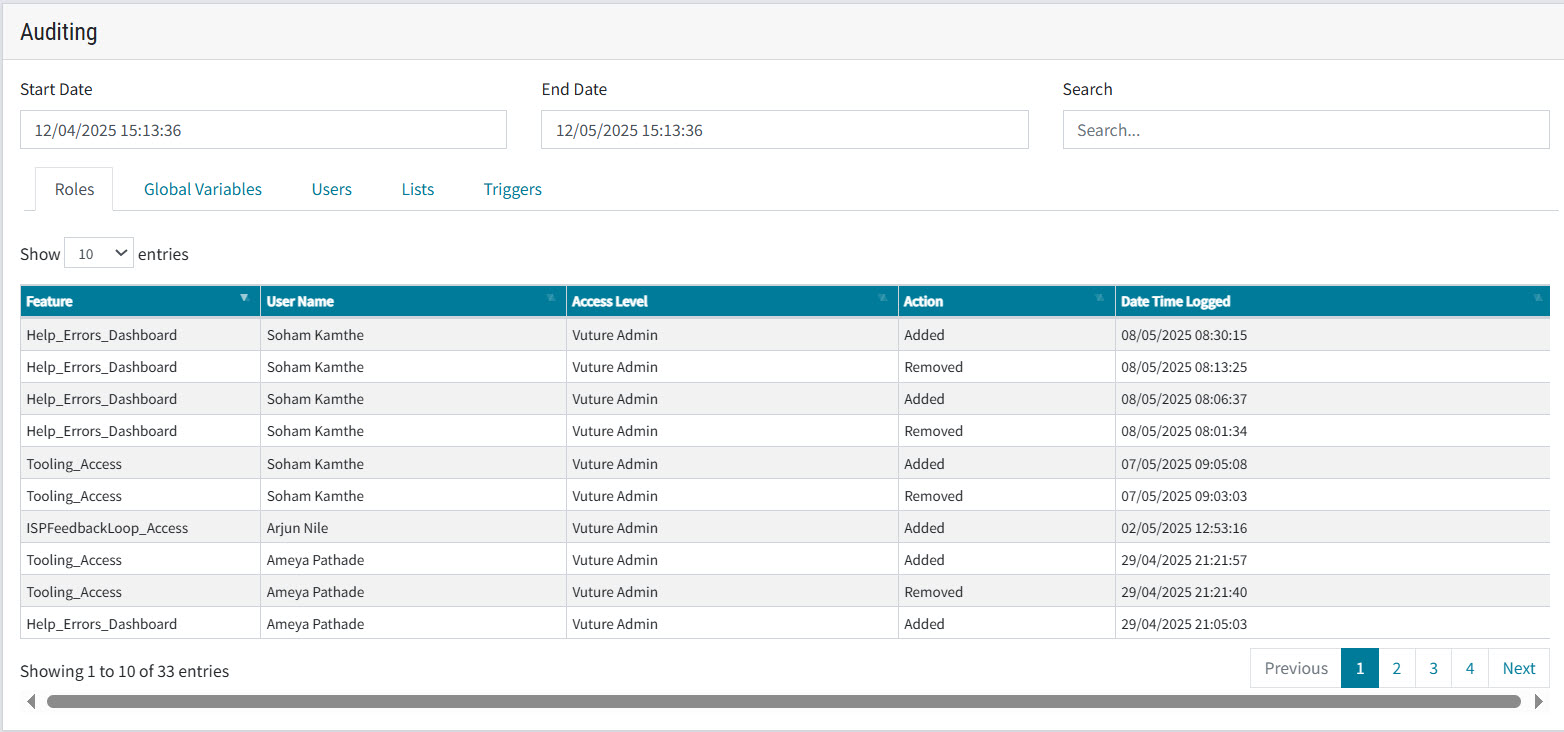
1. a. Auditing Roles
For the date selected (Start and End at the top of screen), the Roles tab displays changes made to any Role, the user who made the change and the date it happened.
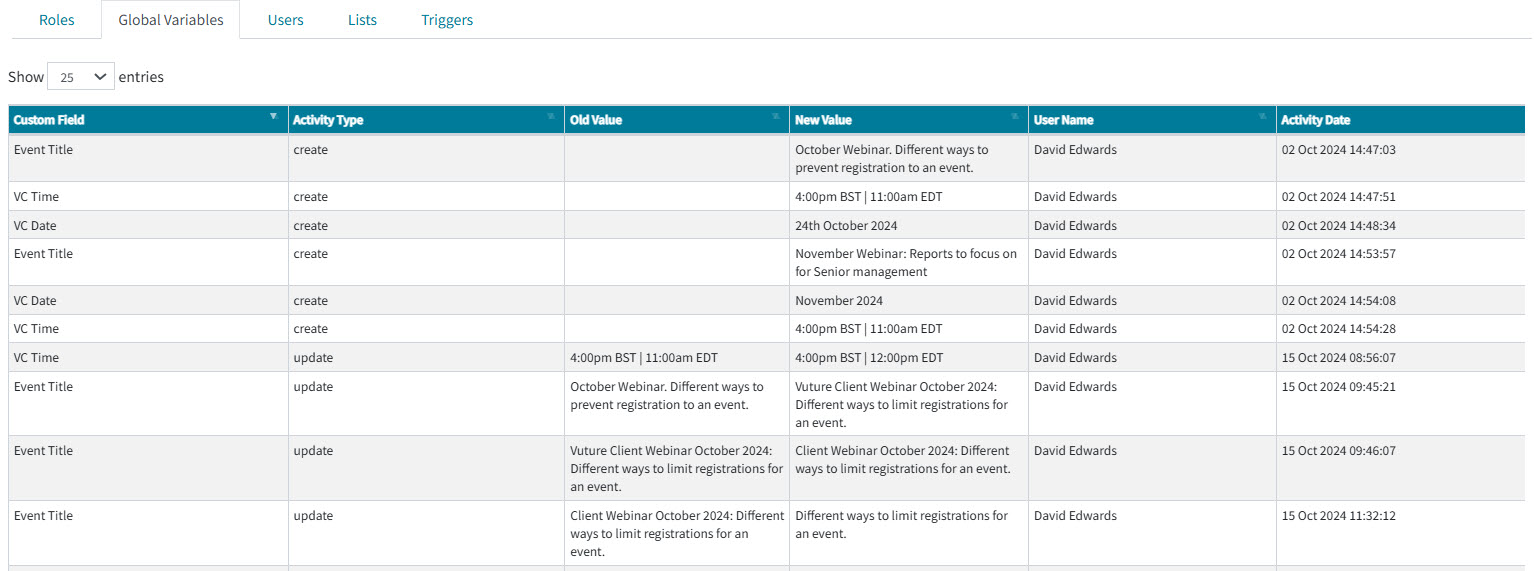
1. b. Auditing Global Variables
Selecting the Global Variables tab displays, for the date period selected, all the global variables that have been created, or edited, during that period; the value before and after the change and who made the change.
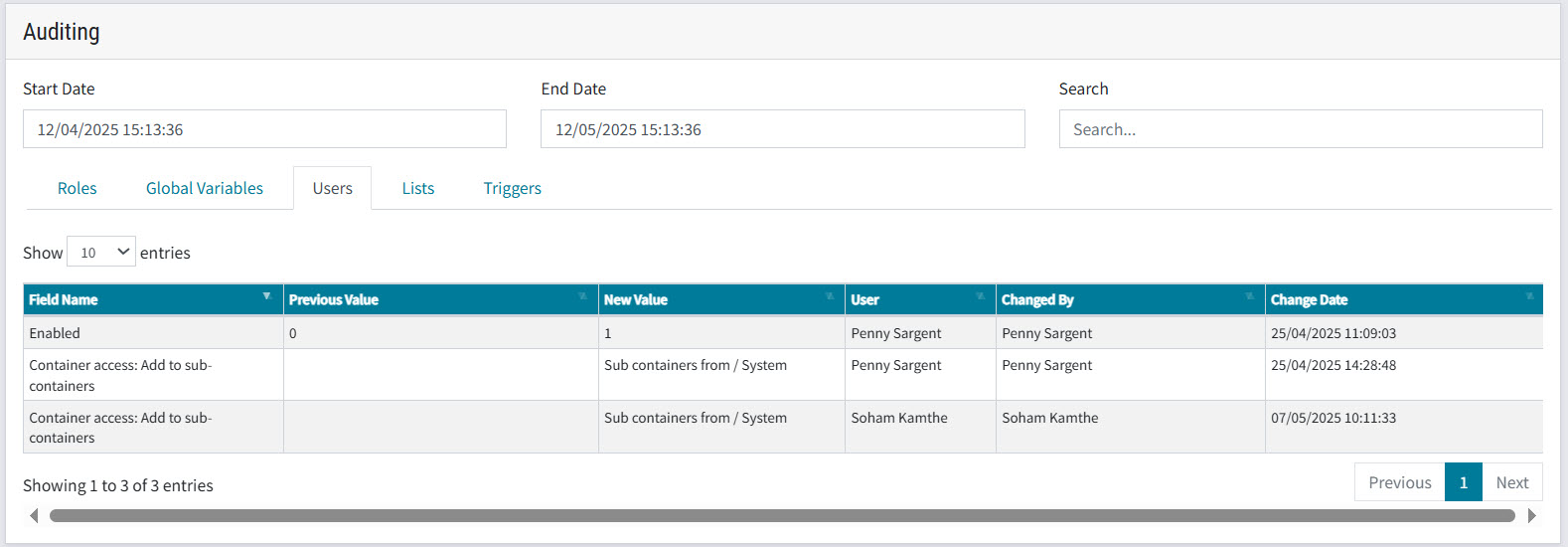
1. c. Auditing Users
The 'Users' tab displays user account changes, shows added or removed permissions to access containers, and new users being added to the platform.
1. d. Auditing Lists
This tab displays all mailing lists added to, or removed from, containers in the platform, with the user responsible and the date. Unsuccessful uploads are also displayed.
Note: the user viewing this Audit must have container access rights to see all the containers displayed.
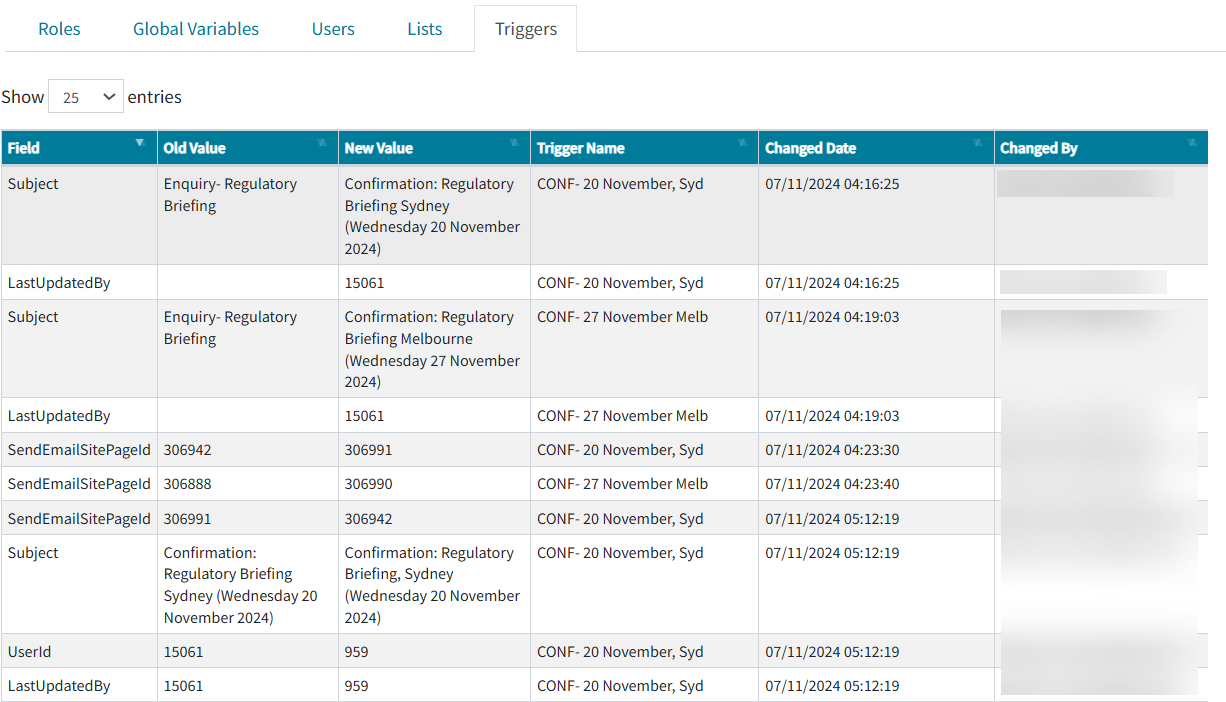
1. e. Auditing Triggers
The Triggers tab displays, for any triggers which were edited during the date period, which field in the trigger was edited, the old and new values, who updated it, and when. It does not display every trigger in the platform, only those edited during the date period defined. For users wishing to see all triggers across the platform, please use the Entity Dashboard described below.
Further Tools
To see information on the other Tools, search Tooling or follow the links below to separate Knowledge Base articles:
Check Email Lists
Entity Dashboard (Triggers and Filters)
ISP Unsubscribes and Spam Complaints
Social Snippet Checker
Webinar Support Tool
