Access the Dashboard
As part of our work towards helping users be more efficient, reduce reliance on the Support team and allow users to see more in their platform for themselves, we have shared some useful tools, on a series of Roles. We believe these tools will save our users time and effort; giving our users a clearer picture of the way their platform is being used and a quick way to analyse recent changes on the platform.
We have put these tools together in a menu under Help, Tooling. The Tooling menu includes access to the ISP Complaints Dashboard as described below.
Introduction to the Feedback Loop
When a contact receives an email and decides to click on either Spam, Complain or Mark as Junk, this generates an ISP complaint. All ISP complainants must be unsubscribed from all mailings and the ISP will send Vuture a notification that the contact has made this action. This process from contact to ISP to Vuture is called the Feedback Loop.
Why is this important?
The more ISP complaints that are received for a sender, the lower their deliverability rates will be. This is because it is one of the key metrics which ISPs use to assess sender reputation. It is therefore in Vuture clients’ best interests to keep the number of ISP complaints as low as possible by:
- cleaning email lists
- never re-using old lists or buying in lists, and
- ensuring that emails are sent only to those contacts who are actively engaged and have consented to receive them.
When an ISP complaint notification is received, Vuture will automatically suppress this contact from receiving any further emails from the instance as part of the feedback loop. Vuture subscribes to all the major ISP feedback loops:
|
Yahoo
AOL
Hotmail
BlueTie
Comcast
Fastmail
Gandi
Italia Online (Libero and Virgilio)
La Poste
|
Liberty Global (Chello, UPC, Unity Media)
Locaweb
Mail.Ru
OpenSRS
Rackspace
SEZNAM
SFR
SilverSky
Swisscom
|
Synacor
Telecom Italia
Telenet
Telenor
Telstra
Terra
UOL
Virgin Media
Ziggo
|
Vuture always unsubscribes recipients who make complaints through feedback loops and, when enabled, this process will be automatic. This process uses the standard, global unsubscribe process.
View the Contacts who have Complained
To make it easy for Vuture clients to see who has been suppressed because of their complaint to an ISP, we have created a dashboard, which is available to Vuture’s client Admin users. This contains the Email Address affected (with a link to the actual email), the Date the email was sent to the contact and both the CRM Contact ID and the Vuture Contact ID.
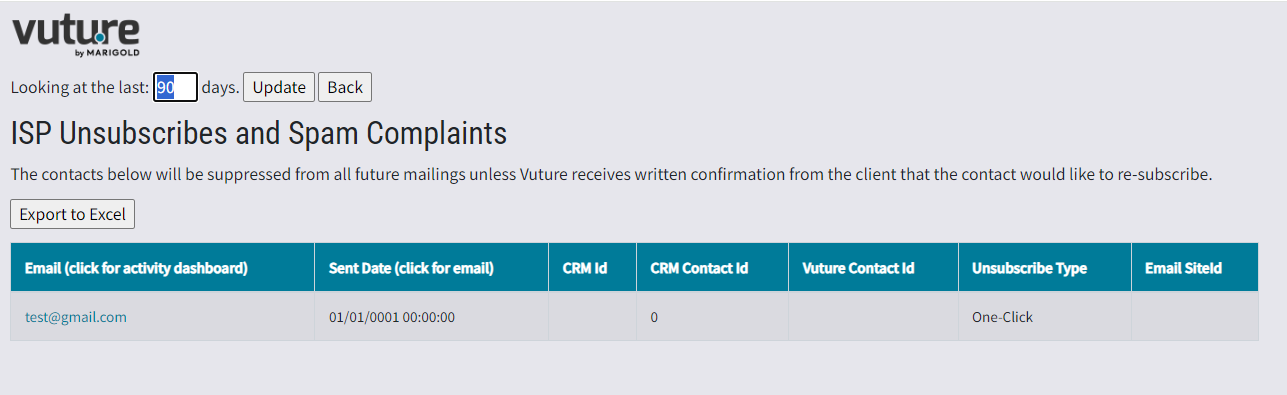
Column Headers Explained
Email (click for activity dashboard) The email address will allow users to click and view the Individual Activity Dashboard for a contact.
Sent Date (click for email) Clicking this link will allow the user to view the Email History screen for the original email sent which generated the report.
CRM Id is the id of the crm connected to the Vuture instance. Vuture Admins can see this ID in Admin.External Systems. If the number is zero it means that we don't see that contact as part of the integrated crm so the contact is from a standalone list.
CRM Contact Id is the unique ID number of the contact on the integrated crm system.
Vuture Contact Id is the unique ID number allocated to the contact by Vuture. This will help Vuture users to track and identify contacts who have reported an email sent to them as Spam or Junk.
Unsubscribe Type indicates whether the unsubscribe originates from the new, one-click, Unsubscribe in the header of an email, or from an ISP complaint such as Spam, Complain or Mark as Junk. The header unsubscribes are marked as One-click and the rest (Spam, Complain or Mark as Junk) are marked as FBL -which is Feedback Loop.
Email Site Id offers a quick link back to the email which generated the complaint or the unsubscribe.
Effective February 2024 - Gmail/Yahoo One-Click Unsubscribe Links in Email Headers
Since the announcement of strict requirements from Gmail and Yahoo, with others bound to follow, we have also begun to display, in this dashboard, the email addresses of those contacts who click the link to Unsubscribe in the email header.
Prerequisites
To automatically suppress complainants, and to see the new Suppressed Spam Complaints line in the Email Sending Confirmation email, the following task and config must be enabled:
Task: Admin.Services.FeedbackLoopDownloadTask must be enabled
Config: Admin.System.Emails.Enable ISP Complaints Suppression must be enabled
Plus, to see the new dashboard:
Role: Admin.Roles.ISP Feedback Loop must be enabled.
This functionality became available in February 2024, with further enhancements to the dashboard (Unsubscribe Type, for example) in February or March, depending on your platform deployment date.
The Process for Spam Complaints
When a contact marks an email as Spam, Complain or Mark as Junk, the following process will occur:
- An email is sent, which will arrive in abuse@vutu.re
- The contact’s email address will be added to the Vuture client’s global suppression list
- The email address will be presented in the new dashboard, available to the client at Home.Help.Healthchecks.View ISP Unsubscribes and Spam Complaints
- Any emails sent from that instance will suppress the contact’s email address.
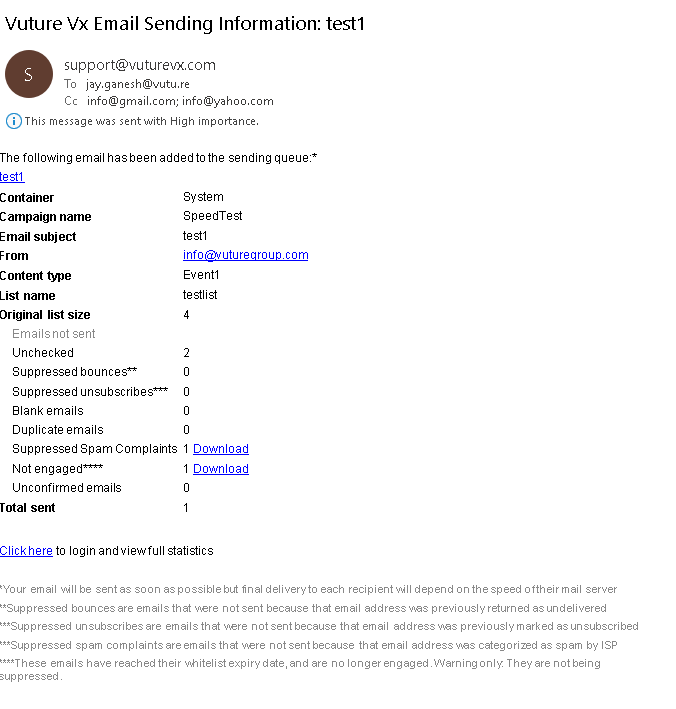
- The Email Sending Confirmation email will include the suppressed email addresses under a new heading of Suppressed Spam Complaints, with a link to download, like this:
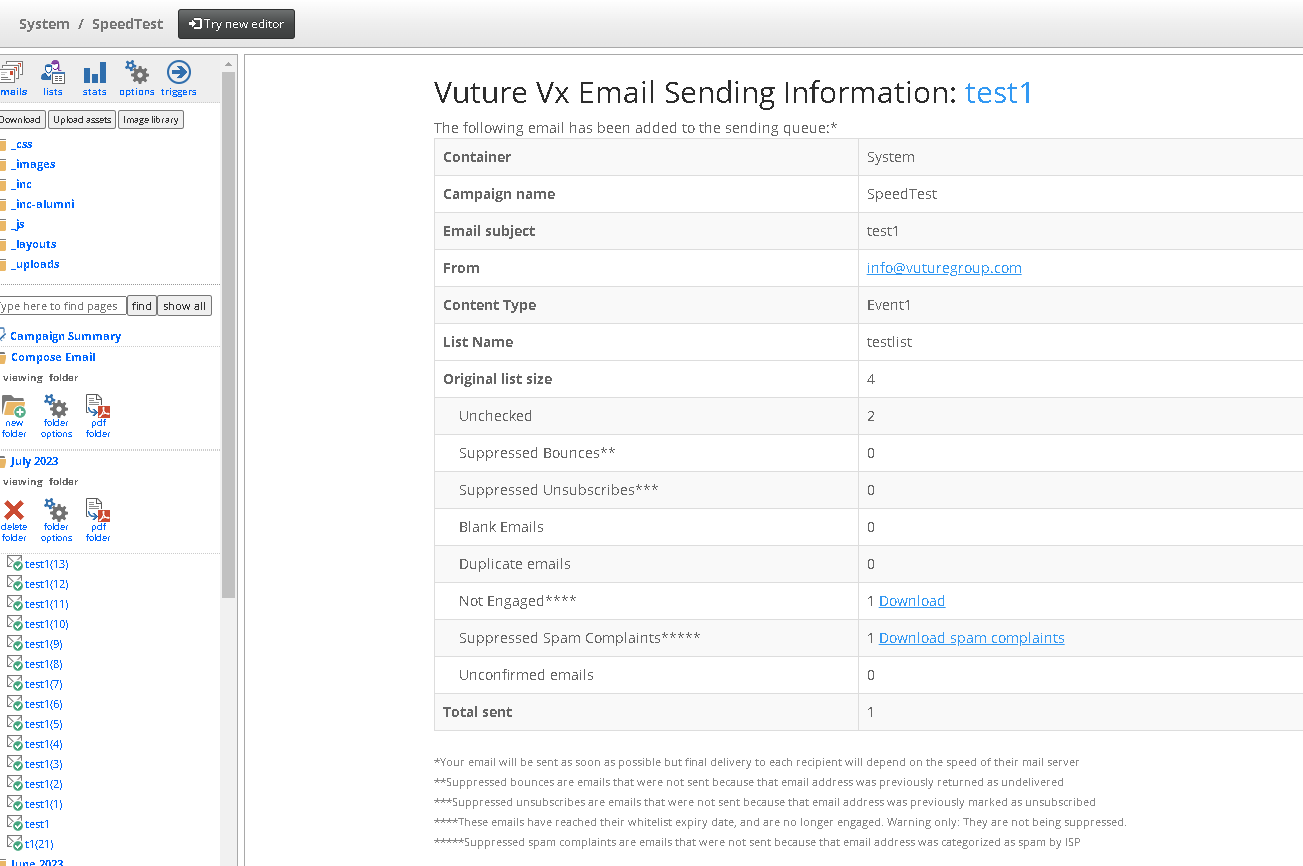
The online version of the Email Sending Confirmation email will also contain a new line for Suppressed Spam Complaints, like this:
Investigating Spam Complaints
If a large number of Spam complaints are being received, clients should consider using the Download option in the Email Sending Confirmation email to investigate:
- The language used in Subject lines. Are the Subject lines misleading? If so, this may lead to suspicion, frustration, or even anger, on the part of recipients. They may “mark as Spam” without even opening the email next time.
- Investigate how the contacts got onto the mailing lists initially. Did all contacts consent to receive these emails?
- The age of the lists being used. When were they last cleansed to remove all email addresses of contacts who have not responded or reacted for a year or more?
Use the Dashboard to identify “problem” email sends; that is, emails which generated a high number of Spam complaints, and analyse why this happened, to prevent further Spam complaints.
To Access the Dashboard
FAQs
Q. The email addresses in my dashboard are all together. Can I see which ones were spam complaints and which were unsubscribes?
A. Yes. In the Unsubscribe Type column. The header unsubscribes are marked as One-click and the rest (Spam, Complain or Mark as Junk) are marked as FBL -which is Feedback Loop.
Q. Can we please have an extra column which gives the SiteID of the email that caused the spam complaint? This will help in spotting a "problem email" more quickly.
A. Yes. This was made available in Phase 2 of the dashboard, released late February 2024.
Q. Can you make each column sortable? It would make it quicker to analyse where the issues are.
A. Unfortunately no. However you can export the dashboard to Excel and sort in there.
Q. If someone accidentally unsubscribes, who should we contact to get this reversed?
A. You will need to raise a Support ticket. We need to have it in writing from you, confirming that the person wishes to be re-subscribed.
