Email Digest Mailings - Analysis Reports
Introduction
Prerequisites
Notes
Navigating to the Reports
Two Reports: What is the Difference?
Introduction
To help clients who have the Digest Centre module to analyse their Email Digest Mailings, and to understand which contacts are (or are not) receiving Digest mailings and why, we have developed an Email Digest Analysis Dashboard.
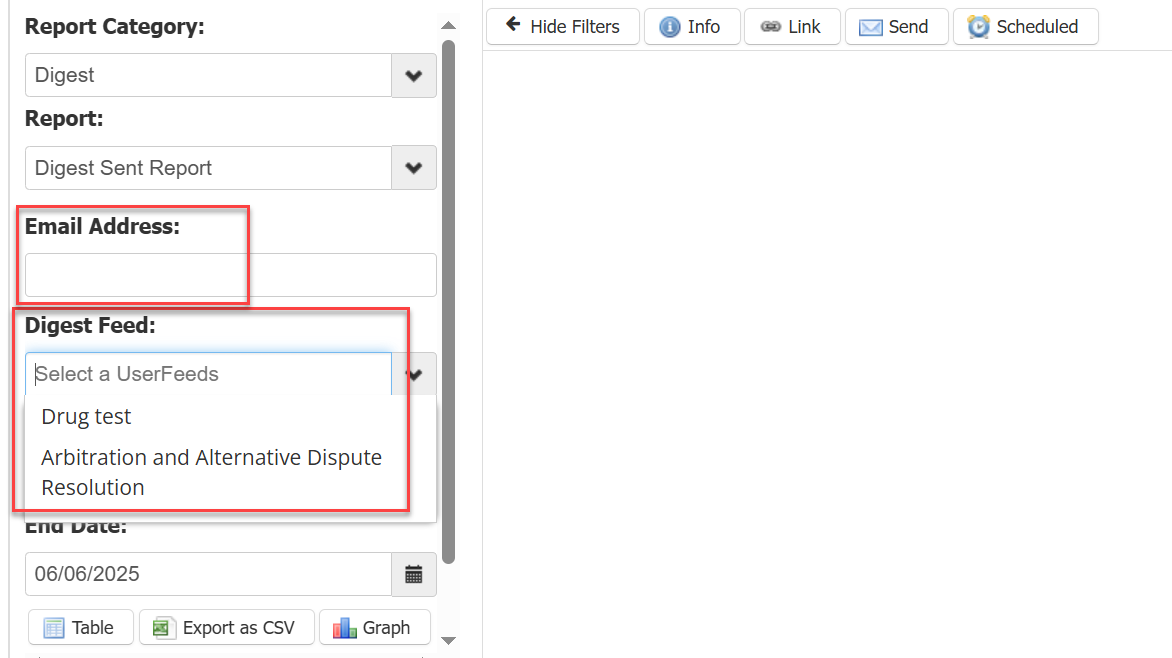
The Dashboard reports will display the recipients of any particular mailing, with filters available for Date, for Email Address and for Digest Feed.

Prerequisites
-
You should have the Digest Centre enabled first, to see these reports. There is an article here giving more information about the Digest Centre and how to set it up. This article focuses on InterAction CRM, but the Digest Centre is available for other CRMs too. Talk to your CSM.
-
Enable Admin>Roles>Reports>Digest Sent Report Analysis Dashboard for your Role
Notes
-
The Dashboard displays both a graph and a table for for the Digest Sent Report
-
Filters work in combination with each other, and will affect every report in the dashboard. If a report shows no results, use the arrow to re-open the Filters box and try entering a different parameter.
-
The Date range is mandatory, with the default date range as one month. The maximum allowed range is one year, to prevent the report getting too huge.
-
Specifying the Digest Feed is optional, and can be used to focus the report to display the mailings from just one feed.
-
The Email Address in the filter box is a text field and is optional. It allows you to focus the report to view the Digest mailings that just one contact has received.
Navigating to the Reports
Navigate to Reports and Digest Reports

The first report in the drop down is the Digest Sent Report. Then the Digest Sent Report by Date.

Two Reports: What is the Difference?
The difference between these two reports is that the Digest Sent Report displays the following:

Which you can filter on a particular user by email, or on a selected Digest Feed like this:
The Digest Sent Report by Date displays the same column headers as the previous report:

But the data can be narrowed down to focus on a specific day, like this:

This allows you to analyse the mailings for a specific day.
Contact your Customer Success Manager if you have any questions.
