Bounceback Types
When an email is rejected by a subscriber's email server, it's called a bounce. There are two primary types of bounces, hard bounce and soft bounce. By default, Vuture processes bounces once an hour.
Soft Bounces
Soft Bounces are temporarily unavailable emails. We will try to deliver to these email addresses multiple times before classifying them as a soft bounce.
Vuture automatically suppresses any emails that soft bounce 5 times consecutively. You can check your soft bounce limit any time by using the Email Deliverability Healthcheck, accessed via the Vuture Home screen.Help.Healthchecks. There is a Help Desk article about the Healthcheck here.
Hard Bounces
By default, Vuture will suppress any email address that hard bounces 2 times consecutively.
Auto Replies
There is a third category of bounce which is an Auto-reply. There are different types of automated responses, the most common being out of office messages. These auto-replies are not suppressed at all, unlike soft and hard bounces, and they are not counted as bounces in our reporting nor are they written back as a bounce activity to the client CRM.
There is a general article here which gives more detailed descriptions of the different categories of bounces.
Writing Back Bounces to the Intapp CRM
The Bounced Email field lives at the Contact level and can be called anything that the client likes, but typically we recommend that our Vuture clients call it Bounced Email.
The two possible values for this field are Yes / No.
There is an example image below but this field can be in multiple view screens and is bespoke to each individual client so there is no set place for it.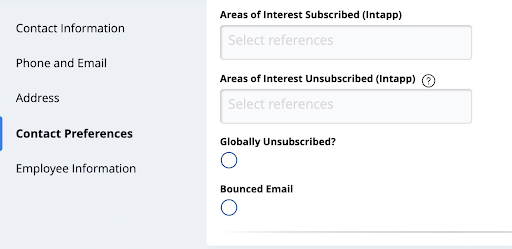
This Bounced Email field will be updated once the email address hard bounces 2 times consecutively
Activities
Hard Bounces will also appear in the CRM as an Activity called Hard Bounce.
The Activity called Hard Bounce lives in our Vuture Activities screen which sits under the Data Administration tab in Intapp.
Reporting Bounces for One Email
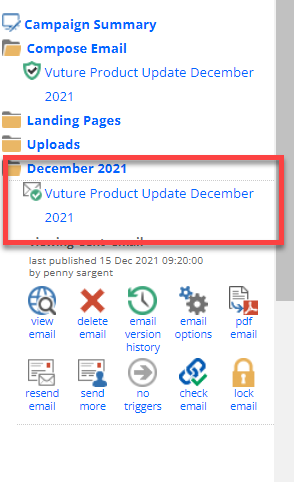
If you want to see which emails bounce when you send an email, click on the relevant email in the dated Sent folder in Vuture.
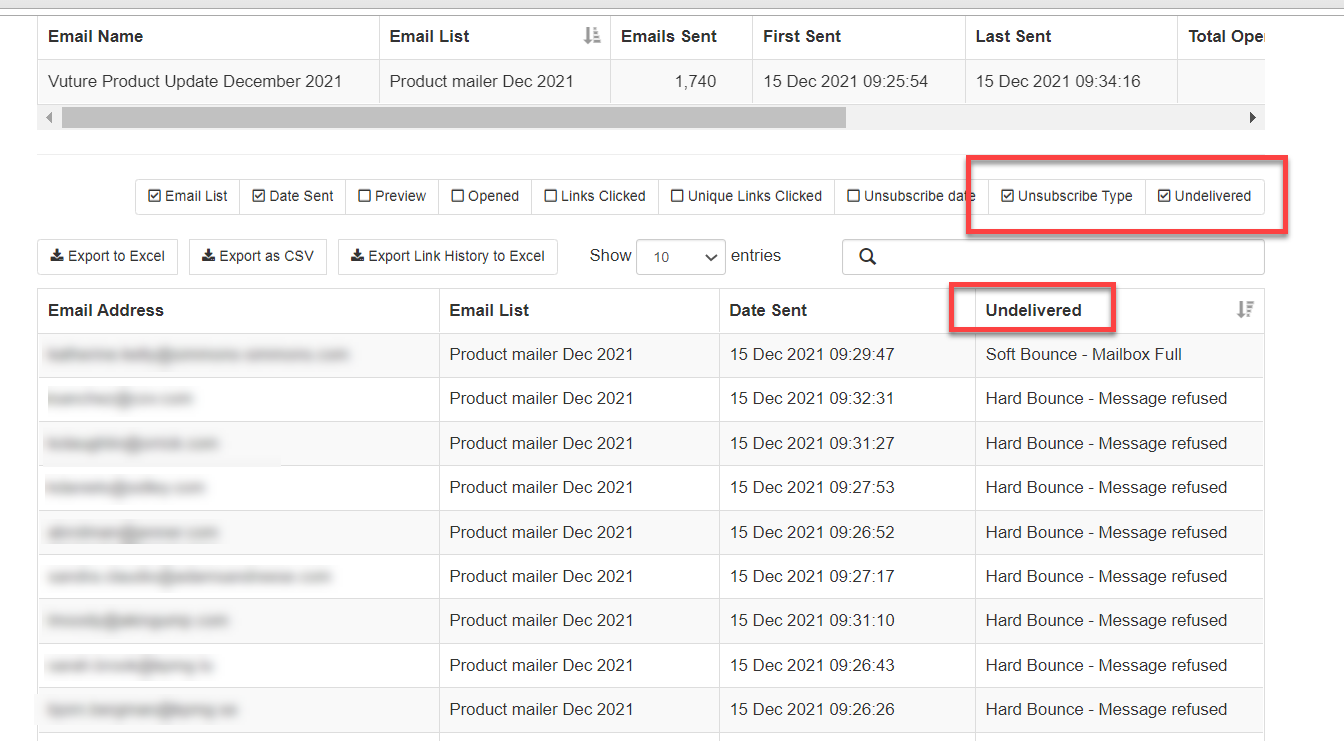
The resulting screen shows all the contacts and, if you check the Unsubscribe and Undelivered boxes, the reason why the email was undelivered. You can export this list to Excel if you wish by clicking on Export to Excel.
Reporting Bounces for all Bounced Emails
The best place to see all your bounces is in the Global Bounceback report. Go to Home screen.Reports and then select Email>Global Bouncebacks. Select the time frame you want to view and click on Table.
Reporting Using the Bouncebacks Dashboard
You can also use the Bouncebacks Dashboard. Further information on this dashboard can be found here.
