Introduction
Zoom will retire their JWT authentication method for integrations, starting in June 2023. From June 2023 you will no longer be able to generate new JWT credentials. Following on from this, in September 2023, all JWT integrations will cease to function.
As a result we would like all our clients to migrate over to the Vuture for Zoom Marketplace app. This will ensure that users can continue to use the Zoom integration with their Vuture instance. Below is a migration guide for how to achieve this.
Prerequisites
For Your Firm
-
- Add app via this link https://marketplace.zoom.us/apps/fpm2MGjIRQKs-S1lh75s1g
- Ask an admin user with developer privileges to complete these steps (this will probably be the same person at your firm that set up the original integration).
- Ensure the admin user has ‘Marketplace’ permission.
- Ensure the admin user has the following ‘account role privileges’ turned on in Zoom you check using this link You can check here https://marketplace.zoom.us/apphelp/fpm2MGjIRQKs-S1lh75s1g
- User and Permission Management - Users
- Dashboard and Report - Usage reports
- Account Management - Recording management
NOTE: When the admin user is logged in as a Zoom user with the ‘Marketplace’ permission turned on, they will be able to check whether they have the correct Zoom Account Role Privileges for the app by entering this link into their browser - https://marketplace.zoom.us/apphelp/fpm2MGjIRQKs-S1lh75s1g.
For Vuture
- Ensure the client is on version 13.7 of Vuture, at least
- Turn on the Marketplace authentication config here - Admin.System.Webinars.Zoom Marketplace OAuth2 Enabled
NOTE: All other configs should be turned on for Zoom already, for clients who were previously using the Zoom integration.
Migration Steps for Client Firm Admin Users
There is a video (no sound) demonstrating these steps at the foot of this page.
- Go to the webinar setup tool at Home>Admin>Webinar setup.
- Check that ‘Zoom’ is selected as the vendor.
- Check that ‘Zoom’ is selected as the Webinar Source
- If you are migrating away from JWT you will already have credentials filled in here. Select ‘OAuth2Marketplace’ as the Webinar Auth Type. This will clear the credentials from the webinar setup tool and you should see new fields as shown in the screenshot below.
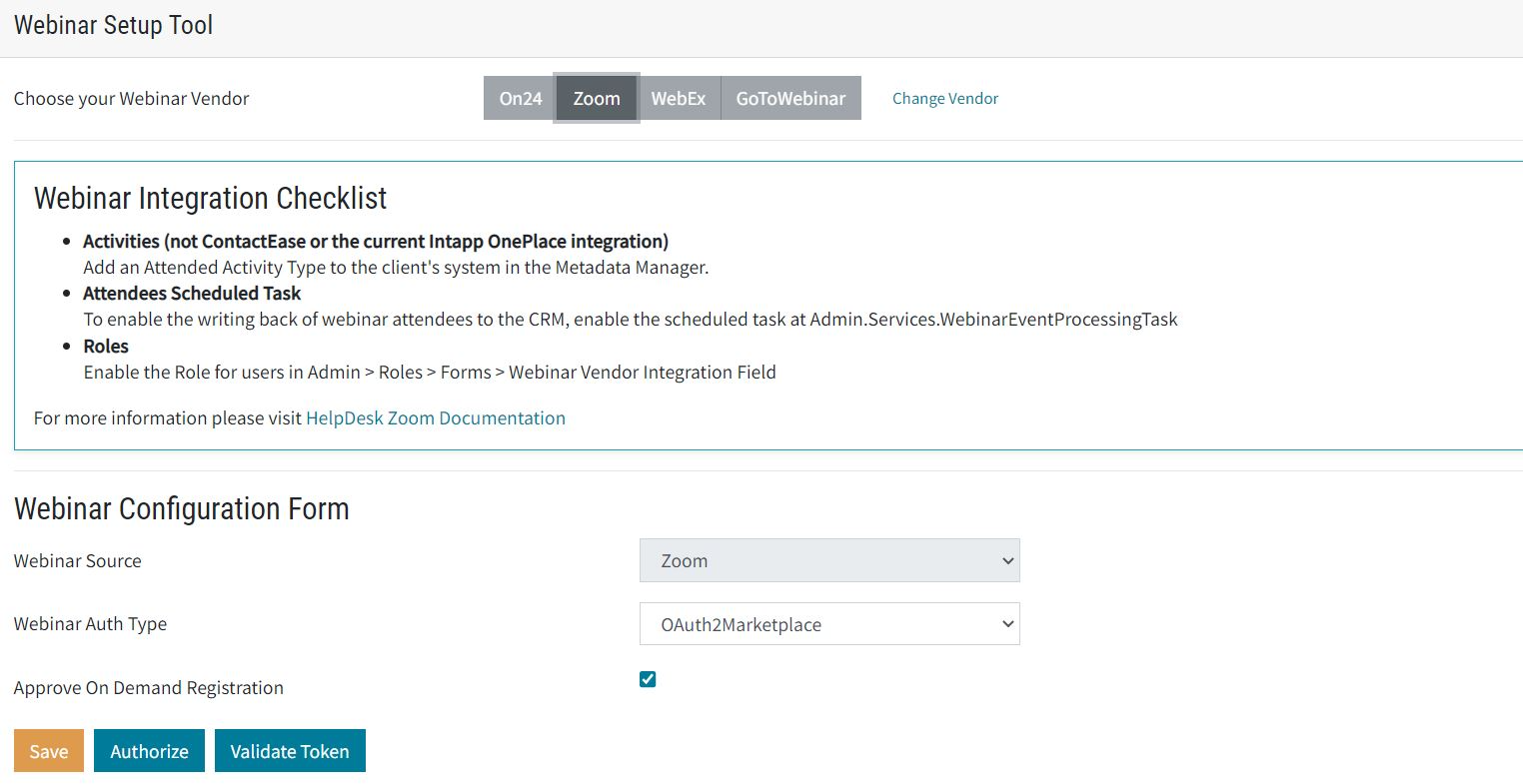
- Tick the ‘Approve on Demand Recordings’ check box.
- Click the ‘Save’ button first
- Then click the ‘Authorize’ button
- You will be taken to a Zoom page where you will need to log in using a developer account that has all the permissions listed above.
- Once logged in you will be asked to review the Vuture marketplace app, including the API scopes, and then asked to approve.
- Once approved, you should be redirected back to the webinar support tool. If not, you should navigate back there manually.
- You should get the green success message in the top right of the screen to confirm that the authorisation has been successful.
- You can now click the ‘Validate Token’ button and should receive the green confirmation message in the top right of your screen to confirm the token is valid.
Your firm’s integration is now set up on Zoom Marketplace. The functionality of Zoom Marketplace is identical to the JWT version so your users will be able to continue using the integration as normal.
Zoom Document links
FAQs
Q: What is the deadline for the migration to Zoom Marketplace?
A: 1st Sep 2023 is the deadline but please do not wait until then.
Q: I’m getting an error saying ‘You cannot authorize this app’, what should I do?
A: Please check that your Zoom account has all the permissions listed in this article above, under ‘Prerequisites’.
If you are still having issues after this, please check this Zoom Help link for Troubleshooting permissions errors - https://devsupport.zoom.us/hc/en-us/articles/360059617312--You-cannot-authorize-the-app-error
If you are still unable to authorize the app, you will need to speak to your Zoom Account Manager, or to Zoom Support directly.
