This article discusses the use of hidden fields with multi-webinar registrations. Form logic can be used to write back the correct value depending on which webinar the end user selects, but the classic "Hidden" Fields do not work with Form Logic. We have therefore developed an additional way (called Hide Section for Form Logic) of hiding form fields to allow this to work.
Article was previously titled: Hidden Fields - Additional Method for Hiding Fields to Allow Form Logic and Multi-Webinar Registrations
Introduction
We developed this additional method for hiding a form field because we want our clients to be able to use form logic to dictate which (of potentially several) hidden form fields writes back to CRM, specifically for webinars.
The requirement is that we can send different hidden values back to CRM, based on what a contact selects on a form.
Previously, any field on the form which was pre-checked as Yes and then Hidden would write back to the CRM as a Yes. We used this function to add the value RSVP = Yes to CRMs, when clients responded to a webinar invitation. Vuture would write the Yes to the webinar provider, who would then send the confirmation email to the contact, and the action of submitting the form would write back to the hidden field in the CRM. This worked fine for single webinars but does not work for multi webinar registrations.
Multi Webinar Scenario
I have created a form which writes back to multiple webinars. If a contact selects to attend webinar A, I want the RSVP to only write back Yes to the list for webinar A. If the contact selects webinar B, I want the RSVP value to only write back Yes for webinar B.
On the form, as field 1, I put either a radio button or a checkbox with two options - Webinar A or Webinar B.
I add two hidden fields (fields 2 and 3) using Hide section for form logic to write back the value 'Accepted' or 'Yes' to either the RSVP field for option A, or the RSVP field for option B.
I set form logic so that the hidden fields 2 and 3 only write back if the corresponding value is selected for field 1.
Only one of the hidden values then populates the list which the invitation was sent to, with the corresponding RSVP value.
If your contacts are permitted to choose both A and B that can work too. It does not have to be either/or.
Prerequisites and Restrictions
This will work for all CRMs with which we integrate, and for no CRM (standalone).
There is no additional config required.
Your Role needs to have Hide Form Fields enabled and Form Editor v2 enabled.
The feature will automatically become available when the release reaches your instance.
The options can be checkboxes (And) or radio buttons (Or), giving "And" or "Or" selections. In other words, select one option only or select several - the hidden fields will write back the appropriate values.
Process
On the form, in Field Settings tab, you will now see a new option; in addition to Make hidden and read only, there is now Hide section for form logic.
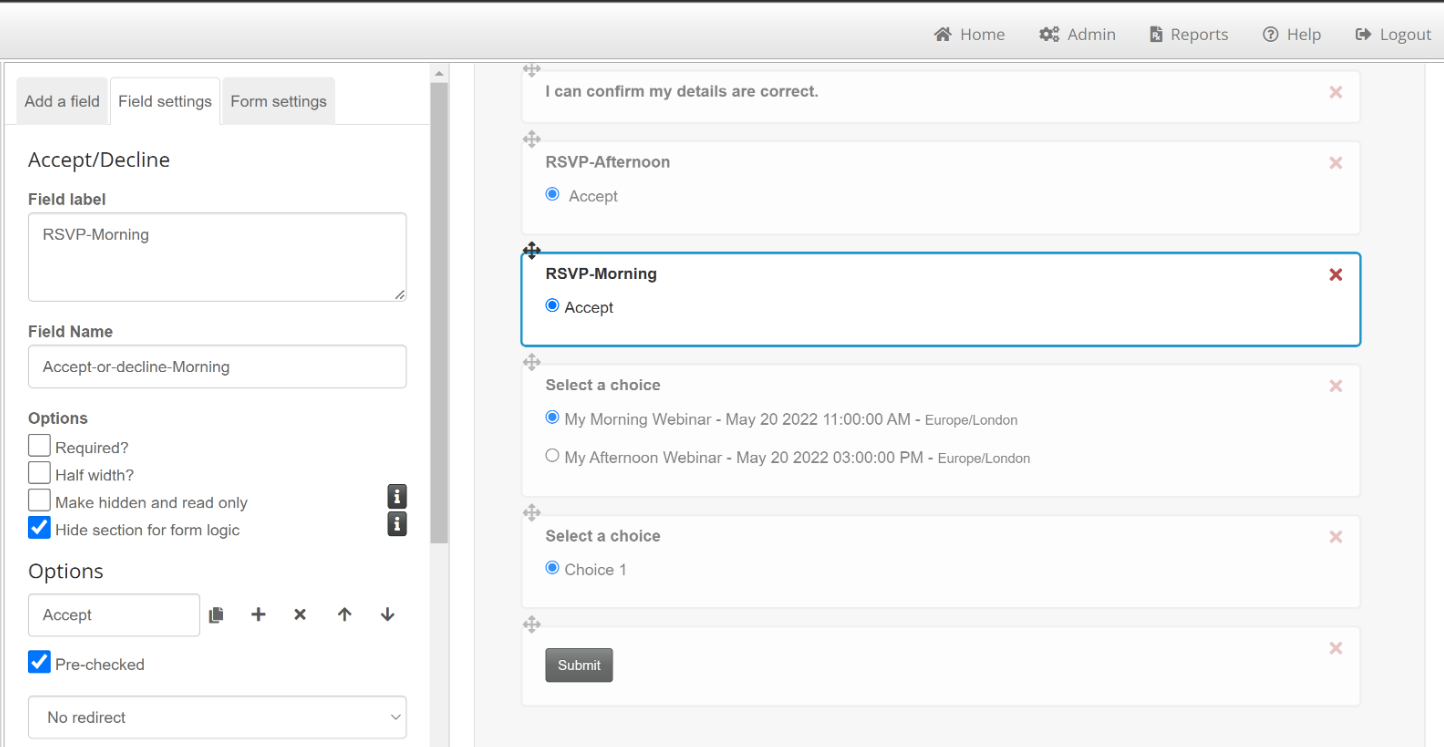
Clicking on the little i icons will give you the following information:
Make hidden and read only:
This is best practice for including a hidden single value into a form. It will convert the field into a simple text value, and will not respond to form logic. This is the previous behaviour of hiding a field on a form.
Hide section for form logic:
If you want to use form logic to dictate which, of multiple hidden values is included in the form, you can use this option.
When Would I Use Each Option?
Option 1 - Make Hidden and Read Only
Continue to use Make hidden and read only for any single field you wish to hide, unconnected with multi webinars. As one example, you could Make hidden and read only a date field which updates the date value in the CRM when a contact submits a form. Alternatively, if you are offering a single webinar registration to contacts, and you want to update the CRM with RSVP = Yes for every contact who Submits the form, you could add the RSVP field, prechecked as Yes, and Make hidden and read only.
Option 2 - Hide Section for Form Logic
Use Hide section for Form Logic for multiple RSVP fields when you are offering choices, or more than one webinar.
Should I Use Hide Section for Form Logic for In Person Events Too?
No, you should not use Hide section for form logic for In Person Events, only for webinars. For In Person Events you would typically create a mailing list and add the options for Event 1, Event 2 and so on. You would then put the separate RSVP fields on the form and allow the contact to make their choice, and Submit. The RSVPs would then write back to the CRM additional fields in the usual way. There is no need to hide them. The hidden fields are only necessary for the webinar process because the action of clicking Submit writes back to the webinar provider, not to the CRM - hence adding the hidden fields to write to the CRM as well is necessary.
Why is the previous "Make hidden" check box now saying "Make hidden and read only"?
It was always a read only field. The additional title is just making it clear that when you hide a field using the previous method of Make Hidden, that field is then a Read Only field. The recipient - even if they could see that field - could not change it.
The new method of hiding a field (Hide section for form logic) has to be capable of being dynamically updated by form logic so it cannot be a Read Only field. It will generally be hidden from the recipient however.
Warnings
1. If you are going to create a new field on your form, make sure that you select the correct checkbox type and only select ONE of the two types. As you build your form, the form fields will change to the last checkbox you click, so if you first click Make Hidden then click Hide Section, the resulting form element will behave as Hide Section. If you first click Hide Section then Make Hidden, the resulting form element will behave as Make Hidden.
2. When using standalone and creating new RSVP fields (Accept-Decline) you should ensure that they have unique names so Accept-Decline-Morning or Accept-Decline-Afternoon for example. This is essential to prevent the form logic from simply picking the first field it encounters on the page.
