Introduction
To ensure that the Send process will pick up and honour any new unsubscribes and will also send to new contacts on a list that have been added directly from the CRM, there is a sync function available for our connector CRMs.
Testing and Sending Emails
Each individual list will be refreshed on Send and then cached for a set number of hours, as set up by your Vuture Project Manager. The value is given by the MaxListRefreshFrequencyHrs field which is set up in the CRM Manager as explained here below.
This means that the currently cached version of the list will be used, on Send, for the next set number of hours. The list will not be refreshed on Send during this interval. (However it can still be refreshed from the Contacts Module if needed.) The list refreshes on Send in order to enable recurring triggers to work and to ensure that clients reference the latest suppression data. It refreshes on Send once within the set number of hours; so if the value is set to 1, it will refresh on Send once in an hour. If the next send is within an hour of the first, it won't refresh again.
Warning: If Select All is checked on the Send screen, all contacts on that list will receive the email, even if they are not currently showing on the screen.
To avoid any accidental sends to the entire list when testing an email, please ensure that Select All is not selected when testing.
CRMs Affected
All connector CRMs.
Configuration
No config setting or role setting is required except for the setting in the Metadata tool described below.
When Will the Sync Take Place?
This will sync the list at the point of send, just before the send is executed. This will be for normal email sends and also for all triggered sends (Date trigger - Send Email; Email Opened trigger - Send to Matches etc). So all emails sent from the system will trigger the sync.
Will This Slow Down Performance?
To ensure that this feature does not refresh a list on every send, which may impact performance, there is a caching function that will stop the email list being synced again, within a given customised period (in hours).
Setup the Caching Frequency
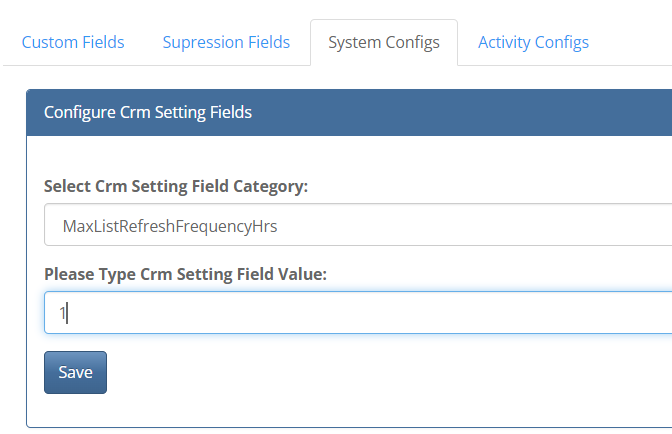
The CSM or Support can set this up in the MetaData tool under the System Config tab. They will navigate to Admin.System.CrmManager.
Select the option MaxListRefreshFrequencyHrs from the dropdown and then the desired caching in hours in the text box CrmSettingFieldValueType. It should be at least one hour.
Process and Restrictions
When an email is sent and it imports a large list the send will not complete until the import has completed.
If an email is sent during the time a list is being updated either from a send or from the contacts module then the email will be sent with the locally-held list of contacts.
The list importing is only cached when you send an email, not when you import from the contacts module. If the cache is set to an hour and you send an email and it imports contacts, you can still import contacts from the contacts module during that hour, but from an email send it won't import the contacts on that list within that hour.