Due to the way that Webex APIs are coded, there is currently no way for the APIs to access webinars that are not “owned” by the currently logged in user. As a result, any Vuture user that wishes to use the Webex integration will need to use a single account across both platforms.
Webex Account
We recommend that you choose an account, or create a new one on the Webex platform, to be used for creating and hosting your Webinar events. This account will also be used to set up the integration with Vuture. We recommend having a generic email address (for this article we will use the example email address: Events@Vutu.re).
NOTE: This account will need to have a ‘Webex Site Administrator Role’ on the Webex platform, in order to access the developer portal.
Vuture Account
You will also need to set up a matching account in Vuture using the same email address that was used for the Webex account created above. (e.g. Events@Vutu.re).
Webex Credentials
You must use this same Webex account to create the integration as described here
Vuture Webinar Set Up Tool
Log in as this user in Vuture to enter your Webex credentials into the Webinar support tool as described here - https://support.vutu.re/hc/en-us/articles/4408491119505-For-Clients-Webinar-Setup-Tool-for-Webex
NOTE: Please ensure that this user has the correct configs and roles selected as described in the article.
Creating your webinar
You can then go ahead and create your webinar(s) in Webex as normal, but these must be created using the same Webex account (e.g. Events@Vutu.re).
Co-Hosts
As we are using a generic account to manage the Webinars and integration, we advise you to add the actual host of the webinar as a panellist in Webex, and set them to ‘invite as co-host’.
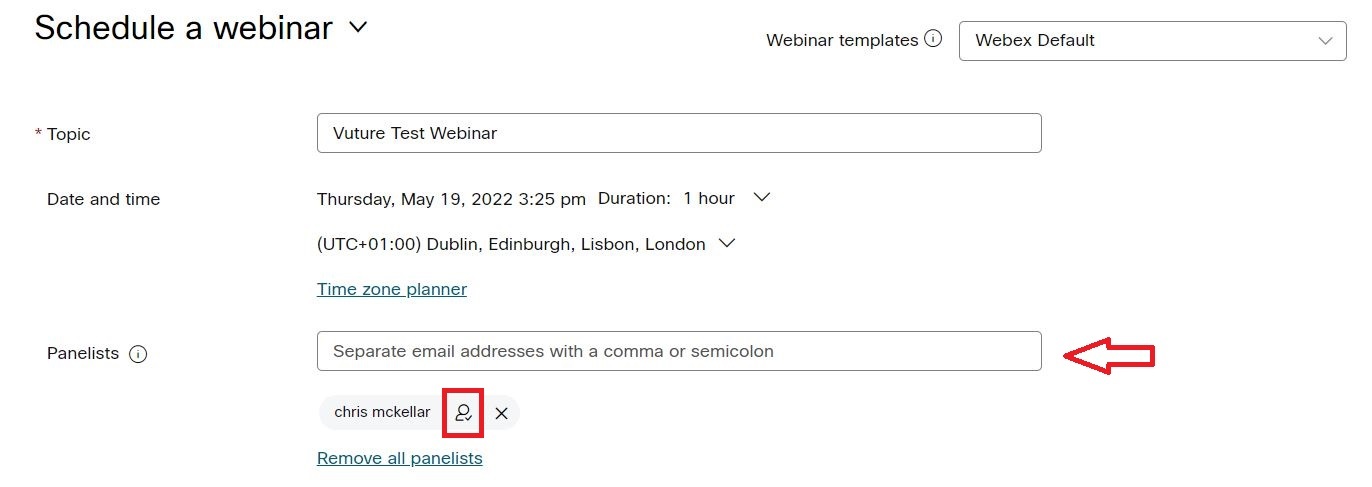
To achieve this, add the required user as a Panellist by entering their email address into the Panellist field. Click Enter and their name will appear below the email field. Click the person icon to the right of their name to set them as a co-host. This will allow the hosts of the webinar to be shown using their own names, rather than using the details from the generic account (Events@Vutu.re).
When a user is added as a co-host, they will receive a meeting invite which will include a button to start the webinar. They can also log into Webex and they should see any webinars where they have been assigned as host, listed in their upcoming meetings. They can also start the webinar from there.
Vuture Form Editor
Once the Webinar set up is complete and you have the webinar ID, you will need to log into Vuture and find the campaign you wish to use. Again, you must log in to Vuture using the account that was created above (e.g. Events@Vutu.re)
You will then be able to enter the Webinar ID into the form editor as described here. https://support.vutu.re/hc/en-us/articles/4408238641937-New-Way-to-Add-Webinars-to-Forms-Single-Webinars-plus-Multi-Webinars-or-a-Webinar-Series
