Keywords: Tag emails, email tagging, how to, user guide, Mailing Totals Report
Please note: Email tagging is a premium feature. If you do not already have tagging, please review this article and contact your Customer Success Manager for more information.
Overview
This article will walk you through how to use Vuture's premium Email Tagging feature and access reporting.
Contents
How to Tag an email
During the setup phase, you would have provided your Customer Success Manager or Project Manager, with your specific Tagging Categories and corresponding Tags. Now, it's time to tag your emails to take advantage of the Mailing Totals Report.
Instructions
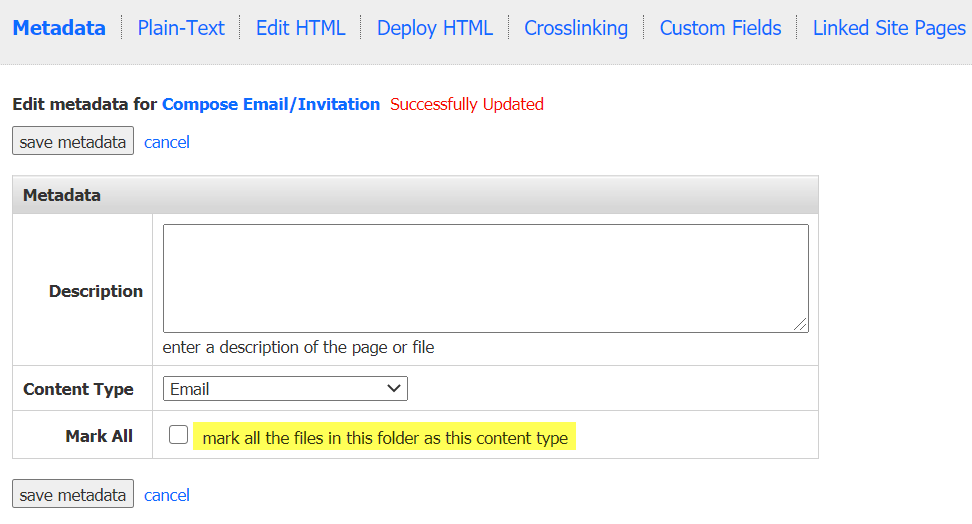
1. Navigate to the email campaign you wish to tag and click on the email in the Compose Email folder. Next, click on "Email Options". Then, select the Content Type of "Email" then "Save metadata".
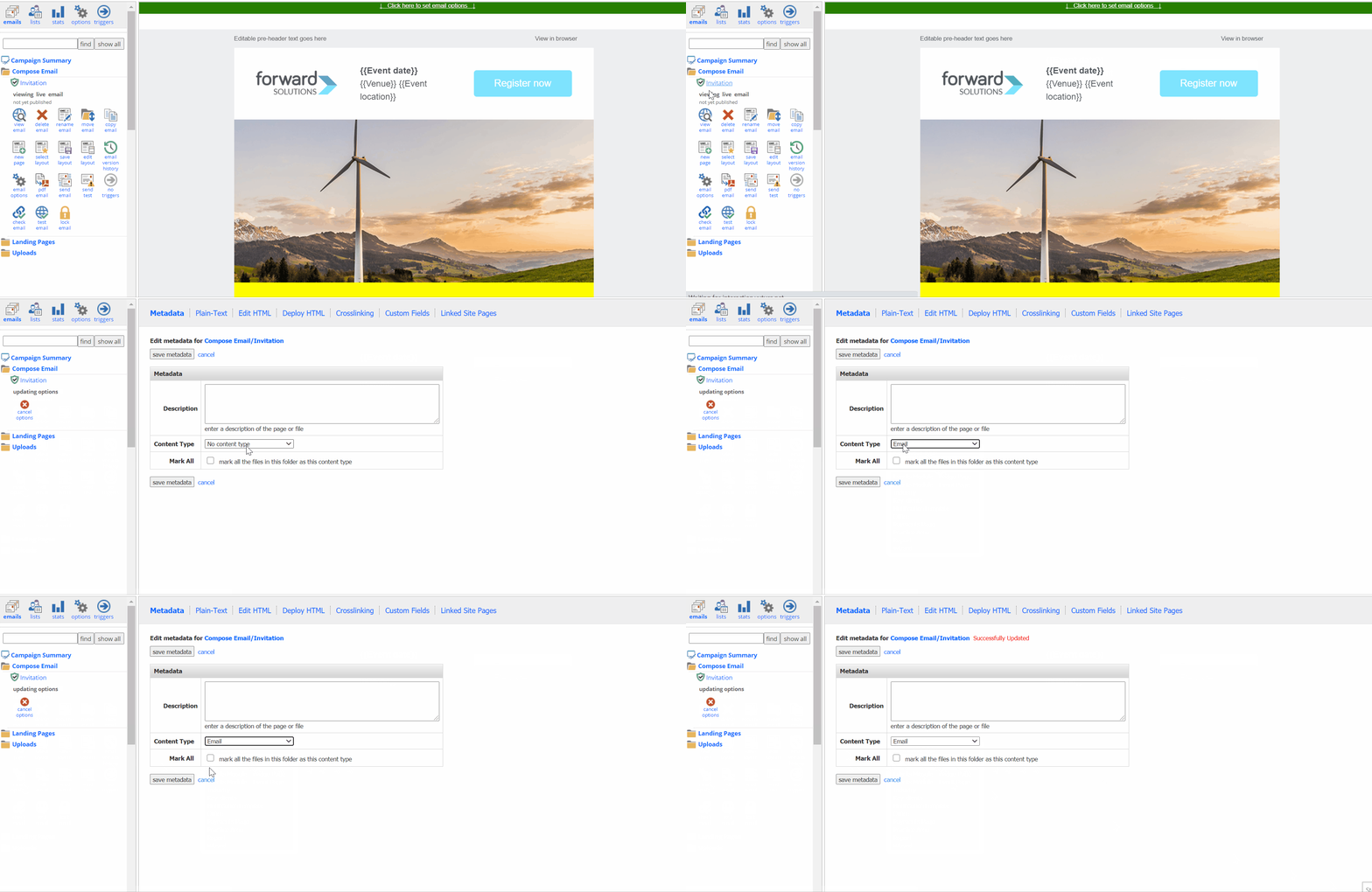
Best Practice: With the default Tagging Setup, you will always need to select "Email" as the content type for tagging. For this reason, it is best practice for the Super Admins to set the Content Type as "Email" for all emails in your Compose Email Folder within your Sub-Templates. This will save your users the extra step of having to select "Email" as the Content Type each time they wish to tag an email.
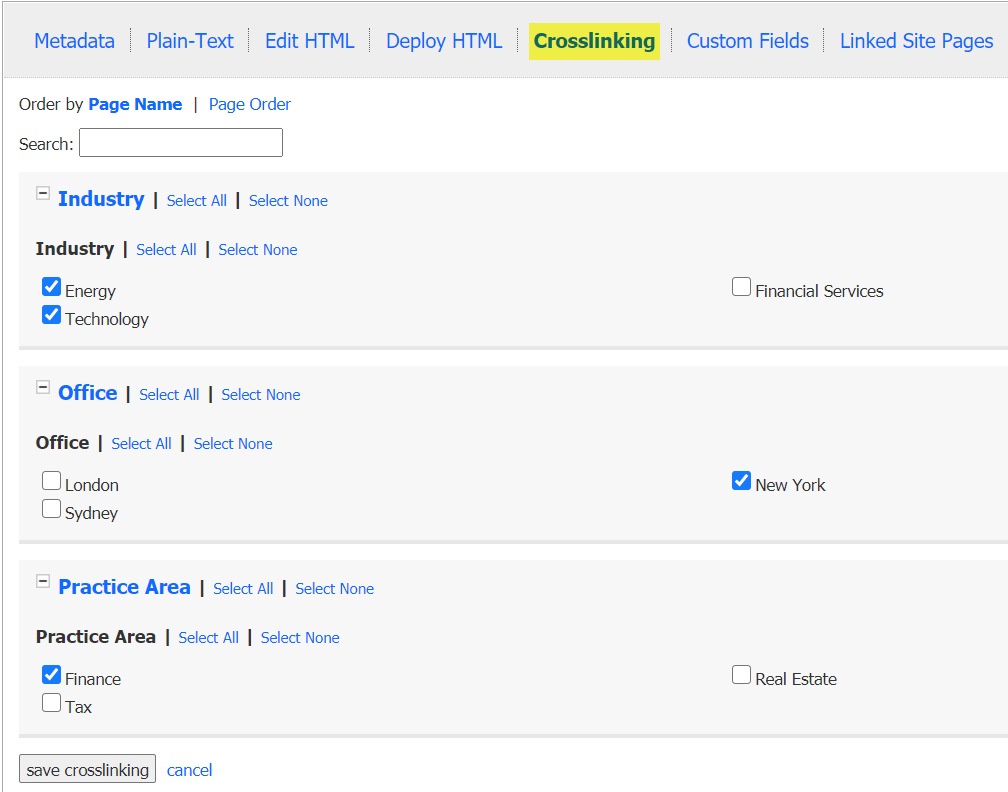
2. Next, click on Crosslinking at the top of the screen. You should see all of the Tagging Categories and corresponding Tags we setup for you. Tick all the tags that apply to this email and click on save crosslinking.
How to access Reporting to see your Tagged emails
Please note, to see your tagged emails in reporting, your emails must have been sent via a Live Send or Send Sample.
The purpose in adding tags to your emails is to allow for quick and easy cross-campaign and cross-container reporting. Once you have added tags to one or more emails, you can report on those emails using the Container Activity Excel Data Reports.
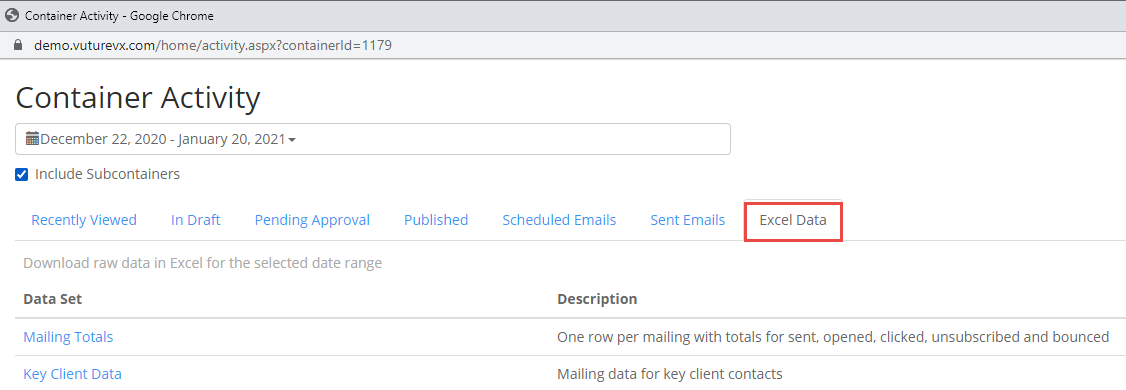
For help accessing the Container Activity screen, please review this article.
Clicking on the Excel Data tab gives you access to the Mailing Totals Report. This report gives you one row per mailing with all of the stats for that mailing (i.e. opens, clicks, unsubscribes, bounces, etc.) and the corresponding tags. When exported to Excel, you will see a Column for each Tagging Category, from which then you may filter the data on tags. For more information on what is included in this report, please review this article.
For those who have InterAction and have opted for the Key Client Data Report, you will be able to access this report from the Container Activity screen > Excel Data Tab. Please review this article on more information included in this report.
FAQ
Q. What if all of the emails in my campaign will have the same set of tags? Do I have to tag each email separately?
A. No, you do not need to tag each email separately if all emails in a campaign will use the same tags. For example, you may experience this with an event campaign, which includes several emails (i.e. Invite, Confirmation, Reminders, Follow Ups, etc.).
If you plan to make all the emails in one email campaign have the same tags, you can save time by setting up tagging at the Compose Email folder level, so that any new email created in that folder will inherit the same tags (although you can still change the tags on individual emails if you wish).
Instructions:
- Click on the Compose Email folder
- Click on Folder Options below the folder name
- Set the Content Type to Email
- Check the Mark All option
- Click on Save Metadata
- Click on Crosslinking
- Tick the required tags
- Click on Save Crosslinking.
Please Note: If you change the Compose Email folder, this will only affect any new emails you create in that folder. It will not change the tags for any existing emails in the Compose Email folder.
Q. What if I need to create new Tagging Categories or Tags?
A. Please contact your Customer Success Manager. They will be able to help make these changes for you and will find the instructions here.
Q. Will my tagged emails be affected if I rename my tags or tag categories
A. No, tags and tag categories are linked based on their id rather than their name. Renaming them will maintain any existing tagging.
Q. If a tag with several emails tagged against it gets deleted, will the tags remain in place after being recovered?
A. Yes, any tagged emails connected to a deleted tag will remain in place if recovered by the team.
Q. Are we able to go back and tag an email after it has been sent?
A. Yes, and the changes will be reflected in reports in the system. However, the data warehouse which ships data often but only once, will not update if they are changed after the mailing is sent.
