There are several ways in which a Vuture client can set up option fields in Dynamics in order to present their contacts with a choice via a Vuture form. An example use case could be the field called ‘Food Preference’ before an event.
Method 1
Use a traditional option set field in Dynamics, which allows the storage of all the possible values. In Dynamics this only stores the single value that has been chosen. In Vuture just remove the options not required on the form.
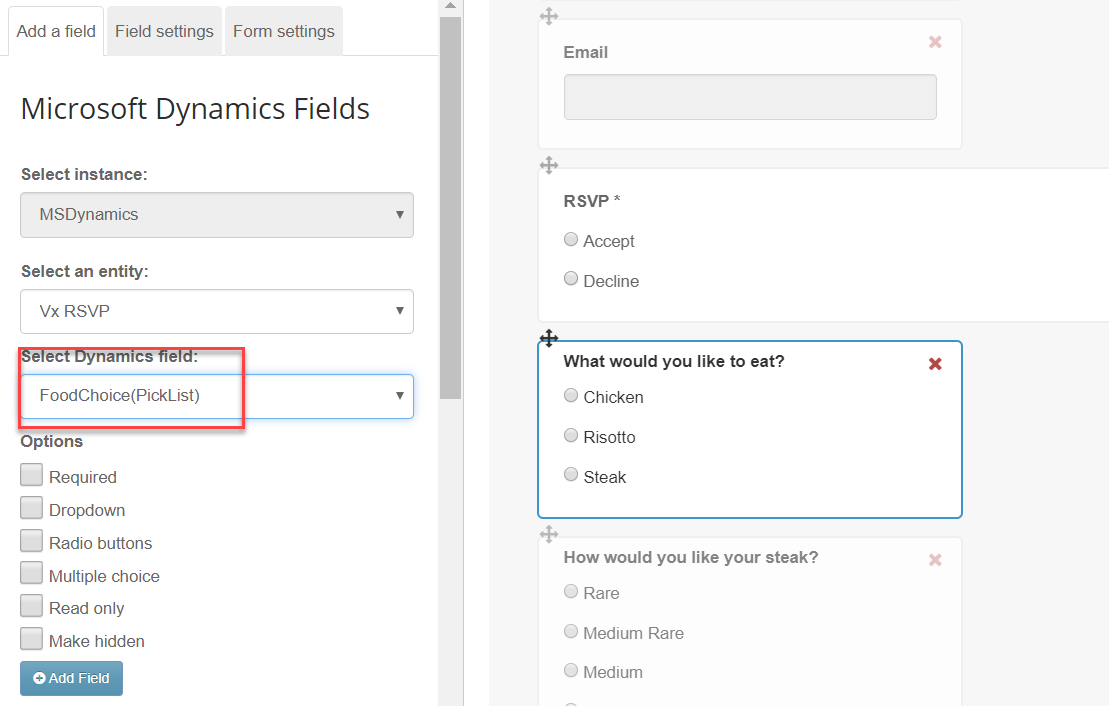
In the above example, we have selected a PickList. If the food choices listed are not as required for this event, add them in Dynamics to this same field and then delete in the CRM Metadata Tool and re-import the field. Then Add the adjusted field to the form.
Method 2
Use the new multi-select field, only available in certain 365 Dynamics integrations. In the same way as the option set field, the clients will be able to customise the options they offer on the form so they can differ from form to form. They can add this as a radio button (single choice) or a tick box (multi choice) as the system can take one or more values.
An example use case for this method would be Interests where the clients can choose more than one option. This will write back to Dynamics with all options selected.
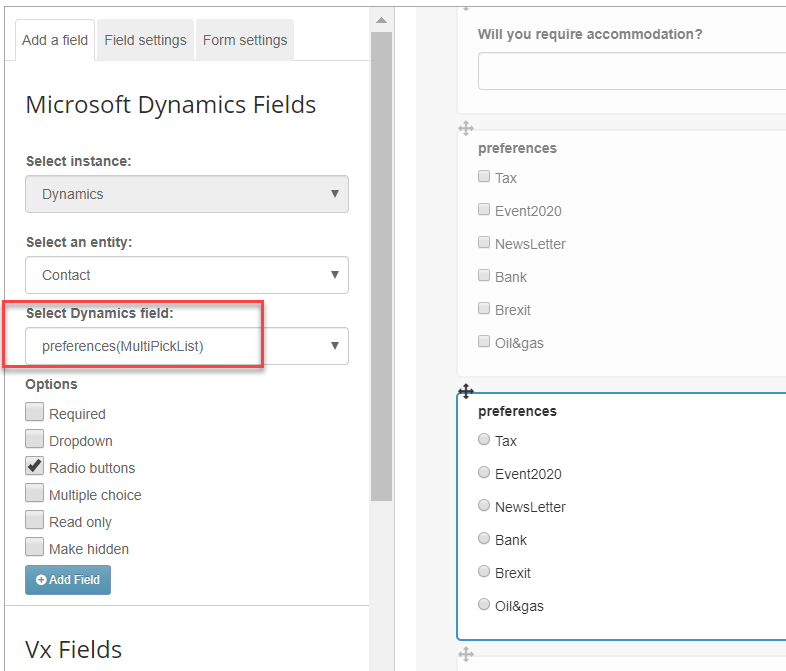
In the example above, the preferences field has been set up in Dynamics as a Multi Select Field. When adding it to a vuture form you have the choice to add it as is, in which case it will appear as multi option tick boxes or, if you tick Radio Buttons it will appear as a single option list. In the image above it has been added both ways as an example.
Method 3
Use the ‘single line of text’ field type. This would allow the client to be the most flexible, as they can add this field type as a radio button, tick box or text box to a Vuture form, then just add the options on the page. In this example they could have different options for different forms on the Vuture platform and no options are required on the client's side of the system. When adding this type of field in the Vuture form, it is known as ‘Text’. When adding this type of field, you can tick one of the highlighted options then simply add the option as required by the client.
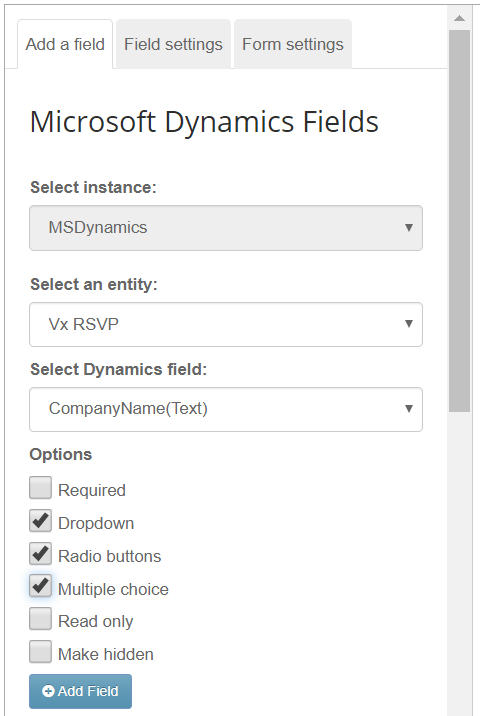
Although this image indicates that three options are possible, you should only pick one at a time. You could also pick no options, which would leave the form field as a plain text box.
