Outlook iCal Bug
A bug has become apparent in Outlook iCals which sometimes affects the formatting of the description or causes an error message to appear. It is hard to replicate, and relatively easy to fix, but when it occurs it requires HTML editing to fix it.
This bug is in Outlook iCals and it is out of Vuture's control. We are chasing for a resolution, but in the meantime we have established that it only occurs if clients have their iCal Client version set to 2.
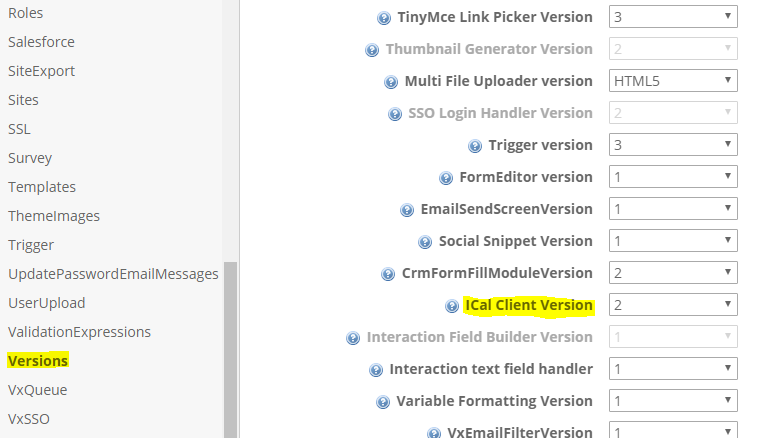
Version 2 is set at Admin > System > Versions > iCal Client Version.
Setting this to v2 allows the client to use HTML (eg hyperlinks) and variables in their iCals.
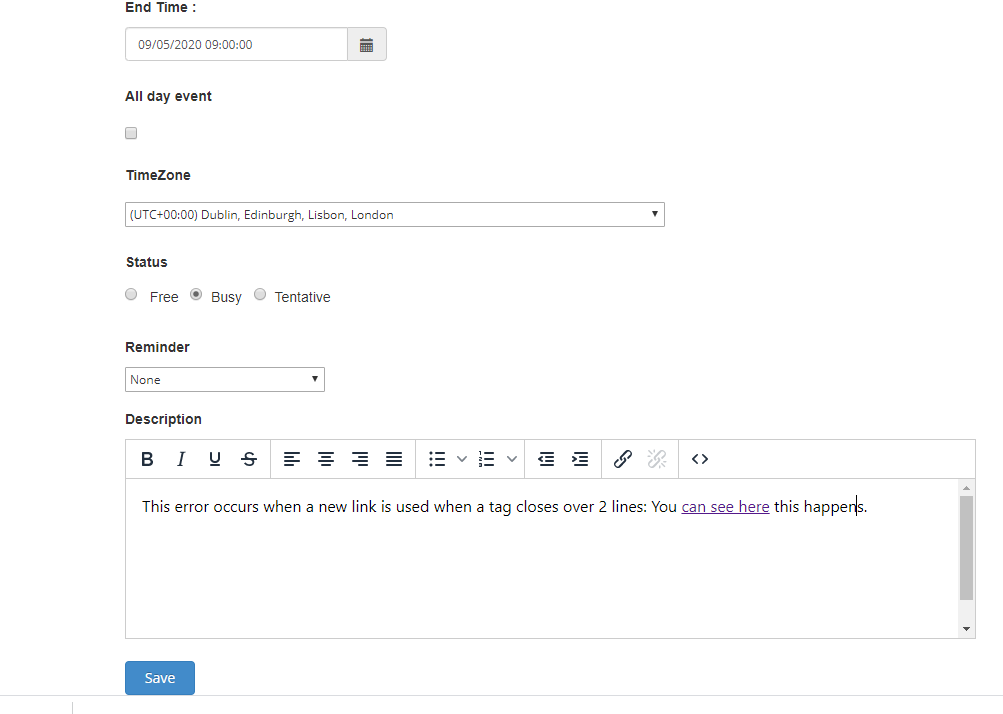
When creating a new iCal using v2, it is possible to add variables, a hyperlink or otherwise perform functions which generate HTML for the calendar invitation.
Viewing HTML
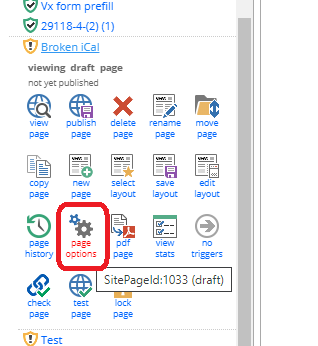
The HTML generated from the calendar invitation can then be viewed. Click on the item on the left hand pane and select “page options”.
If "page options" is not available to you, you will need to contact your Customer Success Manager to discuss enabling. Page options leads to "Edit the HTML" and are restricted to Vuture users who are confident and competent in HTML. Expertise in HTML is required because of the possibility that novice users could destroy the firm templates or cause damage which would be lengthy and expensive to fix.
There is an article about HTML editing here. Alternatively, contact Support and they can fix the bug for you.
Fixing the Bug
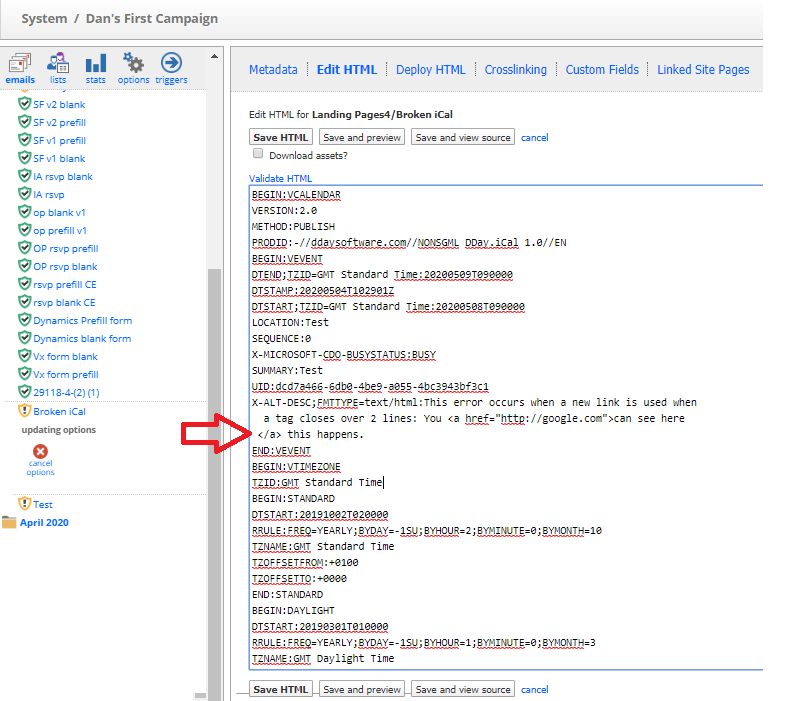
Within page options, navigate to ‘Edit HTML’. The HTML which is generated from the wizard can be seen here. Notice how everything is stored in lines of a maximum of 75 characters. Even though the description in the example is over 75 characters, it is stored across three lines, and the closing anchor tag is split so the “</” is on one line and “a>” is on the following line.
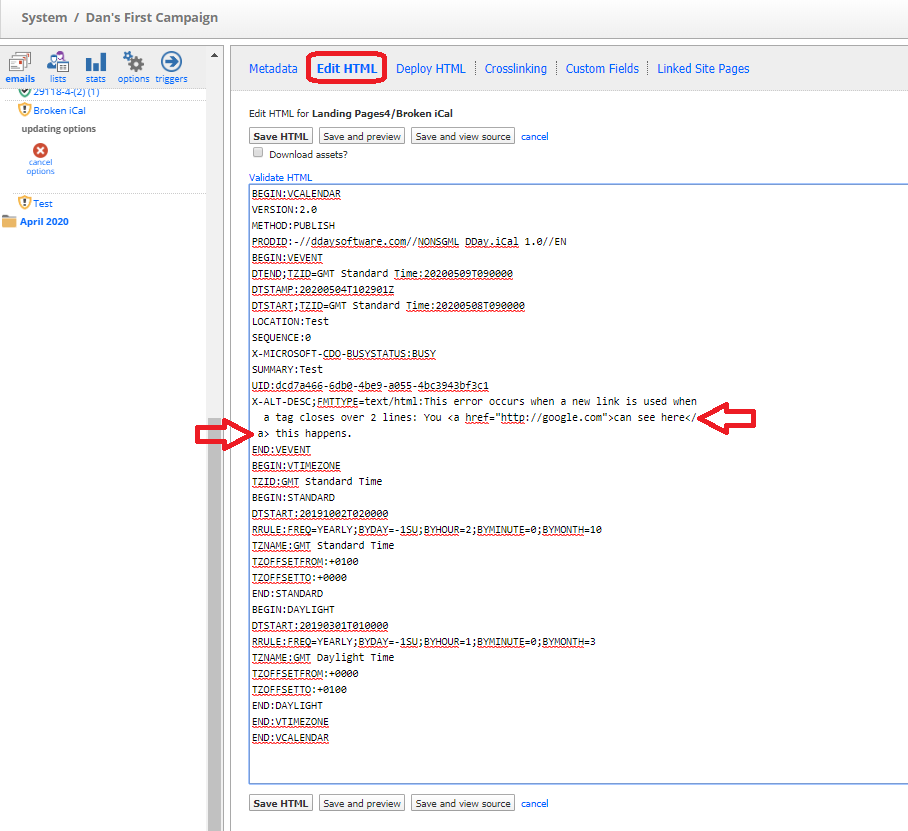
This line break does not affect the data until it has to be modified and read by VutureVx in some way; for example saving metadata or downloading assets upon saving the HTML.
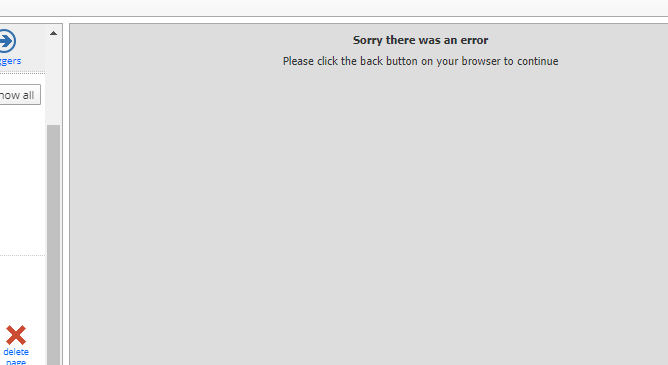
If saving the metadata or downloading assets is done when the HTML was originally showing across two lines, navigating to the calendar will give an error view.
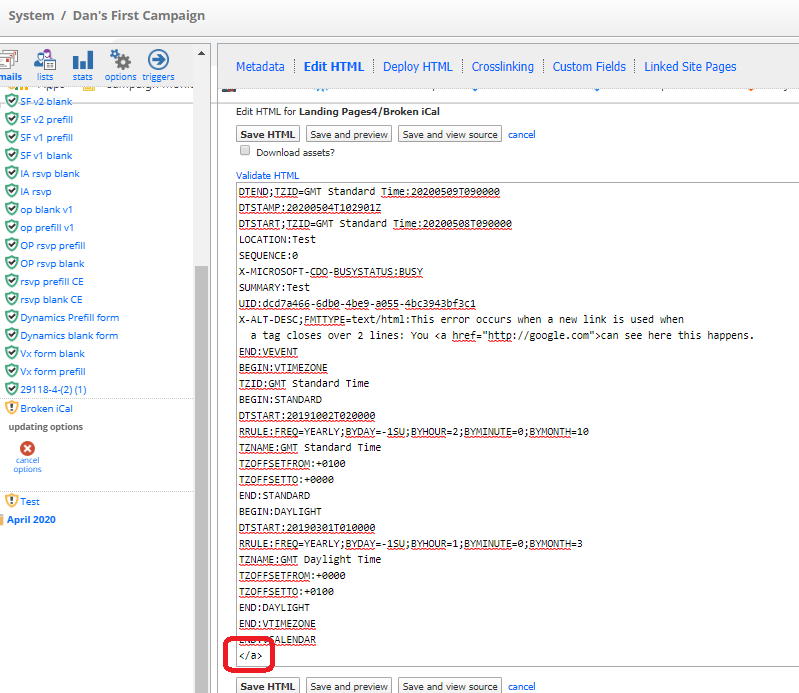
Checking the “Edit HTML” pane again, the HTML will have been changed by the bug so the anchor tag is no longer in the description metadata field, but has been instead added to the end of the HTML.
Resolution
To resolve this, the closing anchor tag has to be moved manually to the end of the link text on its own new line. It is very important to include a space before each new line added to a description tag or it will be ignored by the system. Saving the HTML will then allow the iCal to be modified by the system without any more issues with displaying.
Contact Support if you are not confident in editing HTML.