Overview
This article provides you with a step-by-step guide to dealing with duplicate or unwanted contacts in the Alumni site.
Duplicate contacts in the Alumni system most typically happen with open site registration using an InterAction form. For example the following scenarios can occur:
- An alumnus was sent a Welcome email when the Alumni program first launched, but it was sent to the wrong email address. They then go to the site and register for a new account with their correct or preferred email address.
- An alumnus forgets that they already have an account in the Alumni site and uses a different last name or email address to register the new account.
- An alumnus moves firms and chooses to re-register for the site.
Important: It is now considered best practice to use a Vx Form for open site registration. This will help to eliminate duplicate accounts in your Alumni site and help to keep the folder-specific email address up-to-date.
As you will not want the duplicate contacts in InterAction but will want to keep that contact's history, we have developed a process for managing these contacts.
There are two scenarios for this process, depending on whether the new user is still pending approval or has already been approved:
-
Scenario 1 - The new user is in "Pending" status. The outcome will be:
- The new user will be marked as Deleted in Vuture.
- The user's old email will be updated by the new user's folder-specific email in Vuture and in InterAction.
- A pre-approval email will be sent to the new user's email address.
-
Scenario 2 - The new user already has the "Approved" status. The outcome will be:
- If the new user already has the Approved status, then this means that the new user is using the Alumni site and may have already updated some personal details. In this case:
- The user's new email will be marked as Deleted in Vuture.
- The user's old email will be updated by the new user's folder-specific email in Vuture and in InterAction.
- The Alumni Manager can decide whether to send a pre-approval email to the user's new email address for verification.
Scenario 1 - The new user is in "Pending" status
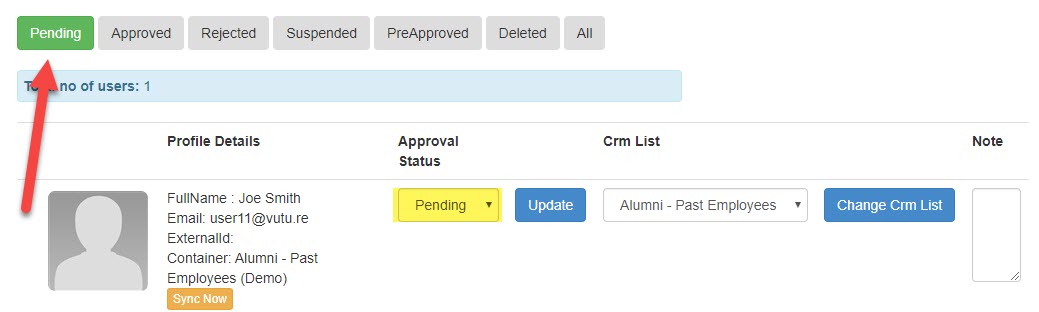
Below is the outcome for taking the following steps to remove a "pending" duplicate in Options > Manage User section:
Outcome:
- The new user will be marked as Deleted in Vuture.
- The old user's email will be updated by the new user's folder specific email in Vuture and in InterAction.
- A pre-approval email will be sent to the new user's email address.
Step by step instructions:
When a new contact registers for the Alumni site they will initially be in the pending section, which means they are NOT yet in InterAction and NOT yet available in the Alumni site.
- Navigate to Options > Manage User > Manage Users Tab.
- You can search to see if the contact already exists in the Alumni site. You may search by the last name or email address in the Alumni Users search box (see animated GIF below) and you will see all of the contacts there with the same last name or email address. If the contact is already in the system they will appear in the search.
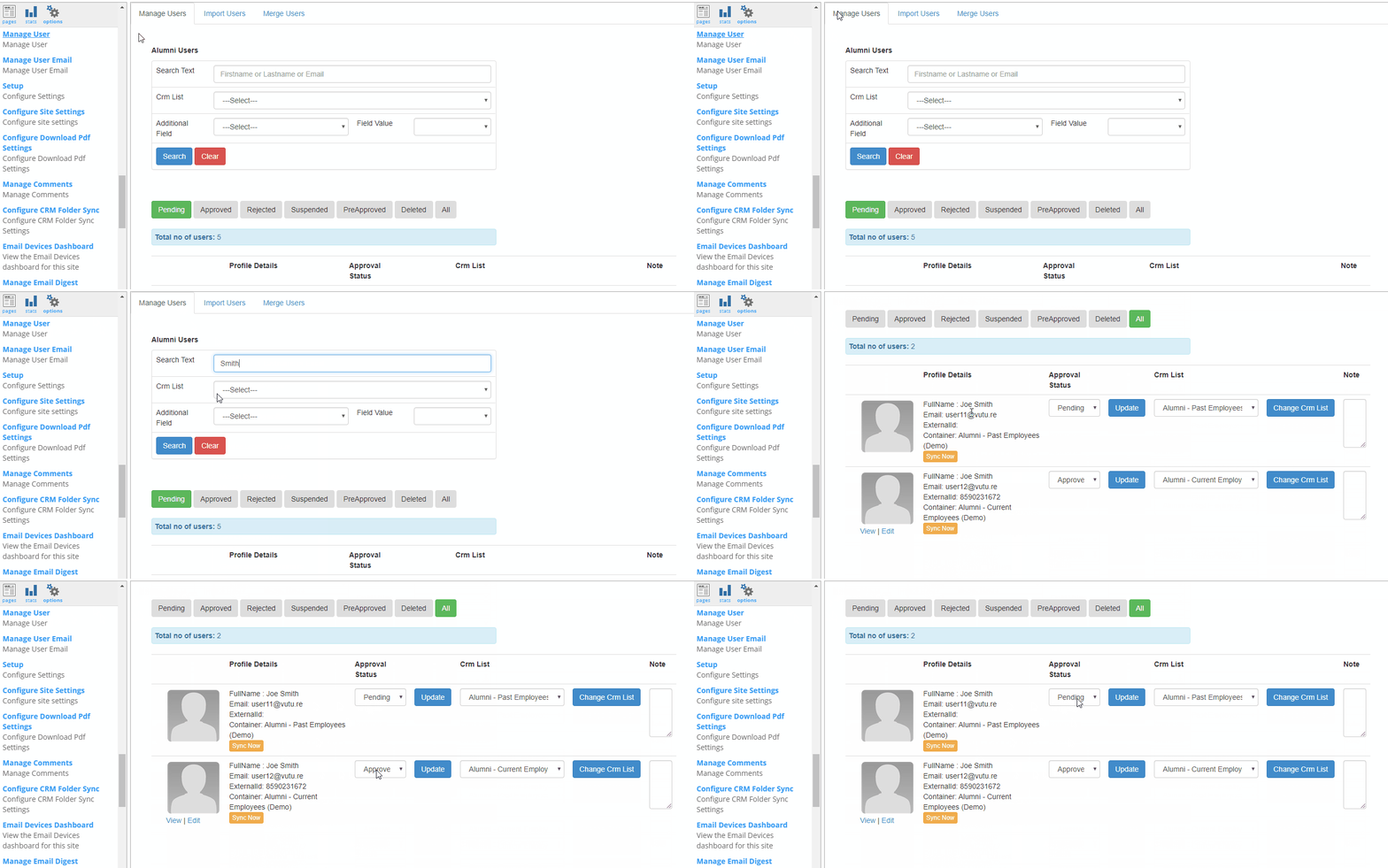
- Copy the contact information of the pending contact (typically it will just be the email address that is different).
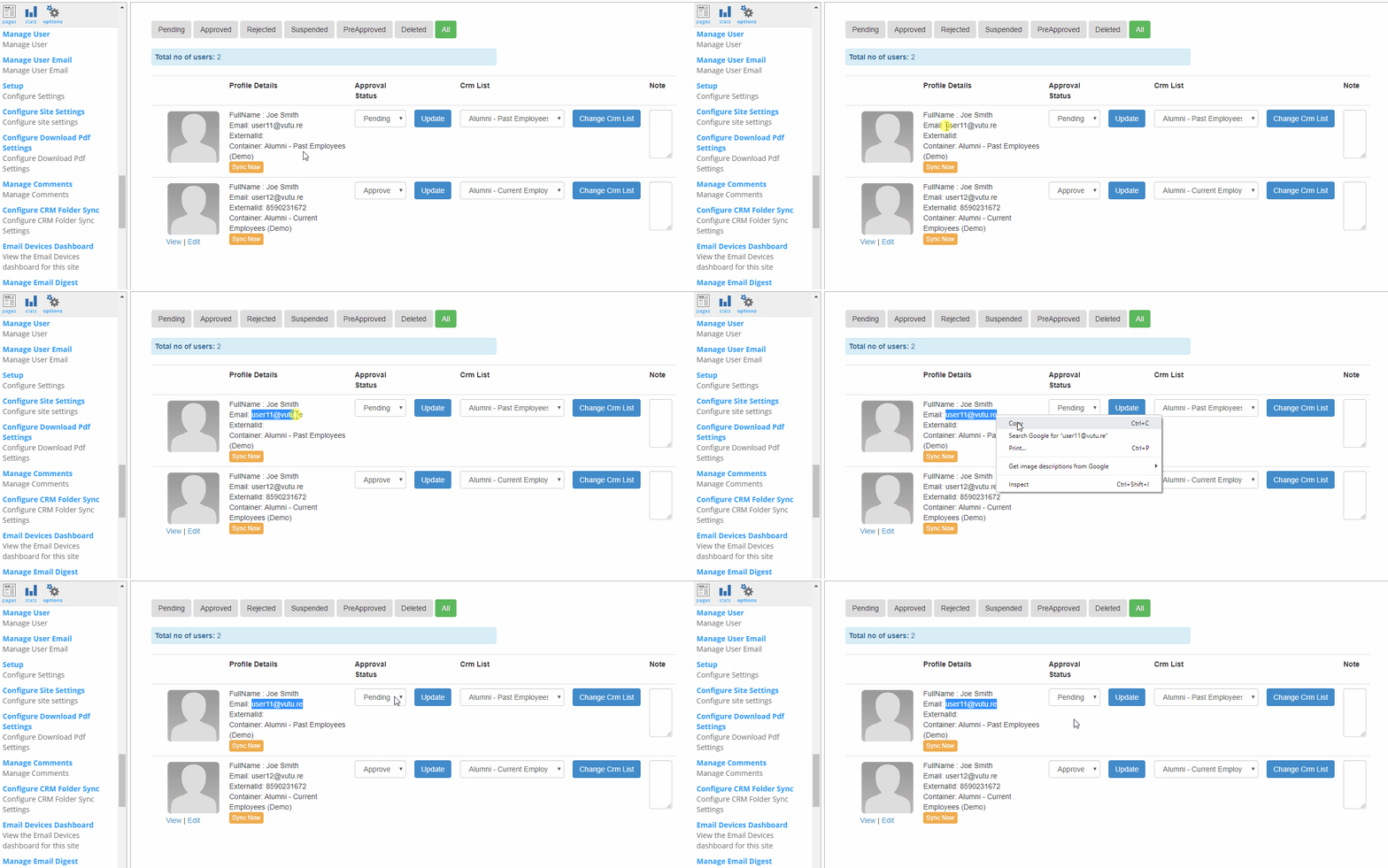
- Log into the front-end of the Alumni site with your own credentials. This should be done in a separate tab, but in the same browser. Please note, this step must be done before you will be able to perform the next step (editing the Approved or Pre-Approved contact's email address).
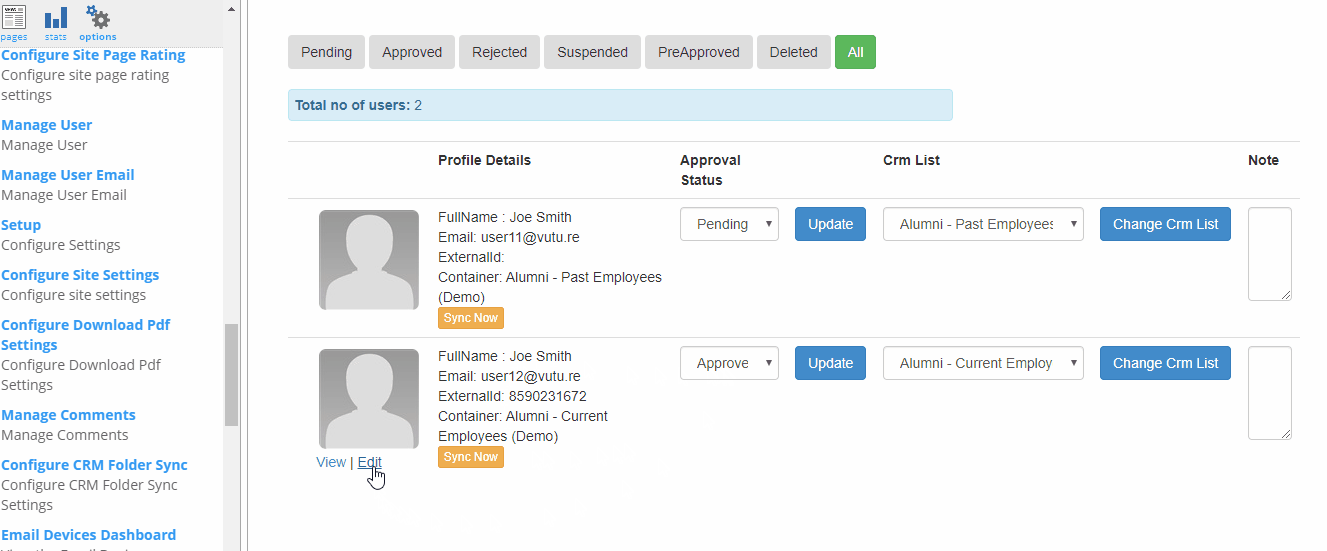
- Click the edit function on the already approved or pre-approved record (under the thumbnail of the picture). This will open up the contact's profile in a new tab, from which then you can click on "Change User's Email" link. From here, paste in the updated email address and click on the "Change Email" button.
-
When you change their email address, the alumnus will receive a verification email asking them to verify their email address. Once they click on the link to verify their email address, the alumnus can login to the Alumni Site with the updated email address. Note - this change will now push through to InterAction to update the folder specific email address.
- You may now delete the duplicate pending contact by changing their status to Deleted.
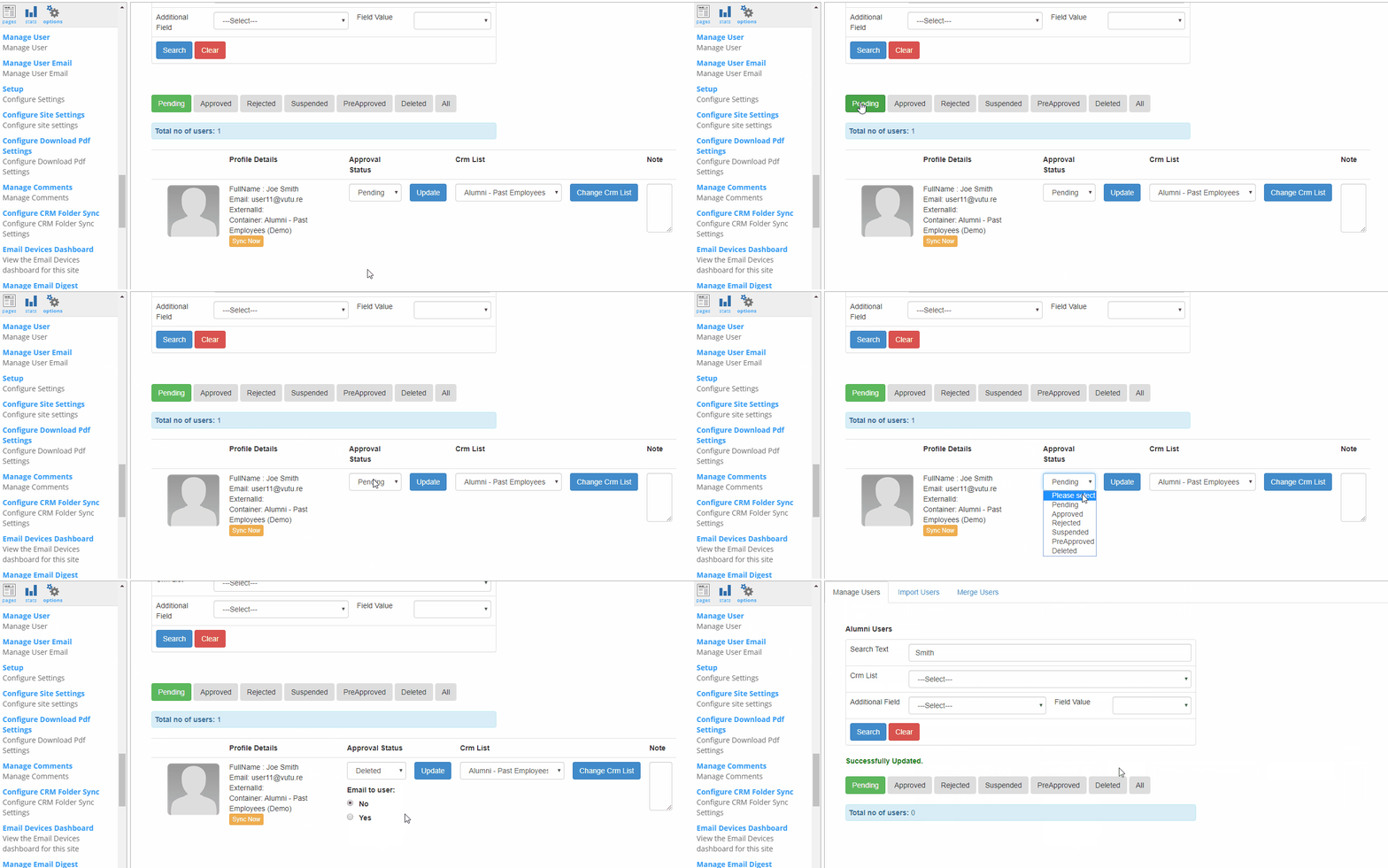
- Then remove this user account from the 'Manage User' section of the Alumni Site. You may do this by navigating to Admin > Containers and Users. Go into the duplicate user account in the Alumni container and complete the following:
- Uncheck the box for 'Enabled' - this will disable the duplicate user account.
- Scroll down to 'Container Access' - and click on 'remove' for the Alumni container(s).
- Click 'Save' at the bottom.
Scenario 2 - The new user already has the "Approved" status
*** This scenario will require help from your CRM Team.
If the new user already has the Approved status in the Vuture Alumni site, then this means that the new user is using the Alumni site and may have already updated some personal details.
- Navigate to Options > Manage User > Manage Users Tab.
- You can search to see if the contact already exists in the Alumni site. You may search by the last name or email address in the Alumni Users search box (see animated GIF below for example of Thora Birch duplicates) and you will see all of the contacts there with the same last name or email address. If the contact is already in the system they will appear in the search.
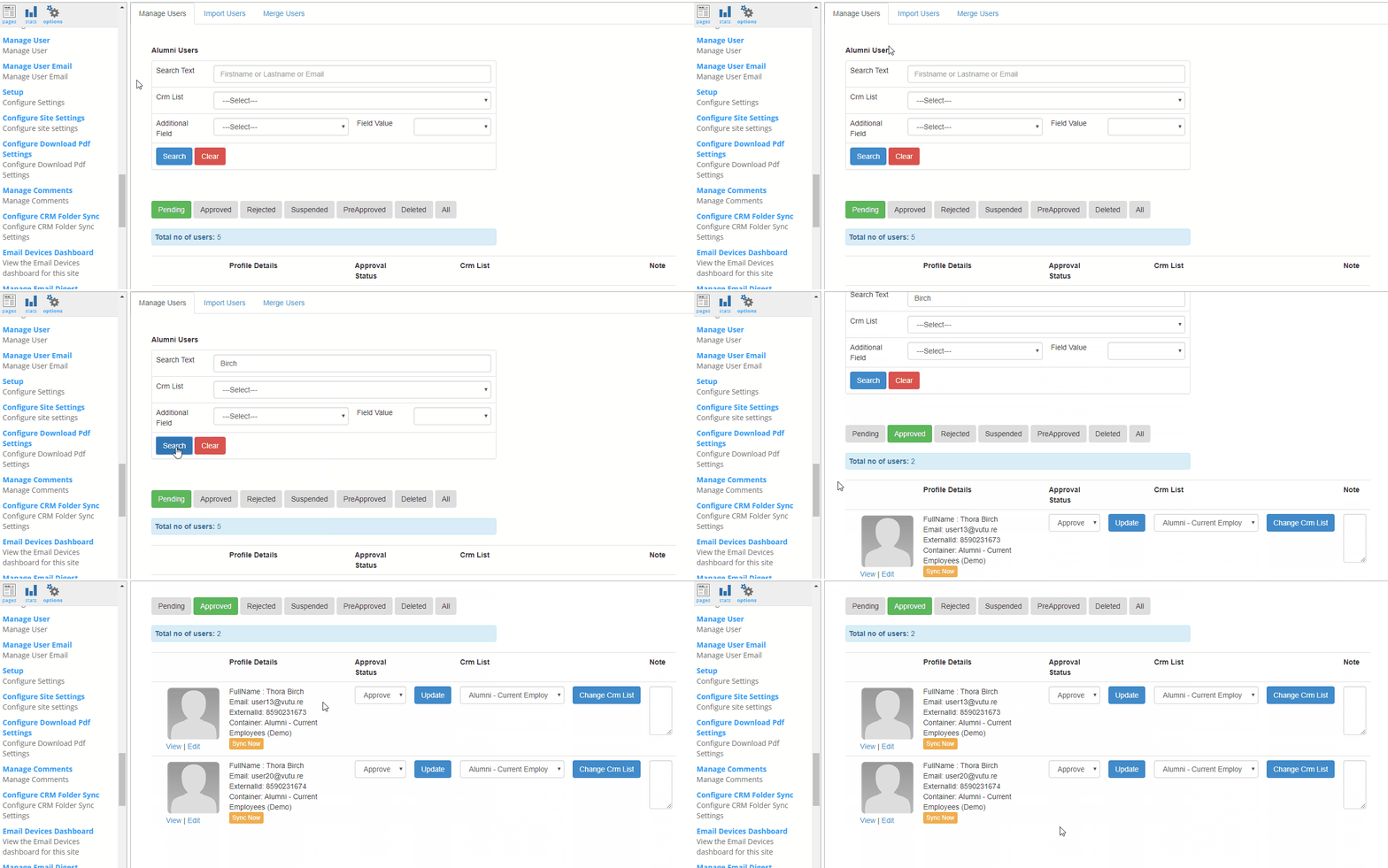
- Take note of the IA Contact IDs (aka ExternalId). The lower number for the ExternalId will be the older IA Contact record and the higher number for the ExternalId will be the newer IA Contact record.
- For example, in the below screenshot we have two user accounts for Thora Birch. Both accounts have the Approval status of "Approved", meaning there are two contact records for Thora Birch in InterAction.
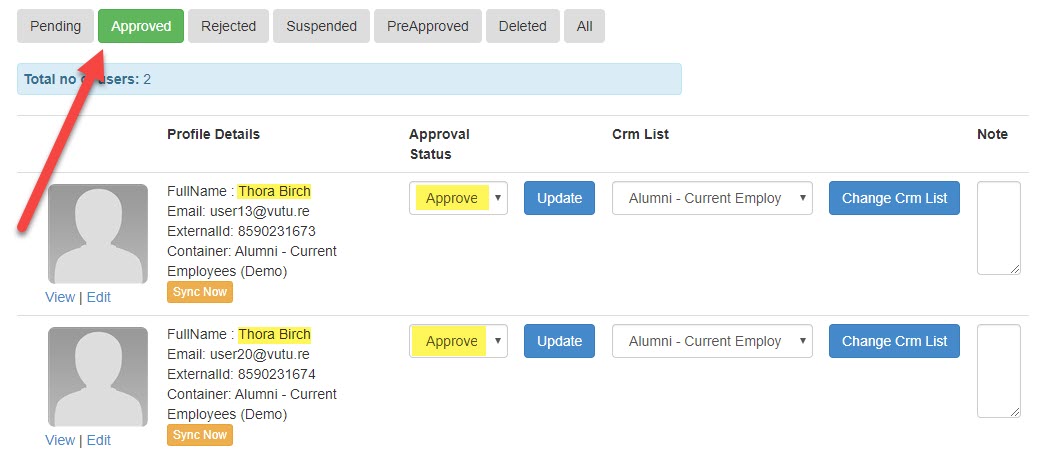
- The Thora Birch account with the lower number for the ExternalId is the older IA Contact record - 8590231673. This older account has the email address of user13@vutu.re.
- The Thora Birch account with the higher number for the ExternalId is the newer IA Contact record - 8590231674. The newer account has the email address of user20@vutu.re.
- We want to update the older IA Contact record (8590231673) for Thora Birch with the new email address (user20@vutu.re).
- Ask your CRM Team to go into InterAction and update the older IA Contact ID with the new information (i.e. folder specific email address, last name, etc.) and make sure the contact is in the right Alumni website access folder.
- Now, in Vuture, navigate to Admin > Containers and Users. Go into the user account in the correct container and update the email address for the user account with the old IA Contact ID (i.e. Thora Birch - 8590231673) to the new email address (i.e. Thora Birch - user20@vutu.re). (See this Help Desk Article for step by step instructions). This will ensure the contact's folder specific email address in IA matches that of their Alumni site user account.
- Navigate back to the Vuture Alumni Site > Options > Manage User. Then change the Approval Status for the new IA Contact ID (i.e. Thora Birch - 8590231674) to "Deleted". This will change the business email address in InterAction to deleted_{user email address}.
- Ask your CRM Team to go into InterAction and delete the Contact record with the new Contact ID (i.e. Thora Birch - 8590231674) and the business email address of deleted_{user email address}.
- (Optional) - As the Alumni Manager, if you wish for this contact to verify their new email address, you'll need to change the "Approval Status" from "Approved" to "Pre-Approved" back to "Approved" in Options > Manage User. This will send them the welcome email again to click through and verify their new email address.
- Lastly, remove this duplicate user account from the 'Manage User' section of the Alumni Site. You may do this by navigating to Admin > Containers and Users. Go into the duplicate user account in the Alumni container and complete the following:
- Uncheck the box for 'Enabled' - this will disable the duplicate user account.
- Scroll down to 'Container Access' - and click on 'remove' for the Alumni container(s).
- Click 'Save' at the bottom.
