Article updated May 2023
Introduction
This is a premium feature. Please speak to your Customer Success Manager to proceed with the setup.
Brand Indicators for Message Identification or BIMI is an email specification that enables the use of brand-controlled logos within supporting email clients. BIMI leverages the work an organization has put into deploying DMARC protection, by bringing brand logos to the customer’s inbox. For the brand’s logo to be displayed, the email must pass DMARC authentication checks, ensuring that the organization’s domain has not been impersonated.
With BIMI you can:
- Display your logos on your emails.
- Control the logos that display with your email messages.
- Cultivate immediate brand recognition and enhanced user experience.
This is what it might look like in email clients - https://bimigroup.org/where-is-my-bimi-logo-displayed/
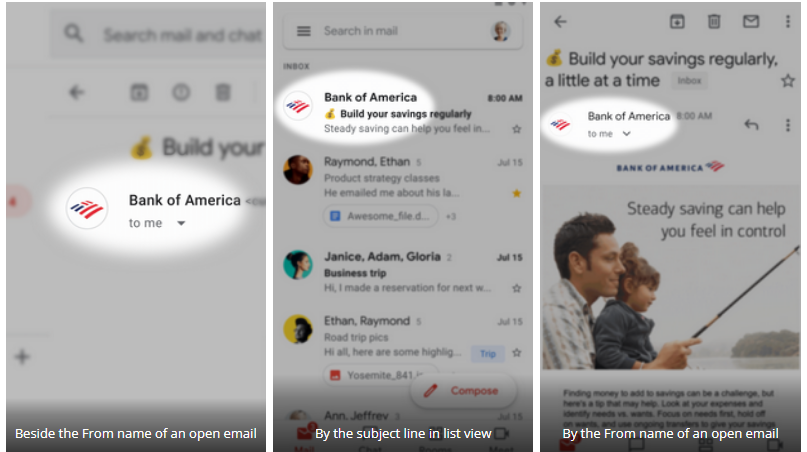
Update: From May 2023 Google will display a checkmark icon for senders that have implemented BIMI. This will help users identify messages from legitimate senders versus impersonators. See an example of what it looks like below:
Prerequisites
Contact us before beginning this process. We need to know that you are doing it and will be able to help.
BIMI is available for all CRM integrations and standalone.
SPF, DKIM and DMARC should be set up first. Helpdesk article here https://support.vutu.re/hc/en-us/articles/360020566977
You should own the registered trademark for your logo.
Process
Step 1 – Authenticate all of your organization’s emails with SPF, DKIM and DMARC – ensure all are aligned
Step 2 – Produce an SVG Tiny PS version of your official logo
Step 3 - Generate a Verified Mark Certificate (optional) for your logo
Step 4 – Publish a BIMI record for your domain in DNS
Step 1
Authenticate all of your organization’s emails with SPF, DKIM and DMARC – ensure all are aligned
You must have a DMARC policy which is at enforcement to either reject or quarantine at 100%:
Reject on the organizational domain and subdomain policy (i.e. p=reject; sp=reject) or Quarantine at 100 percent (i.e. p=quarantine; pct=100)
To implement BIMI you need to set your policy to at least 100% quarantine. This should be done gradually and you should start at None so you can monitor that DMARC is correctly set up. See this article for help: https://www.dmarcanalyzer.com/how-to-choose-the-right-dmarc-policy-in-order-to-protect-your-email-channel/
Note: “None” policies or ‘pct’ less than 100 percent are not accepted.
Need DMARC Help? Head over to DMARC.org for the latest information and also read this helpdesk article here https://support.vutu.re/hc/en-us/articles/360020566977
Step 2
Produce an SVG Tiny PS version of your official logo
You need to generate a Scalable Vector Graphics (SVG) Tiny PS version of your logo.
Here is some guidance on generating the logo - https://bimigroup.org/creating-bimi-svg-logo-files/
The logo will need to be published online - we recommend it is published at the root of the front end of your instance, which we can do for you.
Step 3 (Recommended but optional)
Acquire a Verified Mark Certificate (VMC) for Your Logo
Acquire a Verified Mark Certificate (VMC) for your logo and publish it online.
This is recommended, but optional. Google requires VMC to display your logo in their mailboxes. As of mid 2026, Microsoft does not support BIMI rendering in Exchange Online or Outlook. This means logos from BIMI-compliant senders will not appear in inboxes hosted by Microsoft.
VMCs exist to validate ownership of an organization’s logo; the certificates are based on registered trademarks of the logo/image.
At this time, VMCs are being issued by two accepted Mark Verifying Authorities:
If you get a VMC - https://bimigroup.org/verified-mark-certificates-vmc-and-bimi/ - then we recommend giving them to us so we can publish at the root of the front end of your instance.
Step 4
Publish a BIMI record for your domain in DNS
If we manage the DNS for your instance then we will publish this DNS record. If you manage your own DNS you will need to publish it.
(a= tag is currently optional)
default._bimi.[domain] IN TXT “v=BIMI1; l=[SVG URL]; a=[PEM URL]
Validate or create your BIMI record with the BIMI Inspector:
This is the BIMI generator - https://bimigroup.org/bimi-generator/ that can help generate the record.
[SVG URL] is the path to the logo in Step 2 which we recommend is published by us at the root of the front end of your instance (so it is not easy to accidentally delete).
[PEM URL] is the path to the VMC if you created one in Step 3. We recommend is published by us at the root of the front end of your instance.
