Tags: Event numbers, delegate numbers, maximum RSVP limit, restricted number
Overview
The Limit Form Submissions feature limits the number of contacts that can choose specified responses on an RSVP Form.
For each response option you set the maximum number of contacts who can choose the option, after which the selection is disabled on the form and can no longer be selected.
A typical use case is an event which has one or more sessions with limited places available.
The system handles the contact submitting the form multiple times with the same option, or changing their choice, but it relies on all RSVP updates being made through Vuture forms. It will not take into account updates made directly in InterAction. If you need to manually change someone's response you should update them using the "Test Page" function on the Vuture form.
The feature will allow the same option to be used on multiple forms (e.g. blank and pre-filled) and will not allow more than the preset total across all forms that the option appears on.
How does it work?
The limiting numbers functions allows you to vary how many people can register for a form option and counts the responses per InterAction folder for both Boolean (Yes / No) and multi-value (Accept / Decline / Tentative) additional fields held against an InterAction marketing folder.
Note: If your Marketing List templates have been set up to automatically create an RSVP field for you, each time you create a new list, and if the RSVP field chosen is a Boolean one, then the values MUST be Yes and No for this feature to work.
If you wish to use the values of Accept and Decline or Accepted and Declined then you need to ensure that your RSVP field is set up as a List field, not a Boolean one.
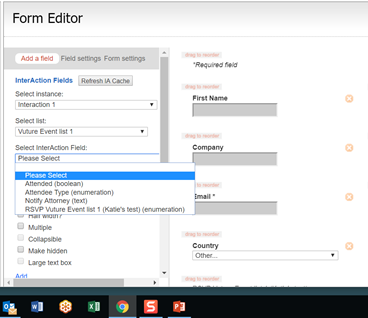
To check which you have, look at any RSVP form, add the RSVP field and the type of field will show in brackets after the field name.
This feature can be set up on a per role basis (for instance you may wish this to only be available to your Events Team).
Required Steps
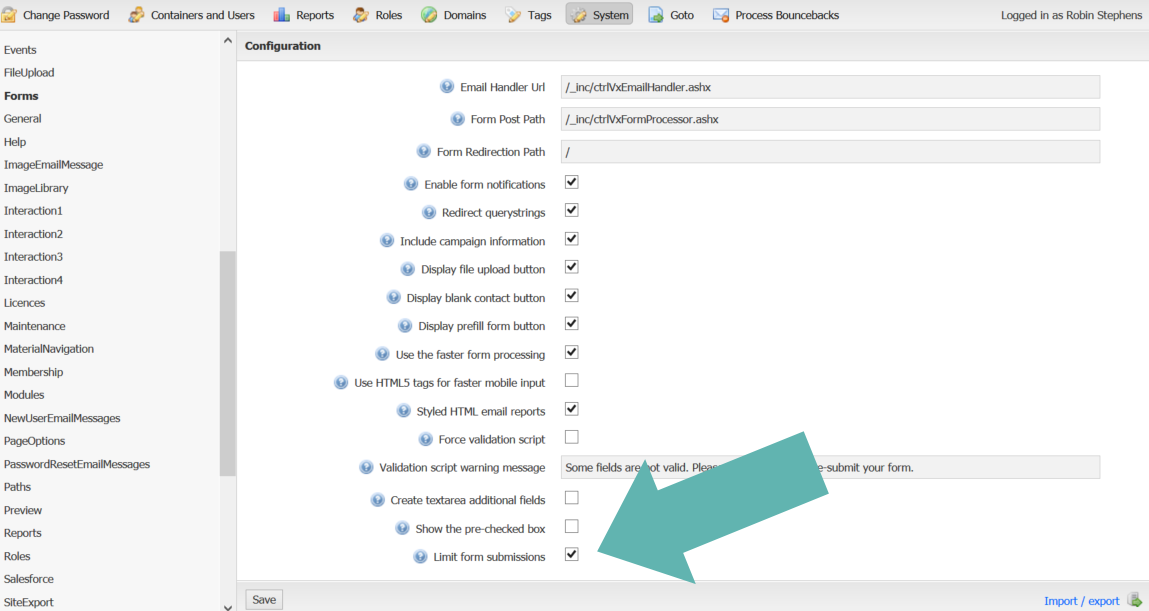
1. Your Vuture Administrator should enable the system configuration setting "Admin.System.Forms.Limit Form Submissions":
2. For each role that should have access to the feature your Vuture Administrators should ensure that "Admin.Roles.Forms.Limit Form Submissions" is enabled:

3. Create an email campaign as normal.
4. Using the Form Editor select Add a field. Choose an InterAction folder and add at least one Yes/No or enumeration additional field. An email field must be added to the form as well.
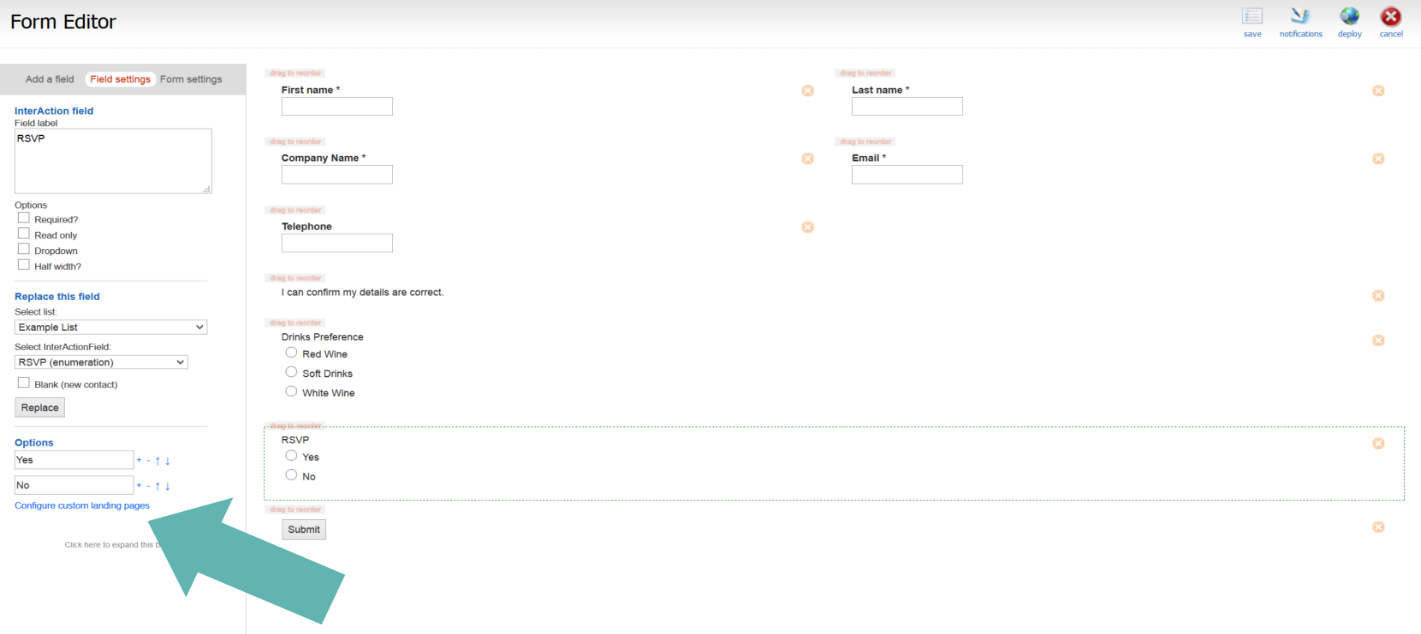
5. Click on the RSVP field that you have just added. Click on the link that appears saying "Configure Custom Landing Pages" under Options (as shown below):
6. A window appears showing all the additional fields and their potential values. See below:
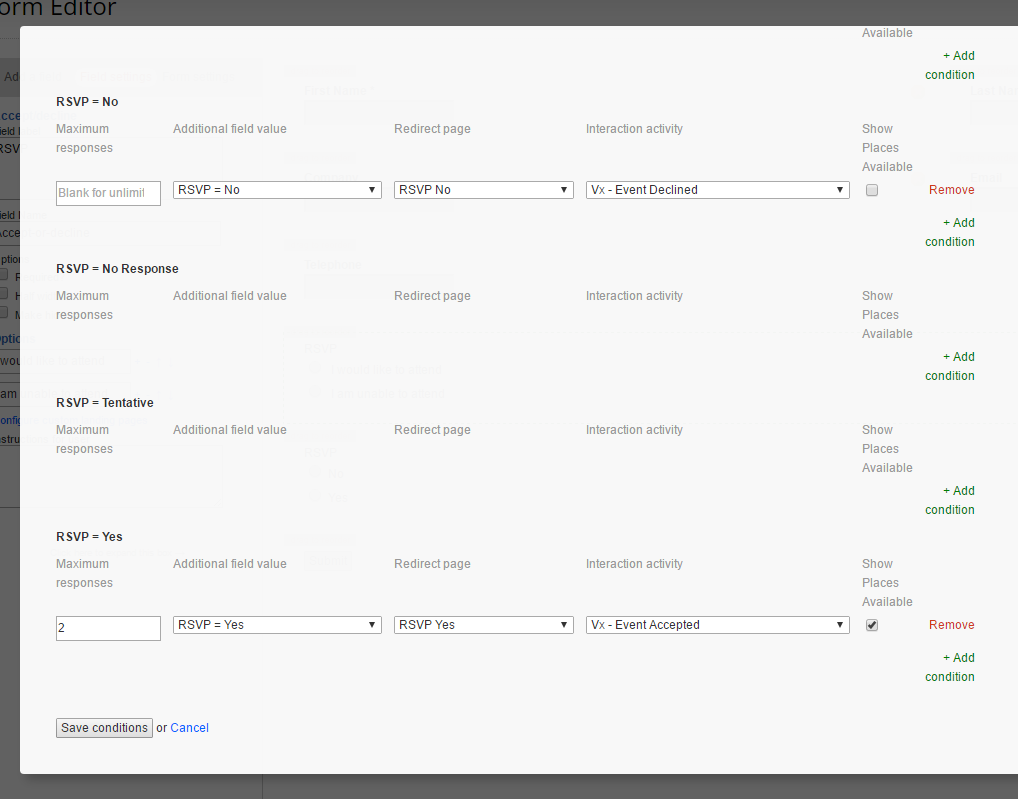
7. In the image we have created unlimited values (Zero or blank) for the response No and a maximum number of 2 RSVP responses of Yes.
Notes:
- Boolean values must be stored as 1 or 0 in InterAction and must have display values in InterAction of Yes or No only.
- To use Accept / Decline instead, choose an RSVP field in InterAction which is a List field, not a Yes/No field.
- If you add this RSVP additional field to multiple forms the response count will be the total across all forms.
- Form submissions must contain the attendee's email address field for this feature to work properly.
8. Use the redirect page options to redirect the contact to a different screen depending on the response they make on the form. In the example above we have separate landing pages for RSVP Yes and RSVP No.
9. The "Show Places Available" tickbox determines if the number of places left is displayed after the form option. In the example below we are not displaying anything for the No option but will display the number of places left for the Yes option.
10. Click the "Save Conditions" button and then click the "Save Form" button to save your changes.
11. To test your form send an email with an RSVP link to the RSVP Landing Page you have just configured.
12. Click on the link and you will be taken to to your RSVP Landing Page:
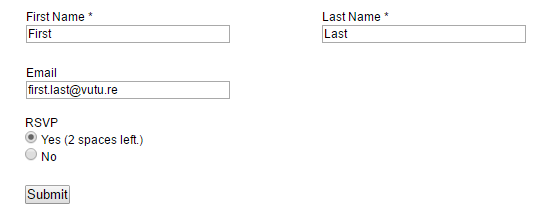
The form will display the number of spaces left for each option according to the setting you chose when setting up the form.
You could, alternatively, test this using the Test Page option on the RSVP form.
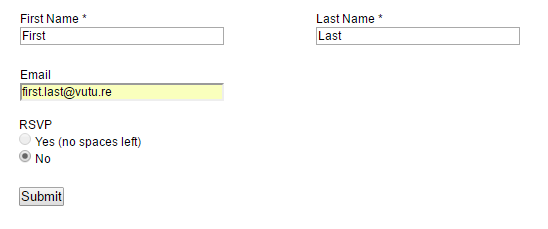
Each time an option is selected and the form submitted the count is reduced by 1. If someone submits the form again with the same option this is not counted again. If someone submits the form again and has changed their option then the counts are updated. When any option has no spaces left it is disabled and cannot be selected until spaces become available again by someone changing their mind or by you updating the form to add additional capacity.
Notes
- The count of the RSVPs is based on the last response from each contact against this InterAction folder. If, for example, someone changes their RSVP from a Yes to a No, a Yes list that was full will now have one free space on it.
- Important: If a response is made to this additional field directly in InterAction the count will not be correct. The count only uses form updates made in Vuture. You can use the Test Page option to update the count correctly on behalf of a contact if they phone in their response.
Email Notification
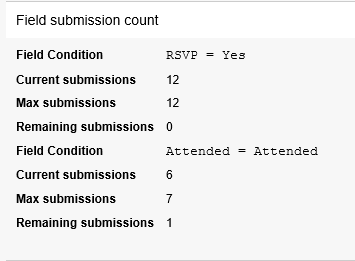
If you have added an email address on the "Email form to" field in the form settings tab of the form editor, you will receive an email when a form is submitted. As you have also set up a limit on a field's submission, the email will include a second table with the status of the field. For example:
FAQ
1. When I click on "Configure custom landing pages" I don't see any options to choose from.
You need to add at least one InterAction additional field to your form for the options to be displayed.
2. Does Limit Form Submission work with blank forms?
Yes, this feature will work with pre-filled forms, blank forms and forms submitted using the Test Page function.
The limit for each field takes into account the submissions for all three methods, regardless of which form you use the field on. For example, if you use the same RSVP field on both a pre-filled and a blank form the limit will apply by adding the totals from both forms.
Best Practice Suggestion
If your clients click on Register to reach the RSVP form, but the event is full, they will not be able to click on the Accept option (it will be greyed out). They may not wish to click on the Decline option if they were intending to accept. They may be left wondering what will happen if they simply Submit the form.
A possible idea to mitigate this situation might be to add a piece of text, below the RSVP field, which says something like: "Unfortunately spaces for this event are limited. When this event is full you will no longer be able to choose Accept. If you would like to be put on the waiting list in case a space becomes available then please click here."
Add a further additional field to your marketing list in InterAction. Call it Waiting List and make it either a Yes / No field or a List field. Add this additional field to the form with labels such as:
The client will then have the option to click before finally choosing Submit.
You will be able to see the people who would have liked to Accept, if space had been available. You can report on these people via InterAction or via the View Stats report on each form.
