Whitelist; allow list; engaged list; expiry; expired; global additional fields; activity; interaction; Engagement status; mailing status; last engaged
Overview
Vuture automatically records contacts' engagement - opening emails, clicking links and submitting forms - as emails are sent out for your firm. Each time a contact engages with an email or a form, there is an Activity Type created in InterAction. Engagement information, including dates, is available in hundreds of reports from Vuture, and the last engaged date is also displayed in the Allow List (or Whitelisting) Tool. Clients who have not engaged with your mailings will be marked as not engaged and can, if you wish, be suppressed from further mailings. This is not a mandatory process, but firms who choose to implement this will find their mailing reputation is improved.
Read this first: There is a detailed explanation of the Allow List (or Whitelisting) Tool here.
Why We Did This
Clients of LexisNexis have asked to see engagement information and dates written back to InterAction - to enable them to search for, sort and validate their data records directly in InterAction. In response, Vuture and LexisNexis have worked together to enable the writing back of engagement data into global additional fields.
CRMs - InterAction Only
The Allow List, or Whitelisting Engagement Tool, works for all CRMs and standalone. However, this new process for writing back data to the crm as described here is for InterAction only.
NOTE: When your contacts engage with your firm’s emails and forms, the contact’s whitelist status in Vuture is updated in real time. The whitelist status will write back to InterAction once a day, but only if it is changed in Vuture. The last engaged date will also write back to InterAction once a day; but again, only if it has changed in Vuture.
Note about naming: Vuture intends to gradually rename the Whitelisting Tool and all reference to Blacklisting, in line with the rest of the Campaign Monitor Group and best practice generally. This will take time to percolate throughout the system; so for a period of several months at least you may see reference to both sets of names in our screens and articles.
Prerequisites
Whitelisting must first be populated and enabled for the instance, even if it is only in Monitor Only mode. This is to establish a baseline of engagement data. Click here to read more about Whitelisting and Monitor Only mode.
InterAction CRM, integrated with the Email Module (Note: this Engagement Status write-back feature is for InterAction only)
Clients will need access to the Admin client of their InterAction or the assistance of an Admin client user, to create the new fields.
Vuture CSM will need to enter values obtained by the client in Admin.System.InterAction1 (see section below)
Vuture CSM will need to enable the scheduled task "WriteBackEmailEngagementToCRMTask" in Admin.Services. This should be set to run once per day at an out of hours time.
Note: An initial data load - to populate the fields for the first time - is not in scope. When we switch this on for a client, the data will build up gradually. A bulk data load will be possible, by arrangement with your Client Success Manager.
Step 1 - Build new Global Additional Fields in InterAction
In InterAction, build two new Global Additional Fields. The exact names of the fields are your choice, but the meaning should be similar to the following:
1. Email Marketing Status (this could otherwise be named Engagement Status, Vuture Status, Mailing Status or anything similar as you choose). It is a list field with four possible values called:
- Inactive - Not engaged (or could be named Suppressed by Whitelist, for example)
- Active - Engaged
- Active - manually marked as Engaged, by domain
- Active - manually marked as Engaged, by email
2. Date of Last Email Marketing Engagement. This will be a Date field.
This information will write back to InterAction once a day, if it has changed in Vuture.
Give your Client Success Manager the ID numbers of your new additional fields and the ID numbers of the additional field values. Your Client Success Manager will enter these values at Admin.System.Interaction1 here:

And they should also check the box in this image. Combined with the new scheduled task, this will allow the update to take place.
Finding the field IDs and Value IDs
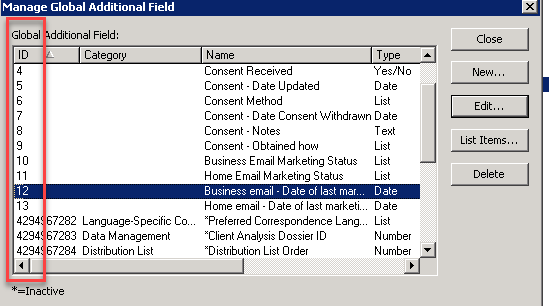
In the Admin client, once you have built your new fields, the field IDs will be displayed. However, you need to give your CSM the Web version of the Field IDs. How to find the Web version is explained below.
1. ADMIN CLIENT VIEW OF GLOBAL ADDITIONAL FIELD LIST WITH WINDOWS ID NUMBERS
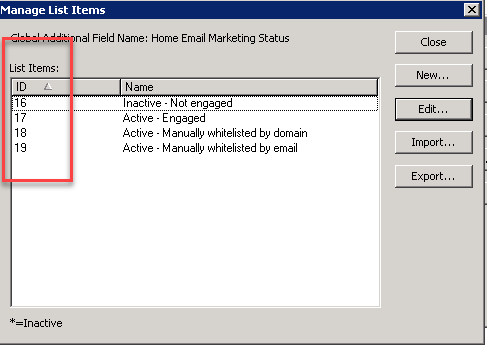
2. ADMIN CLIENT VIEW OF GLOBAL ADDITIONAL FIELD VALUES
How to find the Web ID equivalent of your new Global Field IDs
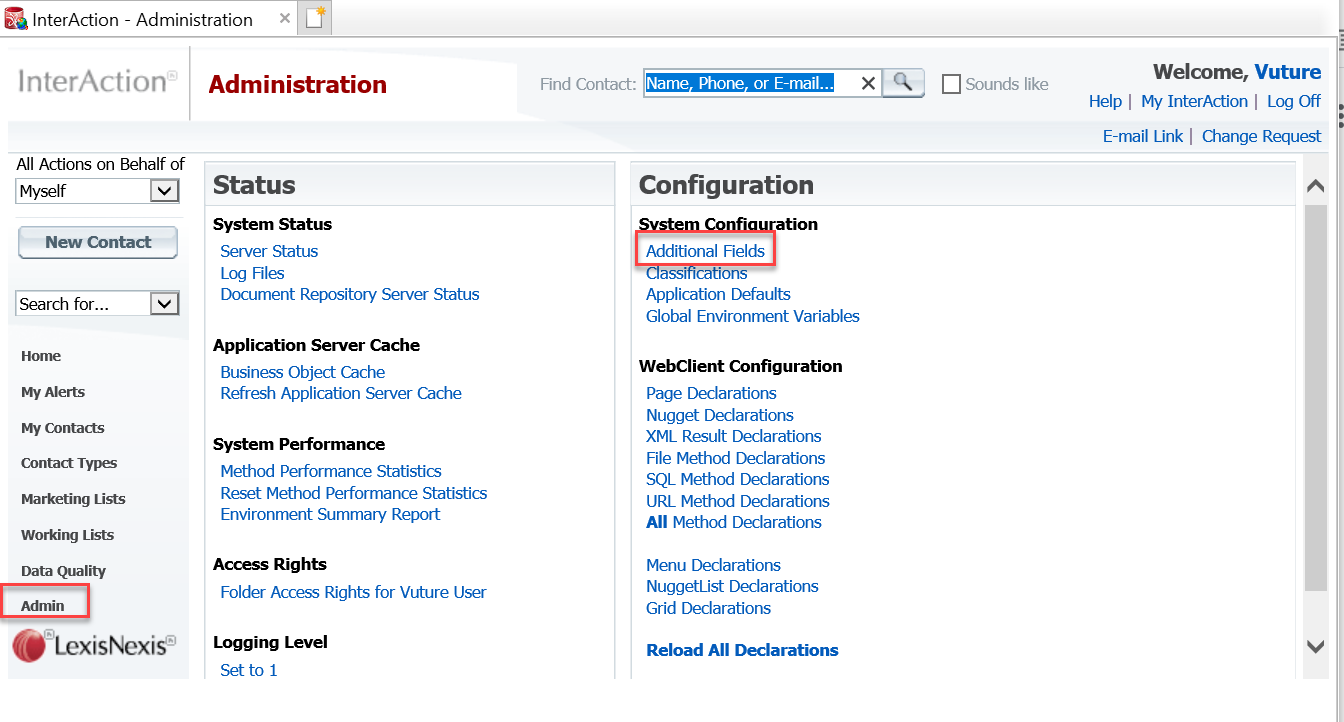
Open the web client and log in as a user with ADMIN access. Click on Admin. You will see Additional Fields on the right of the screen.
Click on the Additional Fields link. You will see a list of all folders on the left, with their fields and IDs on the right. Scroll down until you locate the Global folder.
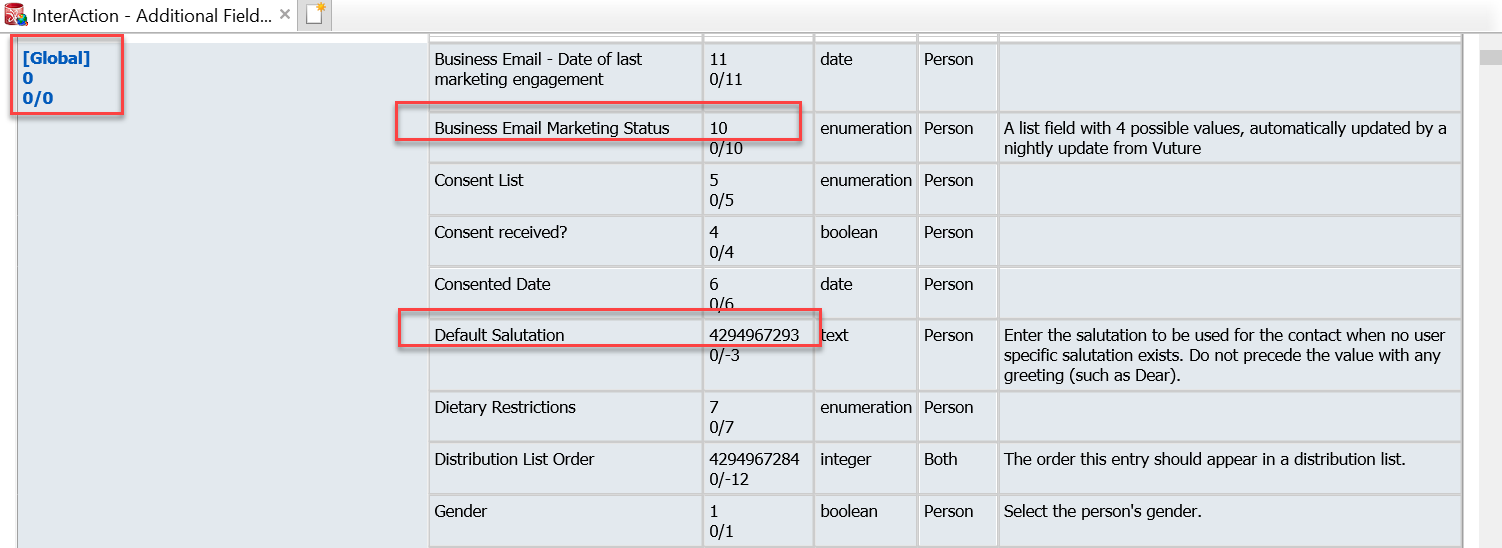
The ID number you need to give to your CSM is the top one for each new field. In the above image the top example, Business Email Marketing Status, has a short Web ID number - 10 but in the example below, Default Salutation, there a long Web ID number. Irrespective of the length, it is the top number which your CSM will need.
The field VALUE IDs will be as shown in the image at 2. ADMIN CLIENT VIEW OF GLOBAL ADDITIONAL FIELD VALUES shown above.
Please note: The numbers for your InterAction will be different from these examples.
Working in InterAction
Decide how you would like to work with Vuture’s Engagement Data in IA:
- Display in Client Insights
- Create a Web Client Profile
- Use Contact Types to display the Engaged status and use FDAs for searches
You could use any or all of these methods.
1. Here is the data displayed in Client Insights:
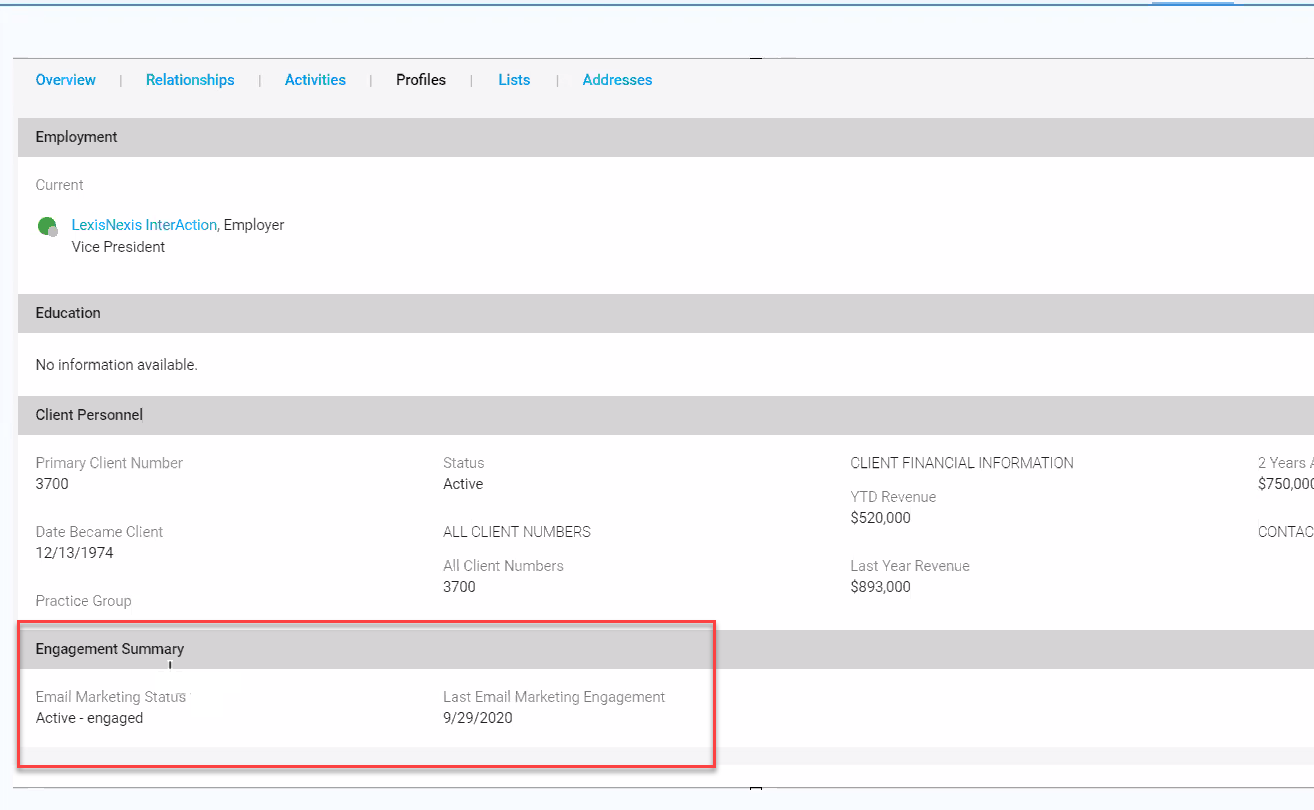
2. Here is the data displayed in a Web Profile
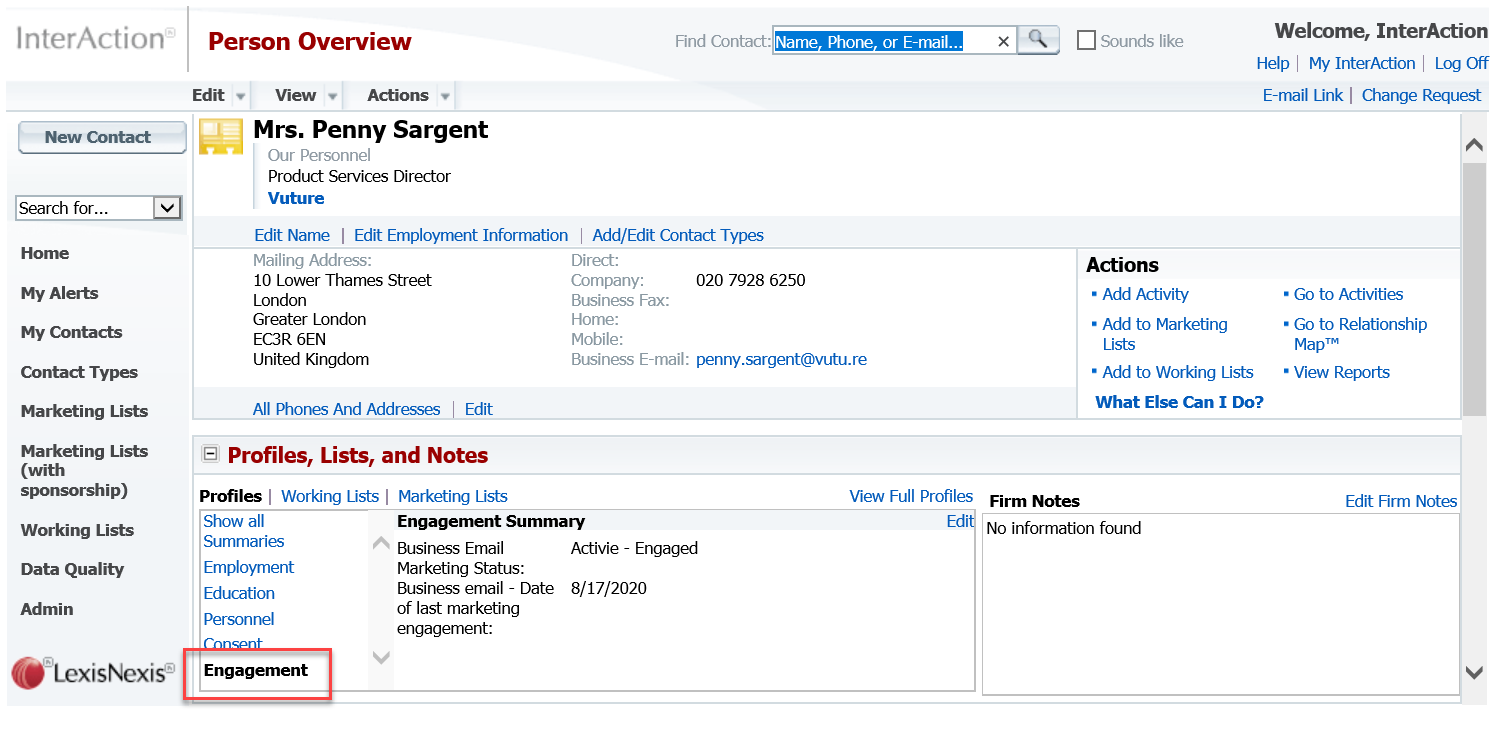
3. Working with the data in Contact Types and FDAs
Create 4 new Contact Types in InterAction, matching the four statuses.
(Ask your LN client adviser for assistance if unsure.)
Build a Saved Search and write an FDA to do the following:
- Find all contacts who match one of the statuses (example Not Engaged)
- Add to the corresponding new Contact Type folder (example Not Engaged Contact Type)
This contact type will appear below the contact name in the web client and make it easy to see at a glance when an individual is Not Engaged.
Note: this information is based on the primary or Business email address. Remember that a contact may have several email addresses (Business, Home, Alumni) and some of them may still be engaged while others are not. You will need to investigate any inconsistencies.
FAQs
Q. How often will the contact data be updated in IA?
A. When your contacts engage with your firm’s emails and forms, the contact’s whitelist status in Vuture is updated in real time. The whitelist status will write back to InterAction once a day. The last engaged date will also write back to InterAction once a day. (Unless they are added to the manual whitelist in which case we will not be writing back Engagement Data as they are manually whitelisted)
Q. Where else can I see this engagement data?
A. Each Email Send confirmation email includes a line item called “Not Engaged” which shows the number of contacts who were suppressed from the mailing because they had passed their Whitelist Expiry Date. (Or, would be suppressed if you have this feature switched on.) You could previously download this list of contacts into Excel, and you still can. However, now instead, you can search for them in InterAction and deal with them from there.
Q. What constitutes “Engagement”?
A. The Whitelist Engagement Tool checks whether contacts have opened an email, clicked a link or submitted any form (including RSVPs) and whitelists them for a further 12 months from that day, so they can continue to receive mailings.
If they are a newly mailed contact, or a new contact who has signed up using a blank form, they will also be whitelisted for 12 months. (12 months is configurable).
Q. What about contacts with more than one email address?
A. Each unique email address is stored as a separate record. If you have a contact with more than one email address (e.g. work and home) then engagement is stored separately for each one. This allows a contact to continue receiving emails when one address is no longer in use, for example.
Q. Why can't we begin with a full upload of all engaged status and dates?
A. There will not be an initial data load of all the mailing engagement data recorded in Vuture so far. Instead it will begin as a gradual process, updating daily changes as they occur. This is because the data load is potentially very large and could take some time to complete.
It will, however, be possible to arrange a bulk upload of historical data. The start time will need to be managed carefully so that it does not impact any planned mailings. Talk to your CSM to arrange this.
Q. For the Engagement Tool connected to InterAction: what happens if a contact is Not Engaged in Vuture, and Vuture has written back to IA the Not Engaged status, but then a user in IA changes the contact record status to Engaged? Does Vuture then recognize this status change?
A. Vuture does not update any status in IA unless we run back the daily WriteBackEmailEngagementToCRMTask with approval from the client. Unless this occurs, then this will remain unrecognized in Vuture.
