Download PDF version
Preparation
It can be useful to allow your contacts to sign up for an event via a form on your website as well as sending a form out attached to an email. Once you do this, you may wish to track who is signing up via the website and who is responding to the email. In order to make this tracking easy, you first need a couple of Vx features in place:
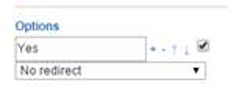
1. Ensure that you have the pre-checked option available on your Forms. This is a small checkbox to the right of a list or a yes/no question, visible in the Form Editor. If it is not available, ask your Account Manager to switch it on (free of charge).
2. Ensure that you have the Make Hidden option available on your Forms. This will appear as an option, along with Half Width and Required, when you import a question to your Form. Again, if you cannot see this option, ask your Account Manager for it. It is also free of charge.
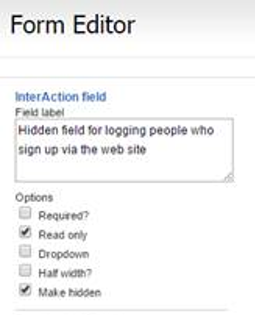
Once you have these two features in place, you can continue with the rest of the process.
Process
In InterAction, navigate to your mailing list and add a new Additional Field called Website Signup or similar. Make it a Yes/No field and add the list values of Yes and No to start with. (You could adapt this method for further data sources yourself later, maybe using a list field and listing several different sign up locations.)
In Vuture, navigate to the relevant container and campaign and the completed Registration Forms which should have all the usual questions on already.
Using the Blank Registration Form, make a copy of the Form.
Rename it Registration Blank (Web) or use your own naming convention. Ensure that the name is different to your standard Blank form, and that it mentions Web.
On the copy, pull the new Additional Field question through to the form and make it Pre-checked to Yes, and Hidden, like this
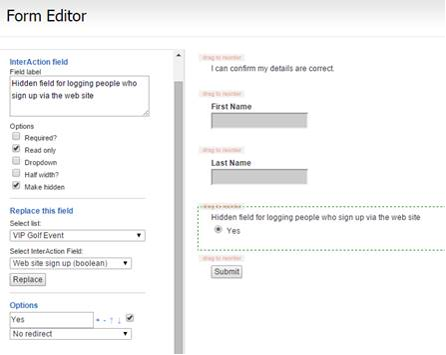
This will set the Website Sign up Additional Field on InterAction to Yes for any contacts who complete this form via the website and hit Submit.
You can add this Blank Form to your website, once it is saved and published, by clicking on it again as if to edit and then using the Deploy option at the top right hand side of the screen. The Deploy option contains several different ways to share the form, including a URL link which can be added to a web page, and the coding for inserting into an iframe on your website.
