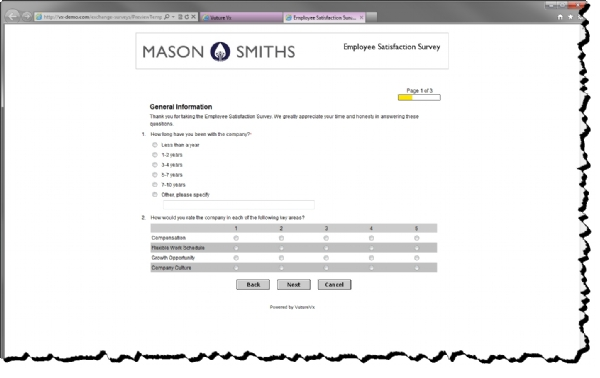
Templates are used to fully define the look and feel of all surveys. There is no limit to the number of templates a user may create. Each survey must be associated to a template, and any number of surveys can be associated to a single template. Modifying a template changes the look and feel of all surveys associated with that template.
Templates are used to define all of the following:
- Logo (optional)
- Border width and color (optional)
- Background colors
- Heading and alternating colors for matrix questions
- All font styles
- HTML for headers and footers (optional)
- Navigation buttons or links
Using templates, the look and feel of almost all web sites can be created for your survey. By providing HTML for the header and footer, you can have the same navigation, header, and footer as your own web site. With the many other template attributes, the entire look and feel can be copied. Finally, applying your own logo to the survey can help to create a fully branded survey.
The application contains a default template called, "Default Template." This template is associated with all new surveys. This template cannot be removed from the system, but it can be modified, as desired.
New templates can be created either by creating a new template from scratch, or by copying an existing template. Templates can be deleted if they are not associated with any surveys. When setting the template for a survey, only surveys that are marked as active can be selected.
Templates are owned, by default, by the user who created the template. To enable sharing of a template, the "Public User" property must be set to "Yes." This property indicates whether or not usage of the template is limited to administrators and the template owner, or it is available to all users of the application.
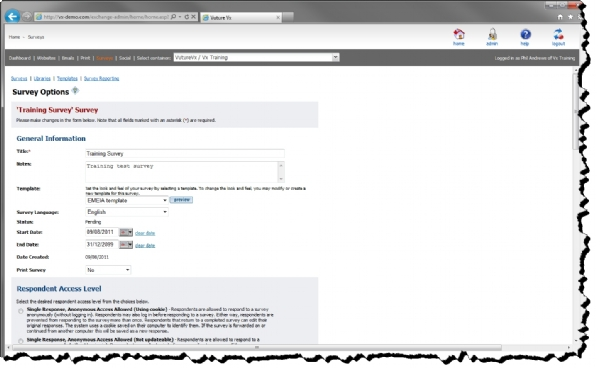
The look and feel of any template can be viewed by clicking one of the "Preview" buttons, which are located on the template list page, the template details page, and next to the template dropdown on the survey details page.