Keywords: Email Tagging, crosslinking, tags, tag mailings, setup
Please note: Email tagging is a premium feature. If you do not already have tagging, please contact your Customer Success Manager for more information. It is not a requirement to have a CRM to make email tagging work well for your firm. Email and landing page tagging works well without a CRM.
Overview
This article will give an overview of Vuture's premium Email Tagging feature, as well as, what is required for setup. If you are interested in how to use Email Tagging, please refer to this article.
Contents
What is Email Tagging?
Email Tagging has been developed by Vuture in response to the reporting requirements of our clients – which are complex and varied.
In addition to our best practice recommendations for Container Structure, our clients may need to report on emails and landing pages by Country, Practice Area or Industry, Office, Author, and by Key Client (InterAction only).
For example, some content (i.e. Events) may relate to one or more Practice Areas or Industries, creating a challenge to report on overall stats related to each Practice Area or Industry. Email Tagging helps to alleviate this challenge by offering the Mailing Totals report to help fill in this gap in reporting.
With Email Tagging, it is up to your firm to decide which set of Tags you would like to report on. This is in the form of a Tagging Category and its corresponding Tags. Below are a few recommendations based on what most clients use.
| Tagging Category | Corresponding Tags |
| Email Type | List out all Email Types as tags (i.e. Event, Newsletter, etc.) |
| Practice Area | List out all Practice Areas as tags (i.e. Tax, Real Estate, Finance, etc.) |
| Industry | List out all Industries as tags (i.e. Energy, Technology, Financial Services, etc.) |
| Office | List out all Offices as tags (i.e. New York, London, Sydney, etc.) |
| Country | List out all Countries as tags (i.e. United States, United Kingdom, Australia, etc.) |
| Author | List out all Authors (that you wish to report on) as tags. |
| BD Team | List of BD Team or People responsible as tags. |
| Audience | Tags could include: External, Internal. |
Note: It is not a requirement to have a CRM to make email tagging work well for your firm. Email and landing page tagging works well without a CRM.
What are the requirements to setup Email Tagging?
First, speak to your Customer Success Manager about your interest in Email Tagging for any additional costs in the setup and training.
Next, decide on what your Tagging Categories and corresponding Tags should be. This will vary from firm to firm, so think about how your most frequently required reports are currently structured. See our suggestions on Tagging Categories above.
Complete the Table below and provide it to your Customer Success Manager for setup. Your Customer Success manager will find steps to set this up for you here.
| Tagging Category | Corresponding Tags (Listed out) |
| | |
| | |
| | |
Best Practice Tip: Please be cautious when developing your list of Tagging Categories and Tags. We recommend you start as simply as possible with the most important information that will be required for your reporting needs.
What reporting will I have access to with Email Tagging?
Container Activity Excel Data Reports
The purpose in adding tags to your emails is to allow for quick and easy cross-campaign and cross-container reporting. Once you have added tags to one or more emails, you can report on those emails using the Container Activity Excel Data Reports.
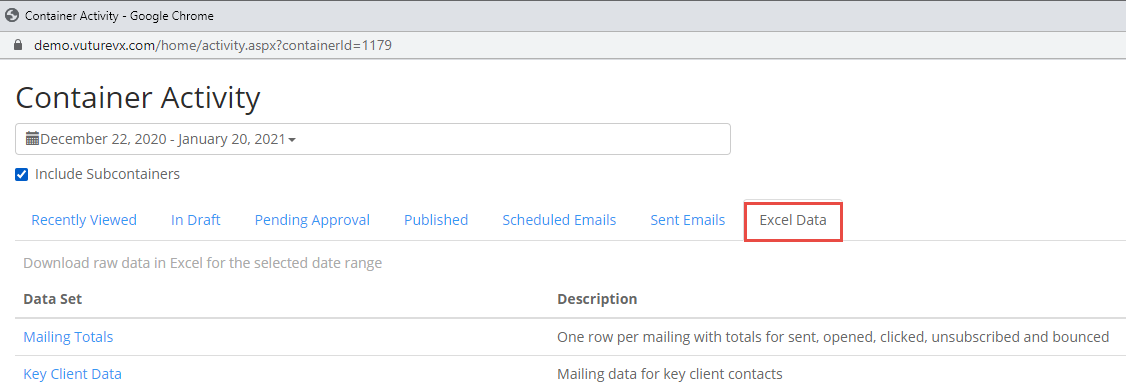
Clicking on the Excel Data tab gives you access to the Mailing Totals Report. This report gives you one row per mailing with all of the stats for that mailing (i.e. opens, clicks, unsubscribes, bounces, etc.) and the corresponding tags. When exported to Excel, you may then filter the data on tags. For more information on what is included in this report, please review this article.
Optional - Key Client Data Report for InterAction
Please note: This may require an additional setup cost. Please speak to your Customer Success Manager for more information.
Many of our clients currently prepare annual “value add reports” for key clients, taking many hours to collate mailing and hospitality reports, to go with their reports of professional services, provided over the past year. With Email Tagging, Vuture can help you to create these reports more quickly and easily.
If you store your key clients in one or more InterAction folder you can synchronise the contacts in these folder with the Vuture system and generate a Key Client Data Report that includes only these contacts. This report gives you one row for each key client, with the date of the mailing, Subject Line, whether they opened, clicked, unsubscribed, or bounced, and the corresponding tags. For more information on what is included in this report, please review this article.
