This is a premium feature - please see your Account Manager for details.
Google Maps
The Google maps snippet allows you to use a dynamic map within the landing pages of emails you are setting up. This is useful for highlighting the location of an event, for example. It is an alternative to using a static image of a map. A static image would be placed on the page via the Image Library like any other image. One advantage of using a Google map snippet is that the dynamic map allows the reader to zoom in and out, perhaps to locate the nearest station to your event.
Getting Started
To embed a live, dynamic Google map in a landing page as of June 11, 2018, you must first enable billing with a credit card and have a valid API key. As explained below, Basic Embed requests remain free with unlimited usage. However, you will still need to enable billing with Google first.
We recommend that you check to see if you already have an existing Google account. If you do, you can choose to use that API key for simplicity, or you could decide to set up a separate account just for Vuture if you want to keep them separate. You might want to keep them separate because of the way you use Google Maps on a non-Vuture website, for example.
If you do not have a billing account, Google has created a YouTube video here for quick tutorials on setting up billing, creating and securing an API key. Additionally, there is a guide to the process below.
Creating a Billing Account
Clicking on Google’s Getting Started link will bring you to the following page:
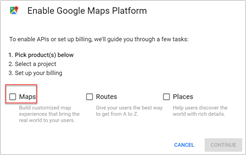
Select Maps and click Continue. You will be asked to enter your firm’s Google account details. If you do not have an account you can set one up at this point. Once logged in, you will see the screen below:
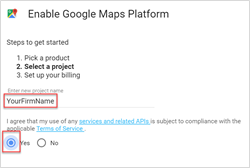
I have entered YourFirmName and selected Yes. Click Next. I received the following warning:
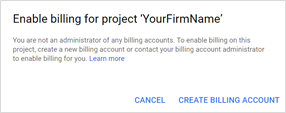
On selecting Create Billing Account you will see the following:
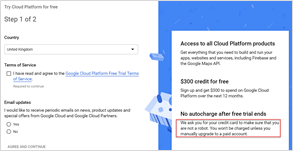
Note the No Autocharge comment.
You will be asked to complete a form:
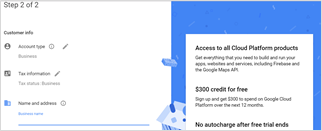
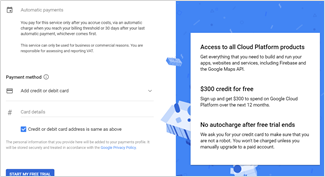
Once you receive your API key, send this to your Account Manager. They will enter the key in your Vuture system by going to Admin >System >Licences > Google Maps API Key and, once refreshed, you will see the Google Map option appear in System Snippets.
Adding a Google Map to a Landing Page
To see System Snippets, navigate to the landing page, select the Edit Layout icon, right mouse click and choose System Snippets from the drop down menu. You will see Google Map on its own tab.
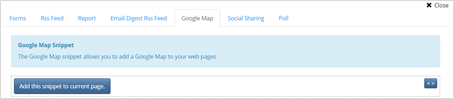
Note this snippet cannot be currently used directly in email pages as it uses JavaScript which cannot be used in an email.
The Snippet will appear on the page as a blue box, with the legend Editable Google Map.
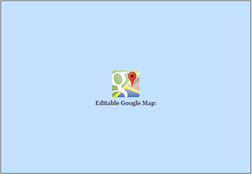
To edit the map, click on the snippet to open the editor.
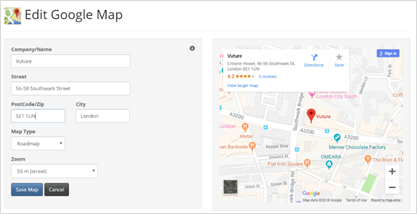
Fill in the details of the location you are referencing (You will see the map searching in real time as you use it). Click Save Map when you are done. You will be returned to the blue Editable Google Map screen.
Note: This is using an iFrame, so you will need to Preview the landing page to see the map live. It will not appear in the Vuture edit screen.
Further Information – Google’s Pricing
The Google Maps Platform APIs are billed by SKU. (SKU stands for Stock Keeping Unit, a unique identifier for each distinct product and service that can be purchased.) Pricing information is available here: https://developers.google.com/maps/documentation/embed/usage-and-billing#set-caps and is also summarised below.
In the previous pricing model, all Maps Embed API requests were free. In the new pay-as-you-go pricing model, use of the Maps Embed API is now split between basic and advanced modes, with advanced modes now being billed.
Two new SKUs have been set up and may appear on your bill, depending on the type of Maps Embed API mode you use to embed a map.
Effective July 16, 2018, the basic Maps Embed API remains free of charge with unlimited usage.
SKU: Embed
This SKU refers to a basic Maps Embed API request that uses Place mode (to embed a map with a marker) or View mode (to embed a simple map). Basic Embed requests remain free with unlimited usage. User interactions with the map, such as panning, zooming, or switching map layers, do not generate additional map loads.