There is a short video on this topic which can be viewed here.
Introduction
By default, a Vuture user has access to all Vuture email lists created in any container they have rights to see, plus all CRM email lists that their user account gives them access to.
You can choose to edit the lists that a user can see in Vuture, either by limiting them on a per container basis or (for the Contacts Module only) on a by Role basis.
Ask your CSM to enable Admin.Roles.Admin.View Email List Access Screen and ensure that Enable Spacelab pages are on. This will give the CSM the right to allocate lists to others on your behalf.
Limit list access by Role
Generally, lists which have been designated as "global" are visible from all containers. If you wish to prevent some users from seeing global lists, it is possible to create a role which does not allow users who have that role to see any global lists.
To do this, you will need to inform your CSM of the name of the mailing list(s) to restrict and the users you do or don't wish to see the list. They will edit the permissions at Admin.Email List Access
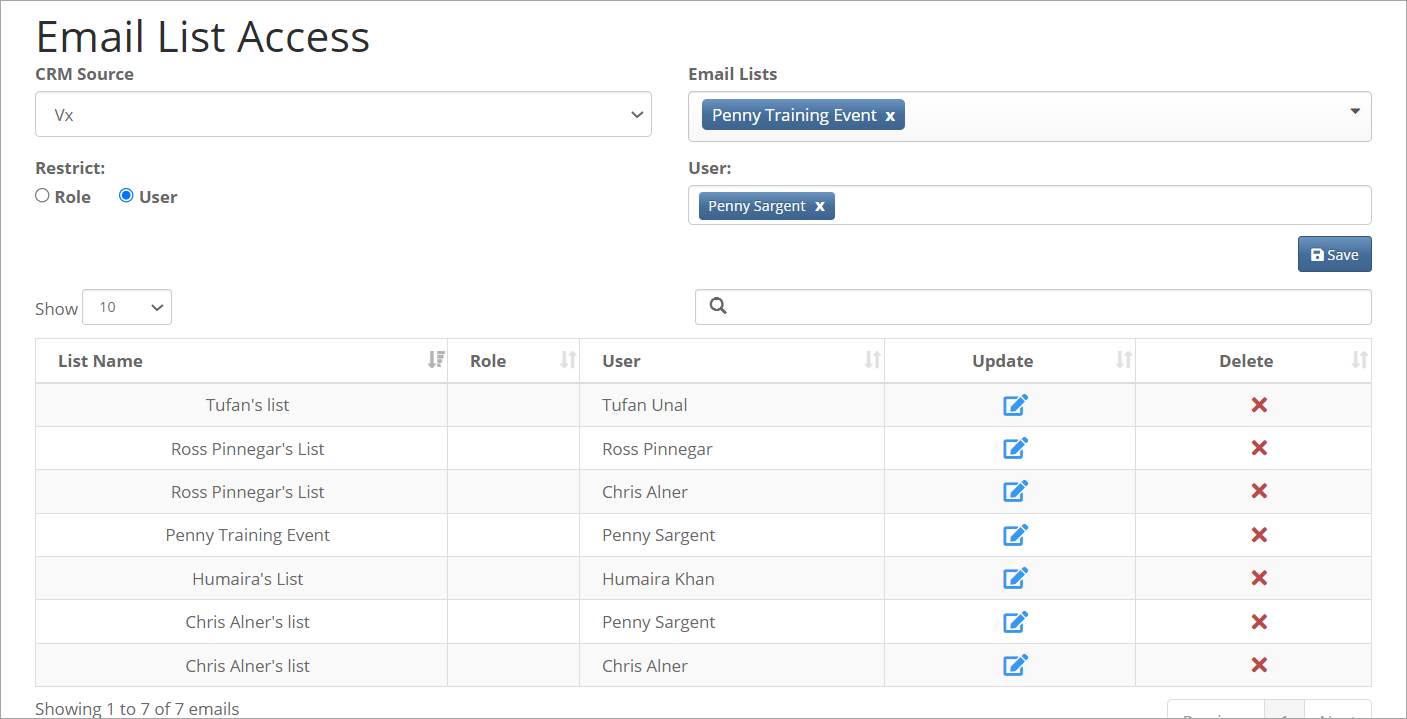
Note: The email lists section will only show global lists, NOT container lists.
They will select global lists in the email list section for the roles that SHOULD see them only. This now means only these roles can view the global lists. Any other role will be restricted to container lists only.
Note: any new global list created later will also have to be added in the Email List Access tool so they are only accessible for Vuture Admin, Super Admin and other Roles who need to see global lists.
This restriction will work for Vuture Connect, the Contacts Module, Email Lists, Send Email V1, Send Email V2 and the Campaign Summary screen.
Alternative method to limit access to lists - Limit list access by container
You may wish to limit which lists an occasional user has access to, on a per container basis. For example, this could be used to give extra security to ensure that campaigns aren't sent to an inappropriate audience. In practice this means you can lock users so they can only send campaigns which are related to a particular list, avoiding the risk of them sending their campaign to an incorrect list.
The feature works by enabling a "Restrict email list by container" for particular roles. Once enabled for a role, users with that role on a given container will only see the lists you have selected for that container.
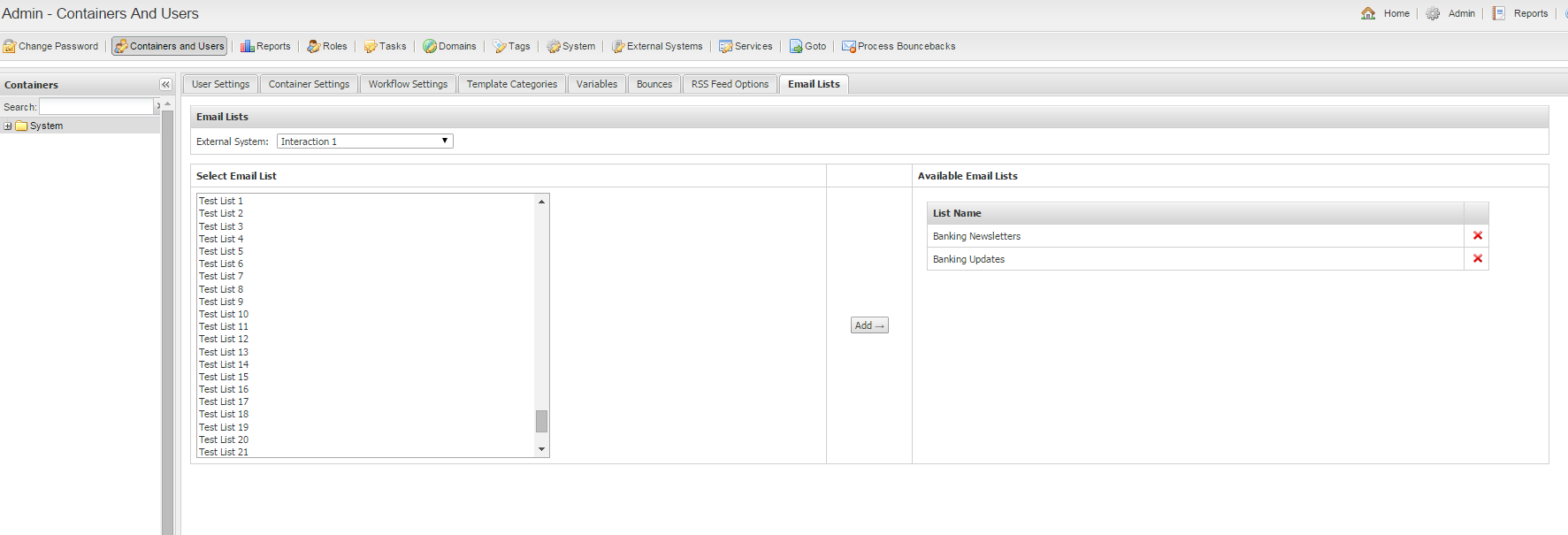
You select the lists for each container from the "Email List" tab in the "Admin.Containers" part of the system.
For best practice, consider creating a new role (Internal User for example, or Alumni User). For that role only, you could:
1. Limit their access to a container called Internal Emails and Events or Alumni Comms or as appropriate
2. Itemise the lists that the container should be able to use:
- The first step is to enable “Restrict email list by container” in Admin.Roles for a specific role
- Then, for a specific container limit the lists Admin.Containersandusers.Emailists
- Only the role with the restriction enabled will see only the lists selected above in the specified container
- All other roles will see all lists
You can now allocate your Alumni Administrator (for example) the role of Alumni User and know that they will only have access to the container and lists you have specified. All other users and roles would be unaffected.
Points to Note
We recommend enabling this feature only for roles where you want to restrict list access. If you enable it for every role, you will be required to go into every container in Vuture and itemise the lists that can be used from that container. This could involve a considerable amount of work and ongoing maintenance as you add more lists to your CRM.
The restricted lists will not apply to sub-containers, therefore if you would like your restricted role to access lists in different containers you should itemise the lists for each container to be used.
If you are working to limit some users to one or two containers only, the users or role that should be restricted must have restricted container access. You will need to let your CSM know which containers they should be able to access. If we disable 'Admin.Roles.Restrict Email Lists by Container' for the Admin role, for example, they will see all container lists. (which is not what we want).
To Enable the Restrict email list by container Feature
Click on "Admin.Containers and User", select the container you wish to edit in the left hand tree and then select the "Email Lists" tab (top right).
You may select the lists you want your users to access from any of your connected CRMs or from the native Vuture lists by choosing the source of the list in the "External System" dropdown.
Select one or more lists from the left hand box and then click "Add" to add them to the available lists for that container. Click on the red cross in right hand box to remove a list.
The email list restriction only applies to users whose role has the "Restrict email list by container" feature enabled. You will need your CSM or Vuture Support to help you enable this.