Scenario: you need to include a guest at your event, generate a badge and record them for numbers, but you do not wish to add them to your database. This might be because they are a one-off attendee, or wife or partner and you have no permission to market to them in the future.
Ensure that for this event you have the configuration setting Enable Walk-ins Without Email checked.
If you can’t see the option to add walk-ins without email, please contact your Account Manager. They will enable this for you in “admin.system.Events. Display Walk-Ins Without Email Option”
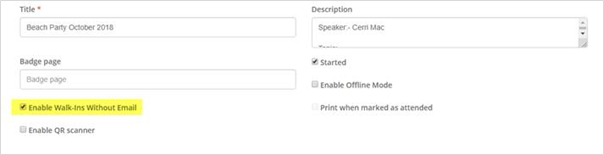
Create your guest list in your crm or the contacts module as usual, including only the contacts that you wish to store in your database
Before the event, go into the Events App, open the Check In Report screen and add the “plus ones” and spouses to your list, as Walk Ins – like this:
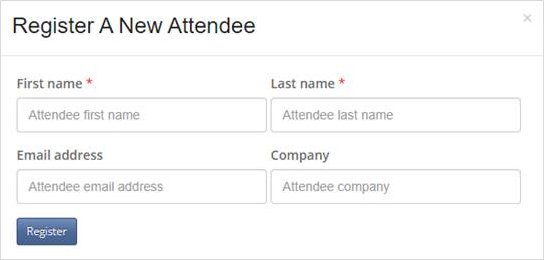
Do not add an email address for them!
You will now be able to generate a badge for them.
On the day, you could mark them as Attended when they arrive so you can track the numbers, or leave them as Walk Ins.
At the end of the event, when you select Close the Event, the system will ask you to first add email addresses for all the people who do not have one. This will group all your plus ones together, and at this point, instead of entering email addresses for them you can just choose to Remove them.
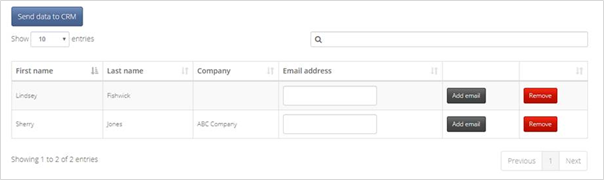
When you have removed the plus ones, choose Send data to CRM. The event will close, with all the plus ones removed.
