Overview
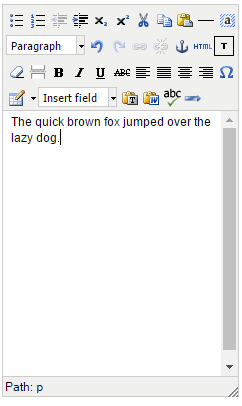
When creating a campaign, you can edit text using the text editor. The text editor contains tools which are very similar to working on a Word document.
Contents
Opening the text editor
Click onto an editable block of text to display the text editor
Resizing the text editor
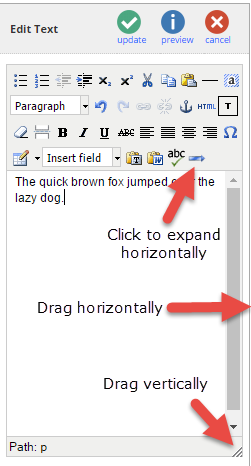
The text editor can be resized horizontally either by clicking on the blue horizontal arrow to expand or by dragging the border between the text editor and the page preview.
The text editor can be resized vertically by dragging the drag handle in the bottom right of the editor box.
Change Text Colour
The colours that are available here can be controlled from the system configuration setting: "Admin > System > Edit Options > Brand colours" which takes a comma-separated list of colours in hex format, e.g: #333333,#00000,#FF0000
There is also a configuration to enable a "More Colour" option that allows you to dial in any web colour.
This can be enabled from the system configuration:
"Admin > System > Edit Options > Text Editor More Colours".
Please contact your Account Manager or Vuture Support to change these settings.
Text Editor FAQ
Semicolons appearing in text when using ampersands or other encoded characters
If you are experiencing issues where semicolons(;) appear in text content when using ampersands(&) or other encoded characters such as accented characters, then contact us so we can set "Admin > System > Versions > Text Editor HTML Decode" to "2" which can solve this issue
