There is a video to accompany this article, here.
Why is this feature important?
This will be useful to anyone organising events in more than one location where they invite delegates to choose the location and then offer different RSVP forms - one for each location. Each form can then write back to a different location list. This has the effect of building an attendee list for each location. Additionally, it means that when a contact completes and submits a blank form, they can now be added to a specific marketing list.
How does it work?
When a contact submits a Vuture form, for RSVP for example, the Campaign to which the form was originally sent through an email is updated with their response. When a blank form is submitted the contact is added to the RSVP object in Dynamics but previously was not added to any specific lists. When you set up a Dynamics form in Vuture, you can now select if you want the submitted details to be recorded against a specific Campaign and Marketing list.
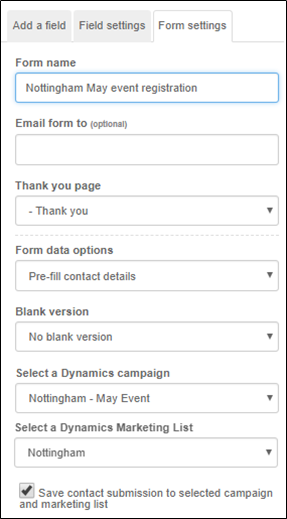
For example, if you send a mailing to “May invitations" Campaign, and link the registration form in the email to "Nottingham - May event" Campaign and “Nottingham” marketing list, when a contact submits their RSVP, this will be recorded in the "Nottingham - May event" RSVP object and will be added to the “Nottingham” marketing list.
If a contact fills in a blank form, they will be added to the marketing list you have selected, e.g. "Nottingham". If the contact doesn't exist in Dynamics, it will also create a contact record for them.
This feature does not need a configuration change. You enable it in the Form Settings (see image below). However, you must have Form editor Version 2 enabled for the system and your role. Please contact your account manager if you are unsure.
Please note, you can only use this method to add contacts to Dynamics' Static lists, not to Dynamics' dynamic lists.