The RSS feed Snippet is a premium feature. Please speak to your Account Manager to get the RSS snippet added to your snippet library.
Overview
The RSS Feed snippet allows content from an external RSS feed to be automatically pulled into the body of a Vuture email or landing page.
This can be used, for example, to send email notifications about new content on your website.
Content
How does the RSS Feed Snippet work?
The content is pulled into the email using the RSS snippet which can be inserted into any email or page.
Clicking on the RSS snippet opens an options panel which allows you to select the RSS feed you want to insert (from a predefined list set up by an administrator) and the date range of the items to be displayed.
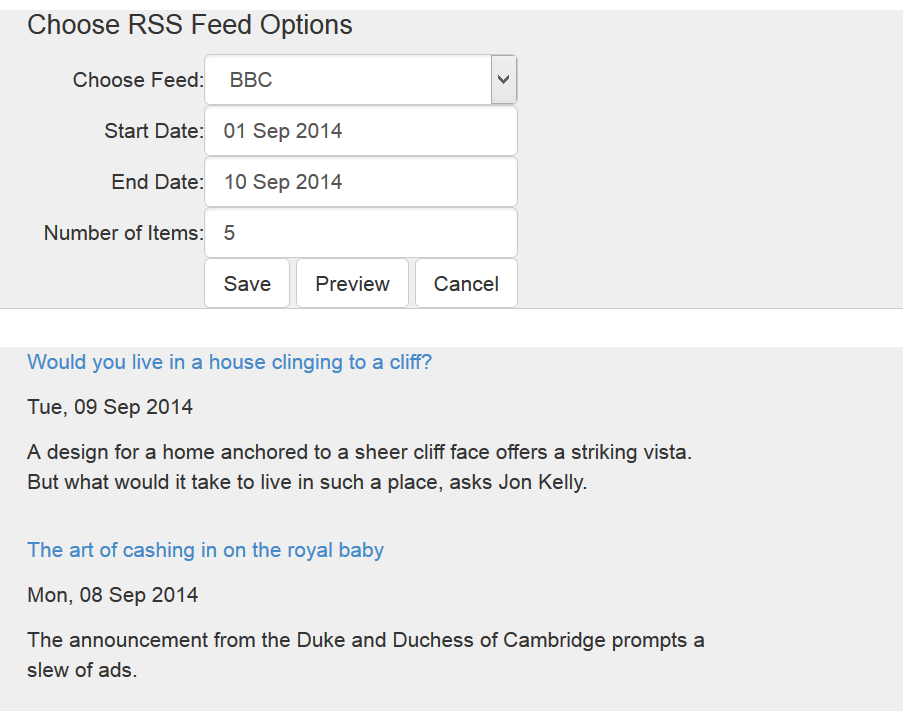
You can preview the items which will be pulled in, then press save to add your items to the email or page.
You may now send your email as normal with the feed content automatically embedded in the email.
How can I insert and use RSS Feeds in my Vuture Emails?
Super Admin users are able to select which feeds are available to containers in the Admin section of Vuture.
To do this, the Super Admin will navigate to Admin > Containers & Users in the top menu.
You can then either:
Navigate to the container where you want the RSS feed to be available for inserting into emails, or
Navigate to the top, or root, container so that the RSS feed can be valid in all containers below that.
Click on your chosen container to select it.
Then, select the RSS Feed Options tab:

Then complete the following steps:
-
Name the new RSS feed something unique and memorable.
- Copy the URL from the page where the RSS originates and paste it in.
- Mark in the check box if you want the feed to be available to the Container’s sub-containers as well.
Please Note: A feed called BBC, for example, in the top container, with Sub Containers ticked, will cascade down through all containers below it. You will then not be able to add a further feed called BBC in any sub-container because all names must be unique.
Clicking in the Default XSL box will add the underlying html for the way the RSS feed appears on your page. If you know html, this is where you can edit the code to match your firm’s column width, font style, size and colour, etc.
Click on Enabled to enable the feed and then click on Add.

You will then need to click on Save.
Your RSS feed will look something like this:

Once added the RSS feed will be available as an option in the RSS snippet editor when used in the selected containers.
Now go to the newsletter or email where you want the RSS feed to appear.
Click Edit Layout, choose Insert Below and find the RSS Feed snippet. Save the layout.
Once the layout is saved, click on the snippet to edit. The following box appears:
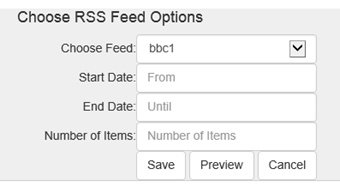
The top drop down menu will list all Feeds available to this container.
The Start Date can be today. The End Date is when you want the Feed to stop working.
Please Note: If you choose a Start Date of today, you need to ensure that there are some blogs written, dated today. It could be better to choose a Start Date of last week or even last month, to ensure that there are some blogs in the feed. Otherwise your page could show as empty.
The Number of Items is your choice of how many news items you want to display. Typically this is 5 but it will depend on the layout of your email.
You may then click Save to save your RSS Snippet Settings or Preview to see how it will appear first.
FAQ
1. There are images in my the articles but they don't appear in my RSS feed.
The RSS feed snippet displays information from the feed itself using a transformation file to choose what to display and how.
If your feed is not showing up as you expect then check:
-
The raw feed - you can put the feed URL into your browser and see the content returned. If content here is incorrect or missing then you will need to speak to your feed provider.
-
The XSL transformation file - this is more complex to troubleshoot but it maps nodes in the feed XML file and turns them into HTML to be displayed. If all of your article summaries are displaying consistently incorrectly then there may be an issue with the transformation file. You can modify the XSL file as described above to get the required result. Please contact Vuture support if you need assistance with this.
2. Can I source articles from search engines such as Manzama?
Yes, following the above process, you can use a Manzama "search" URL in your RSS feed.
Troubleshooting
If you are experiencing issues, you can try using something like the BBC RSS feed as a test. For example:
http://feeds.bbci.co.uk/news/rss.xml
If you connect this up and then browse to it, you can see it is recognised by the browser as an RSS feed and the info displayed. If you do a View Source you can see the underlying xml where each article is in this format:
<item>
<title><![CDATA[Fertility rate: 'Jaw-dropping' global crash in children being born]]></title>
<description><![CDATA[Nearly every country will see their populations fall as the world has fewer babies.]]></description>
<link>https://www.bbc.co.uk/news/health-53409521</link>
<guid isPermaLink="true">https://www.bbc.co.uk/news/health-53409521</guid>
<pubDate>Tue, 14 Jul 2020 23:36:35 GMT</pubDate>
</item>
Look at your RSS specification and make sure your feed meets that:
RSS specification: https://validator.w3.org/feed/docs/rss2.html
Tool to test and RSS feed: https://validator.w3.org/
You need to have pubDate and guid to uniquely identify them.
