Overview
The Video Snippet allows you to insert a video that you have uploaded to Vimeo or YouTube, or an MP4 video file, into a landing page (for an email page, the first frame only will display).
Contents
This is a premium feature which works for all CRMs and Standalone. If you do not already have this available within your templates please talk to your Account Manager.
Please Note: A video inserted into an email will display the first frame of the video as an image, with a link to the video. The video will then play in the online version. Apple Mail is the only email client that has support for playing video directly inside an email.
Upload your Video
There are three methods you can use to share your video:
-
Vimeo - Upload your video to Vimeo and make a note of the ID number of the video. Please note, if the video is private, contacts won't be able to see it, make sure it is public. If it is private (formatted like this: 123456789/ed123rf123ed) you will get an error message.
-
YouTube - Upload your video to YouTube and make a note of the ID number of the video
-
Video Tag - Upload your video in MP4 format either into a Vuture landing page folder or to a non-Vuture website and make a note of the URL to the video file (WebM and Ogg formats are also allowed but are not supported by all browsers).
If you anticipate a high number of simultaneous video views we recommend you upload your videos to Vimeo or YouTube since these services are specifically designed for high volume video streaming.
Insert the Video Snippet
To add a Video Snippet to a template layout, page or email please contact your Account Manager as this is a premium snippet.
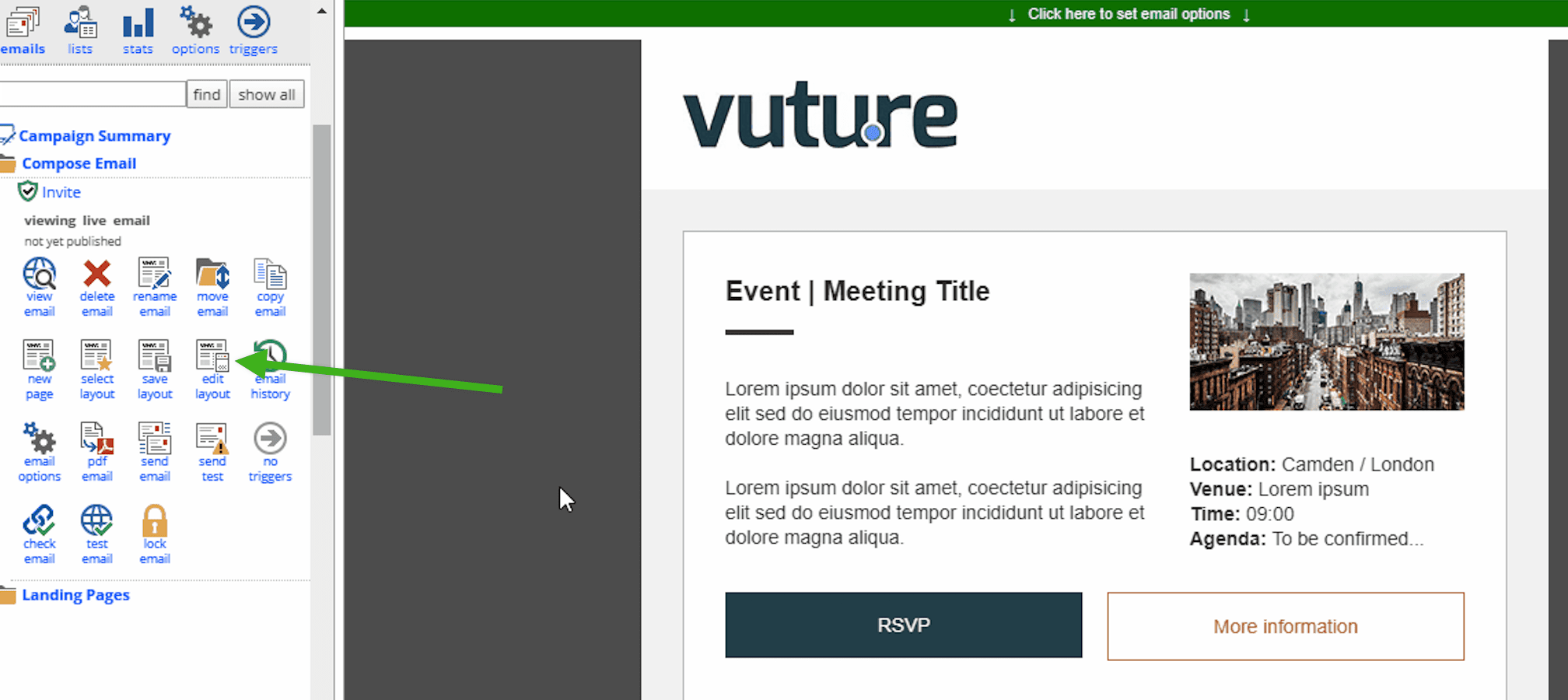
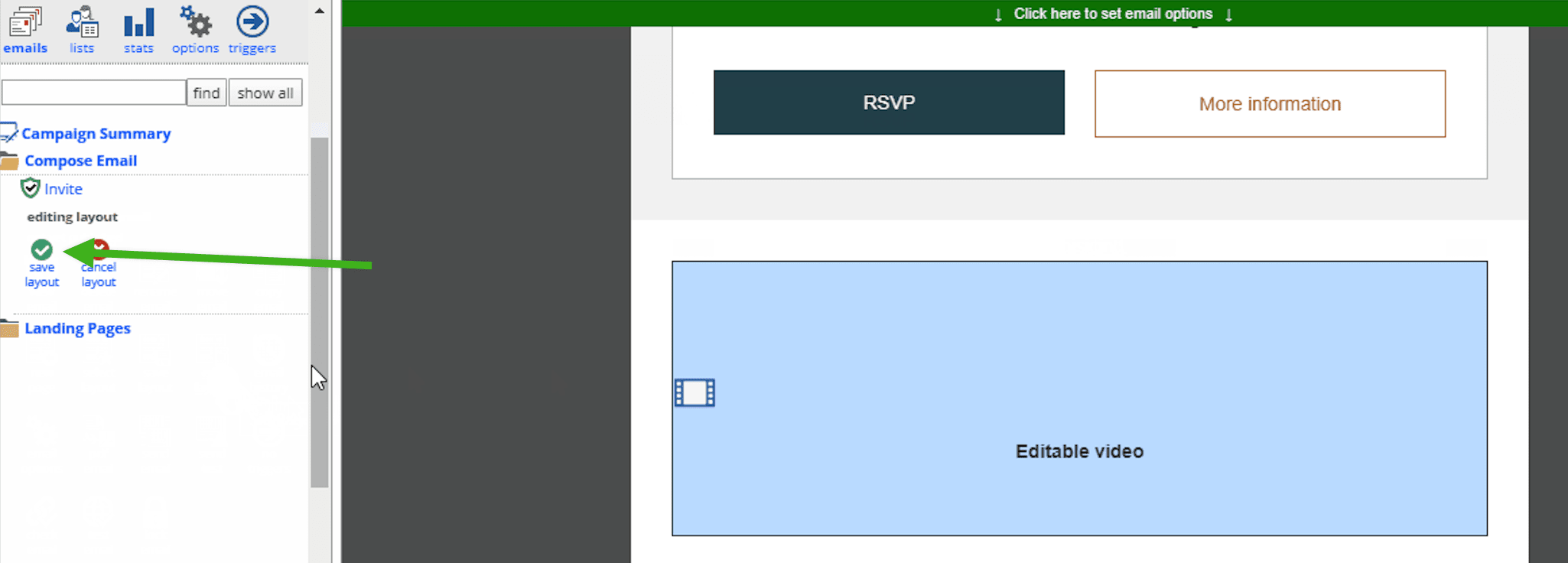
- Go into edit layout mode.
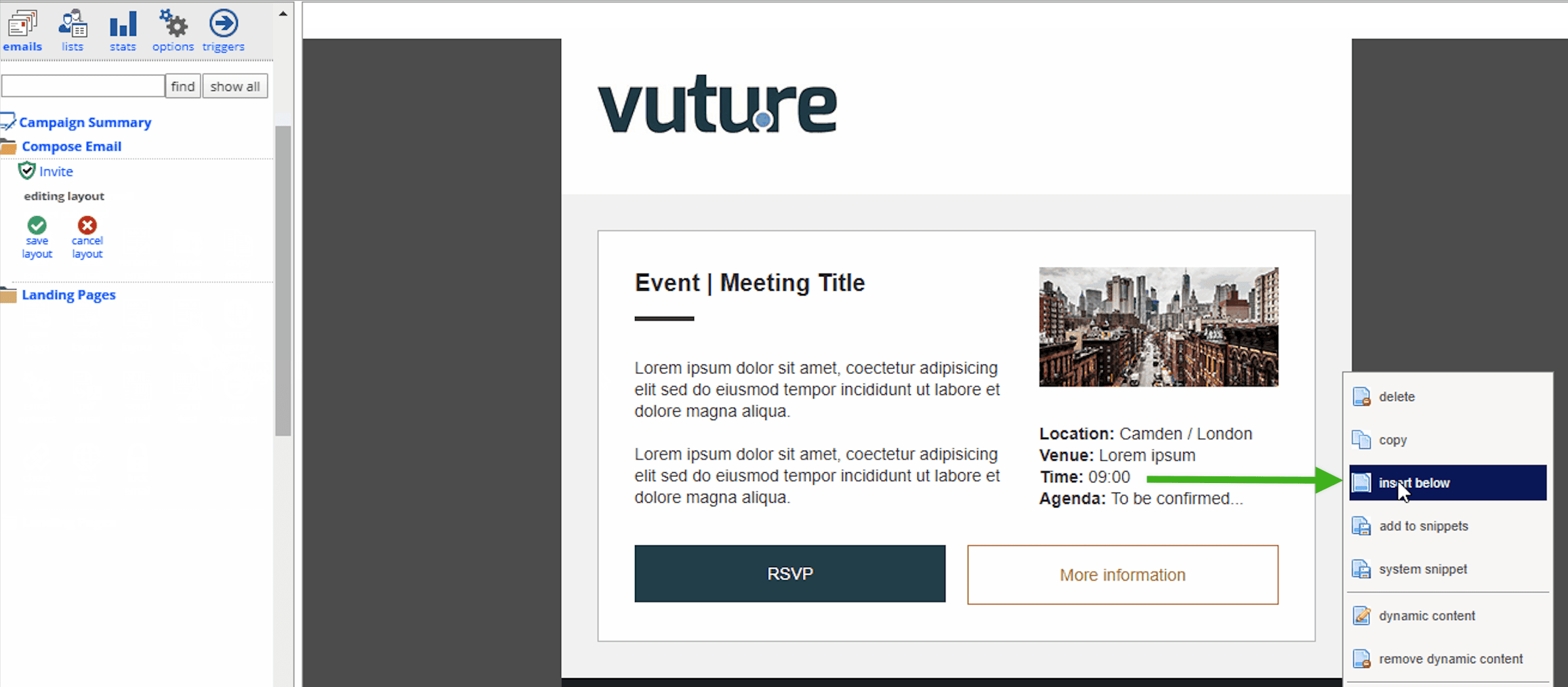
- Right click and select Insert Below from the dropdown menu.
- Select your video snippet from the snippet library.
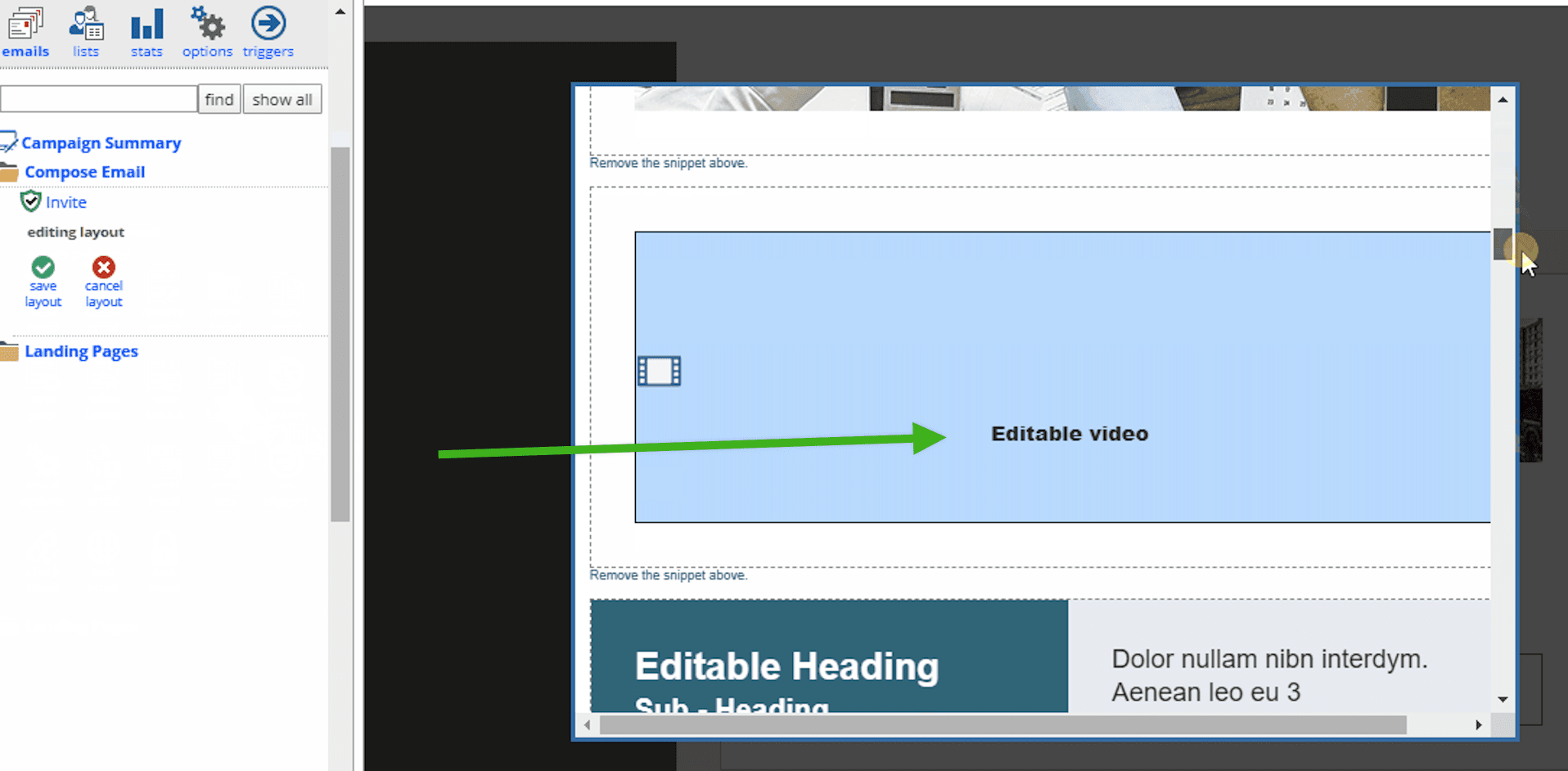
- Click on 'Save Layout'.
Set the Video Snippet Options
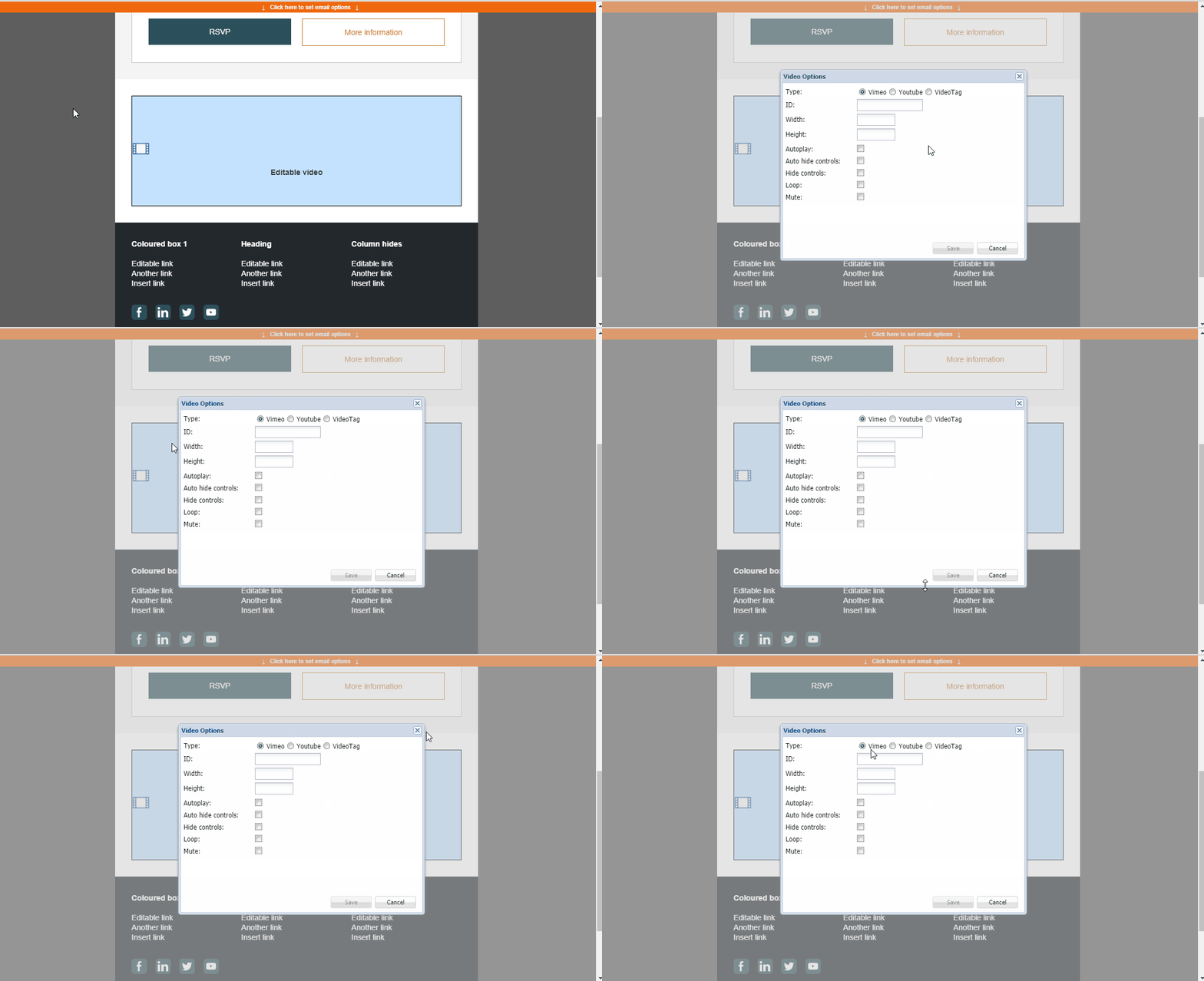
Click on the video snippet to get to the Video Options.
See settings for Vimeo and YouTube here. Or, if you'd like to use an uploaded video or externally hosted video, click here for settings.
Vimeo or YouTube Settings
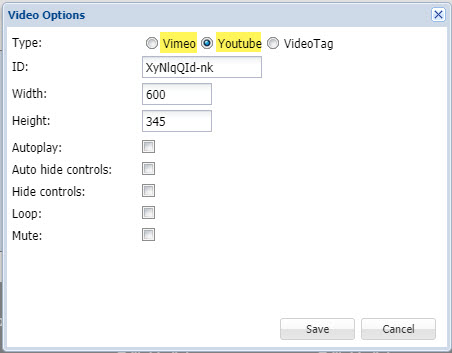
* required setting to save video snippet.
-
Type*: Select either Vimeo or Youtube.
-
ID*: Enter the identification code for the video you want to play (one way of getting it is from the video URL). For example:
-
Width and Height*: Enter the size in pixels that you would like your video to be displayed.
-
Autoplay: If enabled the video will start playing as soon as the page loads. Please note, some browsers (e.g. Chrome) require the video to be muted for it to autoplay.
-
Auto hide controls: Enable this to hide the controls when you don't have the mouse over the video.
-
Hide controls: Enable this to completely hide the controls from the video player.
-
Loop: If enabled the video will repeat indefinitely.
Video Tag Settings
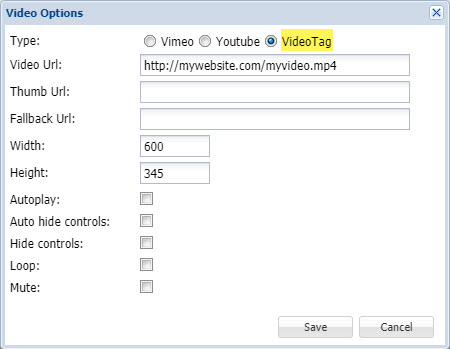
* required setting to save video snippet.
-
Type*: Select VideoTag
-
Video Url*: Enter the full URL (including http:// or https://) to the mp4 file that you have uploaded.
-
Thumb Url: Enter the full URL of an image file (can be a Vuture or external image) that will be displayed as a placeholder for the video.
-
Fallback Url: Enter the full URL of a fallback page for browsers that do not support HTML5 video. The video snippet will be replaced with the image in the Thumb URL with a link to the Fallback URL.
-
Width and Height*: Enter the size in pixels that you would like your video to be displayed.
-
Autoplay: If enabled the video will start playing as soon as the page loads.
-
Auto hide controls: Enable this to hide the controls when you don't have the mouse over the video.
-
Hide controls: Enable this to completely hide the controls from the video player.
-
Loop: If enabled the video will repeat indefinitely.
FAQs
Q. When a user adds a video to a video snippet, and watches the video within a Vuture landing page, what basic data is captured in Vimeo/Youtube? Do they only capture 'video watched', or do they get any more info?
A. These will be specific to the video provider. Vimeo's privacy policy is here. YouTube's privacy policy is here. Vuture does not send any additional info to these services.
