Email or web pages can be created by importing HTML from the URL of an existing web page. This will work as a quick way to bring in an external page that you don’t need to edit and you want to look as if it is part of your campaign. (Best practice for copying between campaigns is to use Save Layout to save into a different campaign.)
To use this functionality your role should have the feature enabled: "Roles>Email Campaigns>HTML Admin" Contact your Customer Success Manager to enable this.
When this is enabled an additional option will be added to the "Compose Email" and "New Page" screens underneath the choice of layout thumbnails.
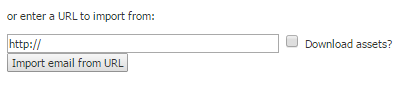
Once you have entered the name of the email or page, instead of clicking on a thumbnail enter the URL of an existing web page (including https://) and click "Import email from URL" or "Import page from URL" for landing pages.
This will create the email or page by downloading the HTML content from the URL you entered.
If the "Download assets" box is unticked any images, css or javascript on the page in the HTML will be retained as external links to their original location.
If the "Download assets" box is ticked then these files will be downloaded locally into the email campaign or website and the links to them in the newly created page or email will be updated to point the local versions. If any of these files already exist, the newly downloaded versions will be renamed to avoid any overwrites.
