Keywords: reports, reporting, report snippet, emailed reports
Please Note: This request requires some styling customization to your master template. This is a premium feature. Please contact your account manager for more details.
If you want to use the Report Snippet with non-CRM lists please see this article
Requirements for data to populate the report snippet
Note: The additional field (RSVP) summary and details reports currently only read data that has been updated in Vuture and will not read values that have been manually updated in InterAction.
If you want to RSVP on behalf of someone then you can use the "test page" feature on the form to register the contact in Vuture. See this helpdesk article for details on this feature.
Note: The report will work with both prefilled and blank forms with the prerequisite that you have sent at least one email to the list that contains the additional field.
How to use the report snippet
The report snippet allows you to insert Vuture reports into any email or landing page as a snippet. You can dial-in the required report parameters and the report will be generated when the email is sent.
To use the report snippet, please contact your Account Manager. They will find the details on how to add it into your template in this article.
Step 1: Insert the snippet into the page through the same method you would use to add a regular snippet whilst editing the layout.
Step 2: Save your chosen layout and the report snippet will appear in your page as shown below. Click on "Configure Report Feed", to choose the desired report and set the appropriate parameters.
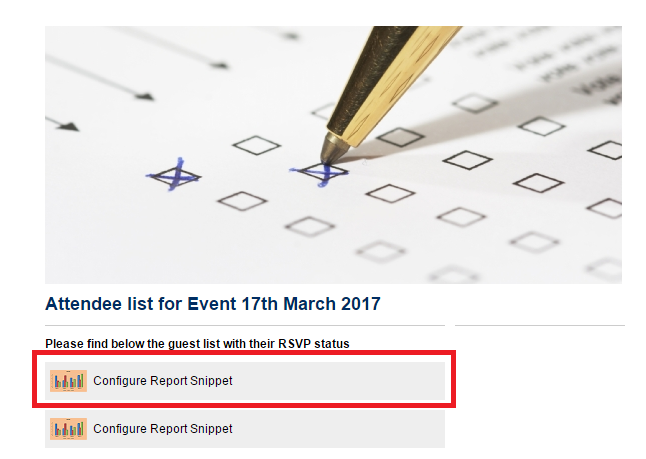
Step 3: Select the report you would like to add, currently the functionality offers two types of reports:
Please note, the field cannot be a "Boolean" type field as this will cause the report snippet to error and won't show the required information
-
To report on Event responses
-
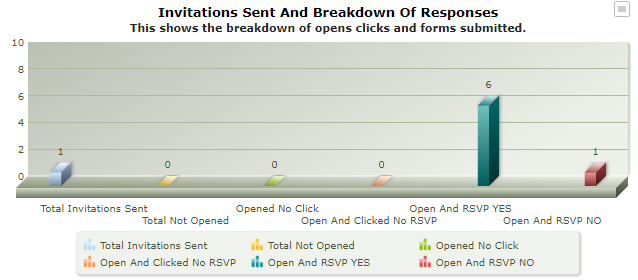
Invitations sent and breakdown of responses (Beta) (InterAction and Standalone only): This shows the breakdown of opens, clicks and counts of RSVP is Yes or No, related to a specific Vuture Form. Your field must be named "RSVP". Your Account Manager must configure the values for Accept or Decline in Admin.System.Reports.RSVP_YES and Admin.System.Reports.RSVP_NO. Please note, this report is in Beta and will be updated in subsequent releases.
-
Step 4: Choose the Chart Type you would like the snippet to be. There are three options:
-
Data Table: This will show your data in a table. We recommend this chart type for reports such as "Additional Field Detail" where the data would be better represented as a table
-
MSColumn3d and MSColumn2d: These two charts will display data as a column graph.
Step 5: Select the CRM instance, CRM list and CRM list fields that you would like to report on.
And click "Save"
Please note, you are able to select the IA Global list from the Email List drop down which would allow you to report on IA Global Additional Fields. This could be useful for example, for reporting on the submissions to a Global "Consent" field.
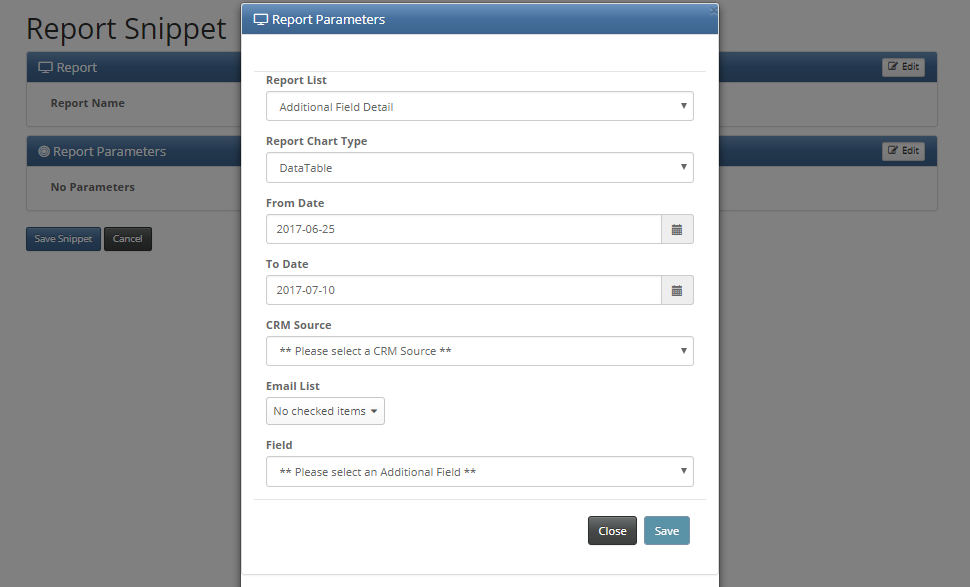
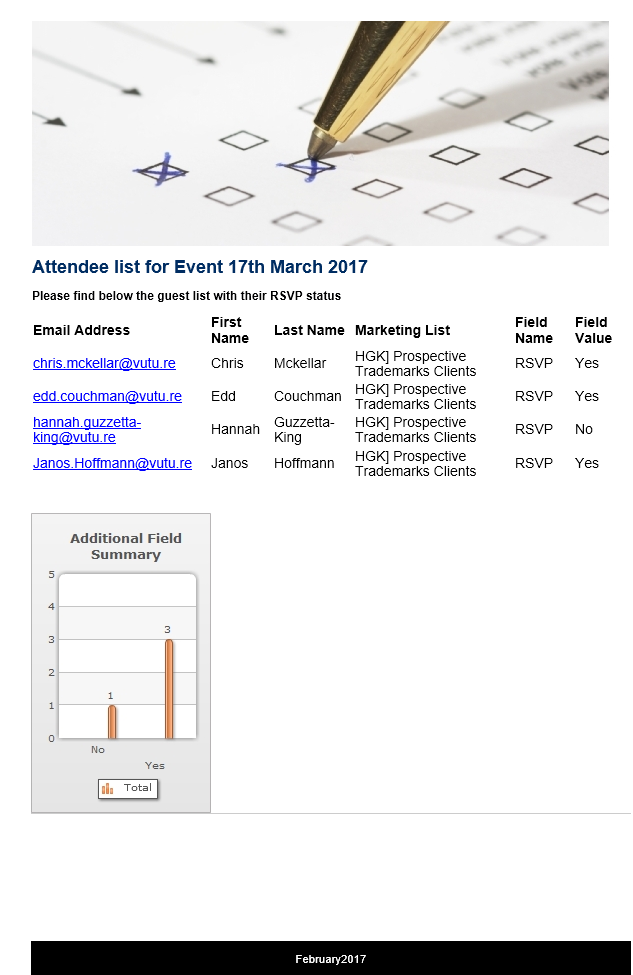
Step 6: The report snippet is now configured. When you're ready, the email can be sent as normal and the recipient will see the report as show below.
This is an example of the Additional Field Detail and Additional Field Summary report snippets in use.
This is an example of the Invitation Sent and Breakdown of responses report snippet in use.
Hiding and Renaming Columns
To learn more about hiding and renaming columns in the report snippet, click here.
