* Web Tracking is a premium feature. Please speak to your Account Manager for more information.
Overview
Vuture’s Web Tracking has been designed to help you see which of your clients and contacts are visiting your website, as well as which pages they are reading and how long they stay on your site. This is made possible by the contact receiving a Vuture email and clicking on a link to your website.
Contents
How does it work?
Web tracking uses the Vuture emails you send to your contacts to apply cookies on their machines.
What are cookies?
Cookies are small, often encrypted text files. They are used by web developers to help users navigate their websites efficiently. Cookies are created when a user's browser loads a particular website. The website sends information to the browser which then creates a text file. Every time the user goes back to the same website, the browser retrieves and sends this file to the website's server.
For example, when a client clicks on a link to your website in a newsletter you send, Vuture can drop a cookie onto their machine. (See the Privacy page for more info). This cookie means that you can identify these contacts when they visit your website later and track their behaviour.
Track New or Unknown contacts
Cookies will be placed on the machines of visitors to your website who are both known (i.e. clicked through a Vuture email) and unknown (i.e. have not clicked through a Vuture email).
For unknown contacts, their machine identity details (i.e. IP Addresses) will be remembered by Vuture. If the person later becomes a contact of your firm, the website information will then be connected up to their new contact record and will be reportable via Vuture reports.
If you have InterAction, you will be able to run reports within InterAction based on Activities. Records of previous, anonymous visits that are now connected up would be available to be seen in Vuture only.
Web Tracking Reporting
Web tracking can be reported on using Vuture’s own Dashboards and reports:
-
Premium Individual Activity Dashboard
- Shows you all emails sent to an individual email address (i.e. Key Client / Prospect) during a specific time frame;
- Shows you whether the individual opened each email and the clicks they generated from that email;
- Best time of day to send to this individual based on historic engagement (opens/clicks);
- Forms filled out by this individual in the time-frame that you set;
- All web pages visited, the date visited, and how long the individual spent on each page in the time-frame that you set.
-
Premium Company Activity Dashboard
- Shows you all emails sent to a specific domain (i.e. Key Client / Prospect) during a specific time frame;
- Shows you whether the anyone at that domain opened the emails and any clicks they generated from that email;
- Shows you your brand advocates, meaning your most engaged contacts at this domain using an Engagement Score. Engagement score is calculated as 1 point for an open and 2 points for a click;
- Best time of day to send to this domain based on historic engagement (opens/clicks);
- All web pages visited by individuals at this domain, the date visited, and how long the individual spent on each page in the time-frame that you set.
-
Web Leads Dashboard
- Learn which pages on the website are most popular and receive the most views over a specific period of time;
- The most recent form submissions;
- The most recent known visitors coming to your website. Clicking on their email address, then scrolling down will allow you to see the exact pages viewed;
- Most recent unknown visitors (i.e. IP Addresses) and the number of pages they've viewed.
-
Web Tracking Page Visits Report
- This report allows you to see the total visits and the total unique visitors for any page or pages within a given date range.
-
Web Tracking Page Activity Report
- This report allows you to see the individuals who accessed a particular page within a given date range.
-
Web Tracking Dashboard* (*with Vuture secure microsites only, i.e. Alumni)
- Shows which pages a visitor of a secure microsite, hosted by Vuture, has visited behind the login screen.
Web Tracking also works with your CRM system by writing back pages visited. This is true for the following CRMs: InterAction, ContactEase, and Salesforce & OnePlace.
For this to work on InterAction’s CRM, for example, you would need to create a new Activity Type during the implementation project. You would then be able to use InterAction’s reporting and Alerts for reporting, too.
Setting up Web Tracking Alerts from Vuture
You may receive an email alert notification if a specific contact (i.e. email address) or company (i.e. any email address at specific domain), visits your website. You may set the frequency to be notified daily or on a specific day of the week.
Please note, the web tracking alert email will not be sent if the specified individuals (email address) or companies (domains) on that alert did not visit your website within that specified time period.
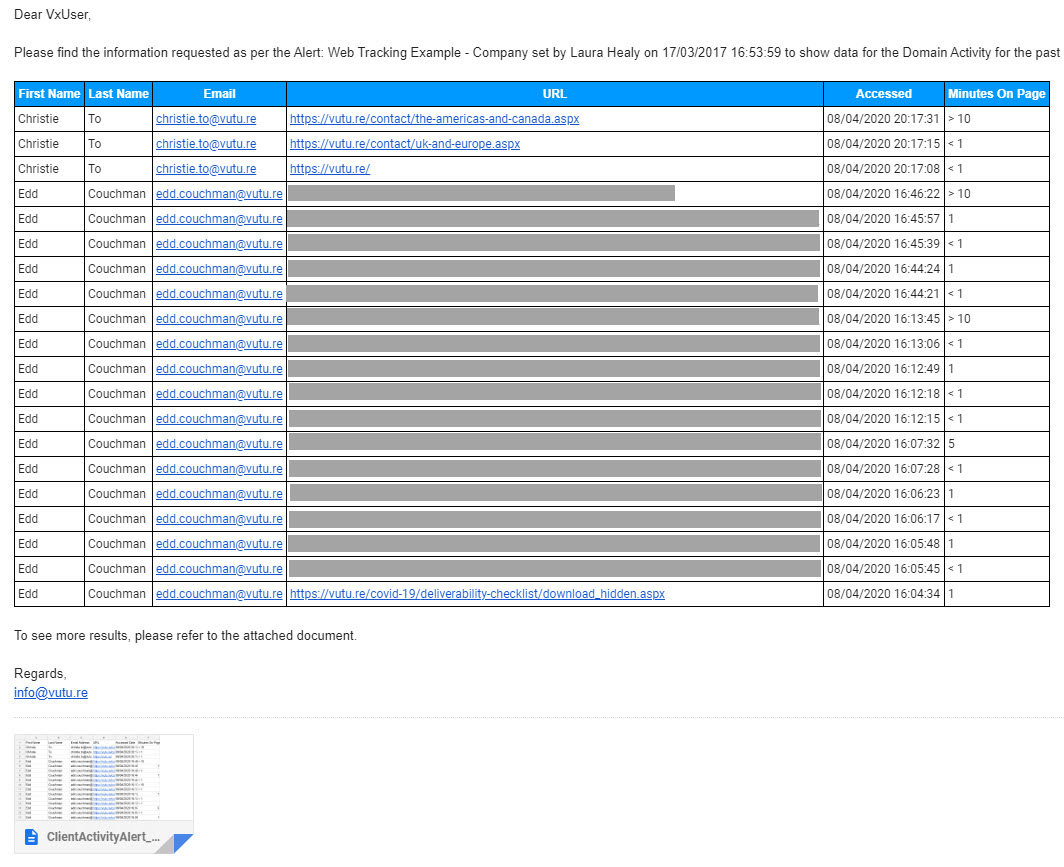
The email alert notification includes the First Name, Last Name, Email Address, Page URL, Date/Time Accessed, and Minutes spent on the page. It also includes this information in an attached CSV file.
Below is an example of the email alert notification you would receive, where 'Web Tracking Example - Company' is the name of the alert in Vuture.
There are two ways of setting up a web tracking alert email notification within Vuture:
- Within the Premium Individual Activity Dashboard and/or
- Within the Premium Company Activity Dashboard.
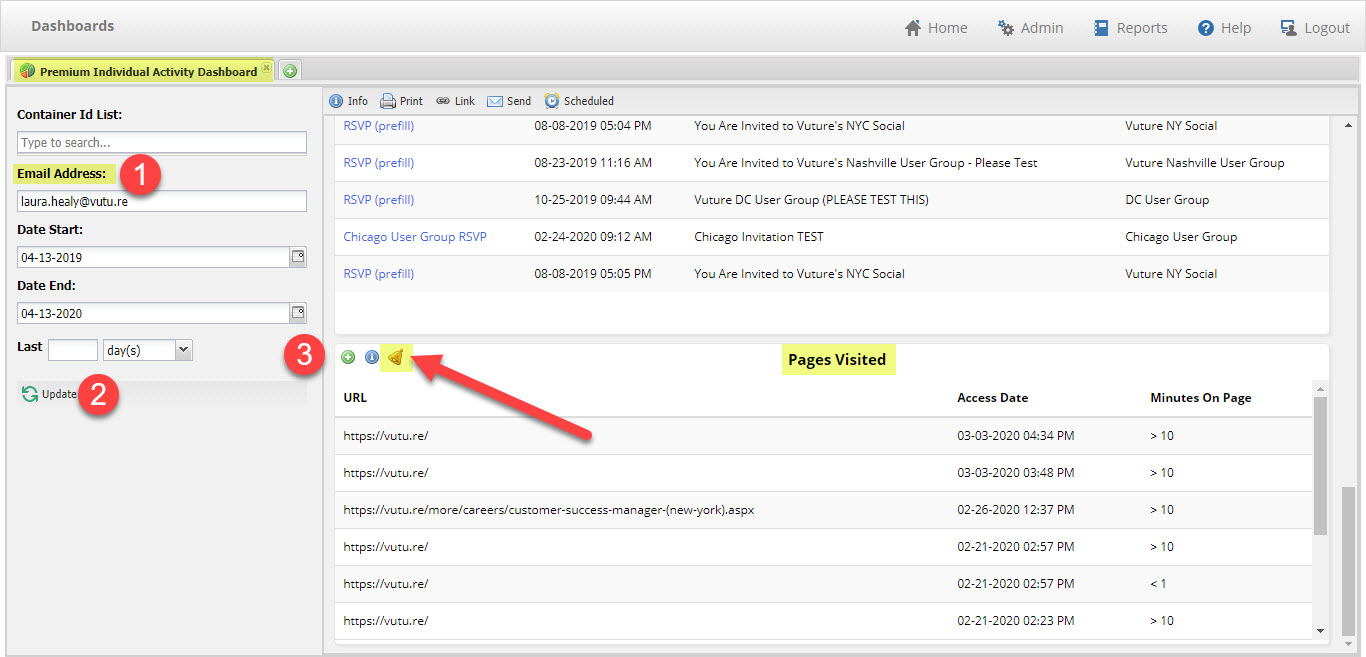
If you wish to set up an alert for a list of individual contacts (i.e. Key Clients or Prospects), you'll want to access the Premium Individual Activity Dashboard and click on the Alert icon (see screenshot below). This will allow you to create a list of individuals to track by email address.
Please note, you'll need to enter an 'Email Address' and click 'Update' as a bare minimum to setup an alert.
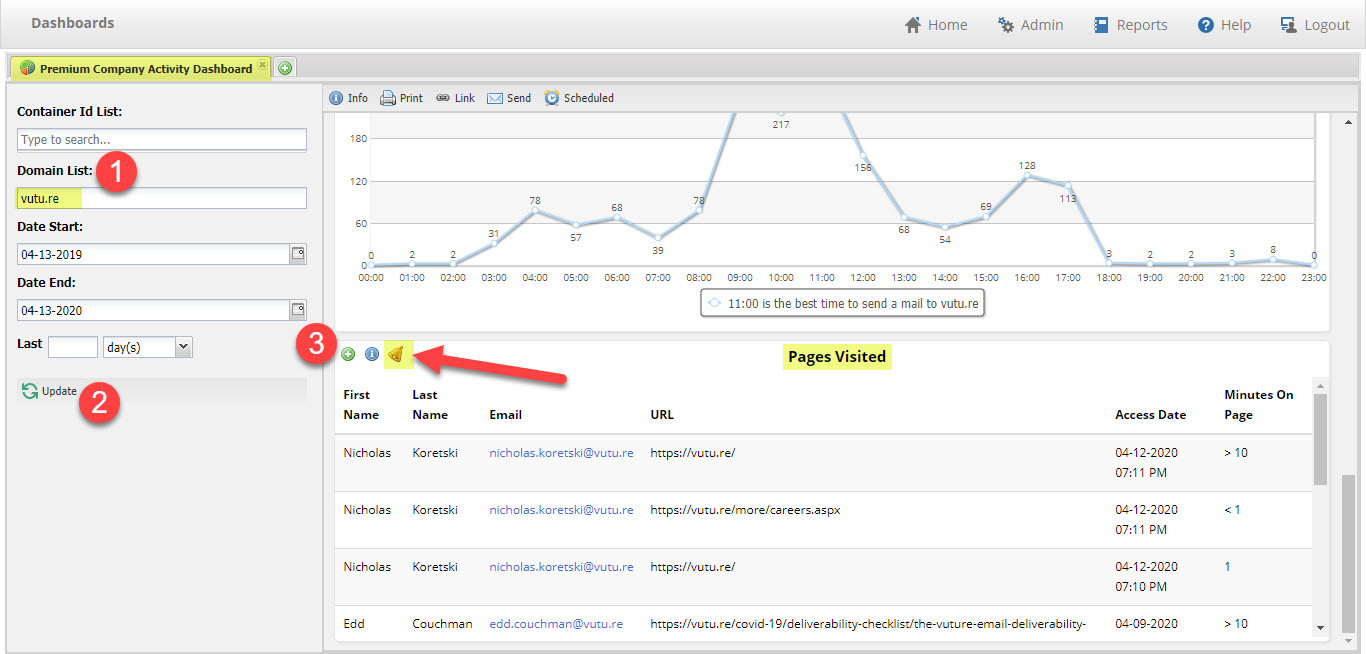
If you wish to set up an alert for a list of companies (i.e. Key Clients or Prospects), you'll want to access the Premium Company Activity Dashboard and click on the Alert icon (see screenshot below). This will allow you to create a list of companies to track by domain.
Please note, you'll need to enter a 'Domain' and click 'Update' as a bare minimum to setup an alert.
How to Setup an Alert
Once you've clicked on the 'Alert icon' from the either the 'Premium Individual Activity Dashboard' or the 'Premium Company Activity Dashboard', you'll be able to create a new alert.
Click on the blue 'New Alert' button in the top right hand corner to create a new alert.

Give your Alert a unique name. For example, if you are creating an alert to track a Practice Area's Key Contacts, you might wish to name it 'Cyber Security's Key Clients'.

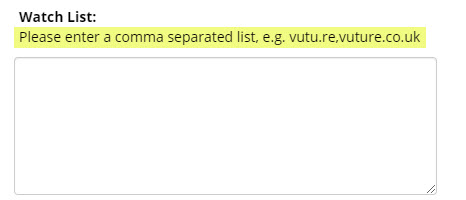
If you are creating an alert to track individuals, you'll be able to enter a comma separated list of email addresses into the Watch List. These should be entered with a comma and no space (i.e. Laura@vutu.re,Penny@vutu.re).
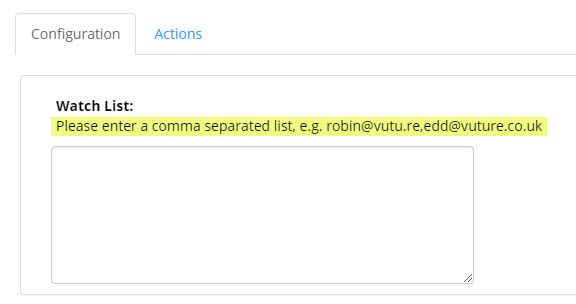
If you are creating an alert to track companies, you'll be able to enter a comma separated list of domains into the Watch List. These should be entered with a comma and no space (i.e. TJMaxx.com,BestBuy.com).
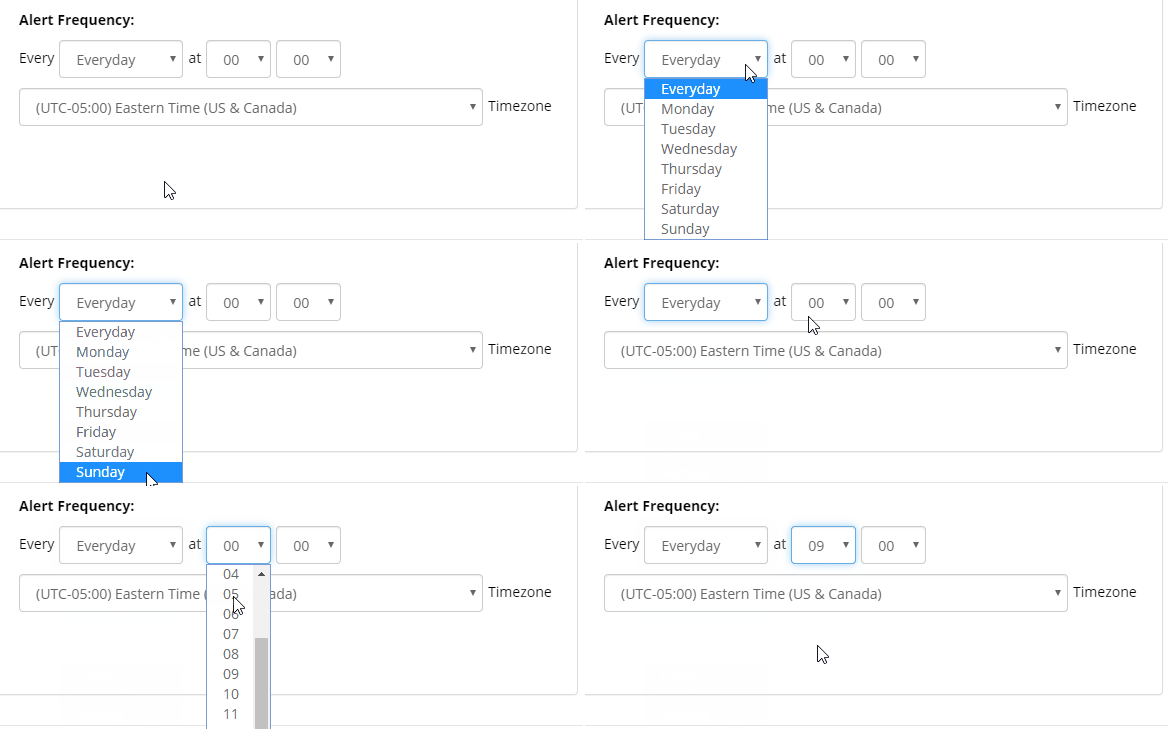
You may then set the Alert Frequency for how often you'd like alerts sent. This can be everyday or a specific day of the week. You may also select the time of day to send and the timezone.
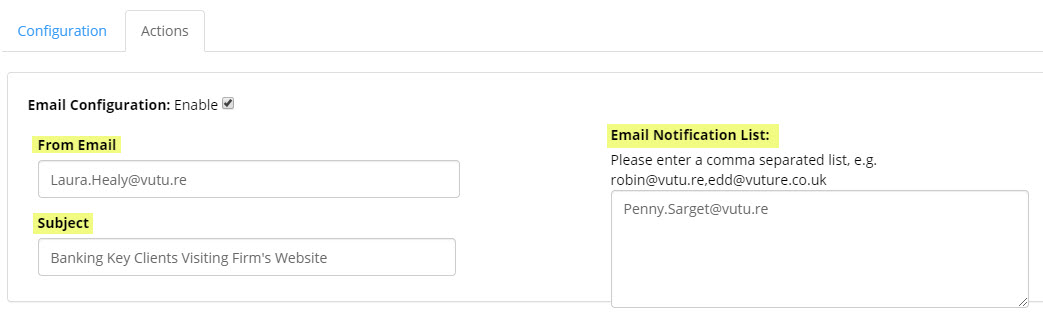
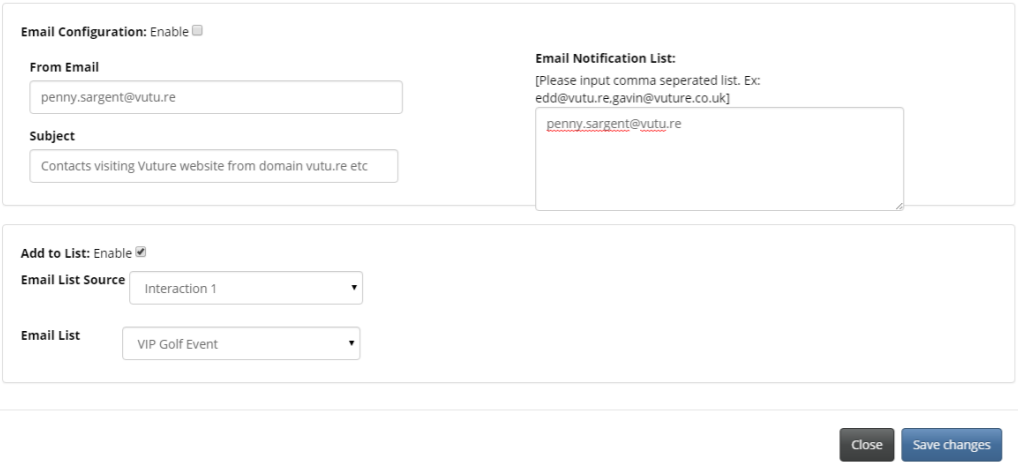
Click into the 'Actions' Tab to setup who this web tracking alert email notification is coming FROM, the Subject, and a list of contacts who should receive this alert email notification.
Please note, the web tracking alert email will not be sent if the specified individuals (email address) or companies (domains) on that alert did not visit your website within that specified time period.
Lastly, be sure to click 'Save changes' to save out your Alert:
For InterAction Only - You can decide whether the contact(s) should be added to a list on your CRM.
Web Tracking Reports - Alerts via InterAction
InterAction’s system of Alerts depends on either having the lawyer’s Watchlist set up to include the Web Activity types, or, in InterAction for Microsoft Outlook, the Alerts icon – which can reveal recent Activities on the website to individual partners and other InterAction users.
The Watchlist depends on the settings you choose in InterAction – which contacts to “watch”, and which activity types. However it could look approximately like this:
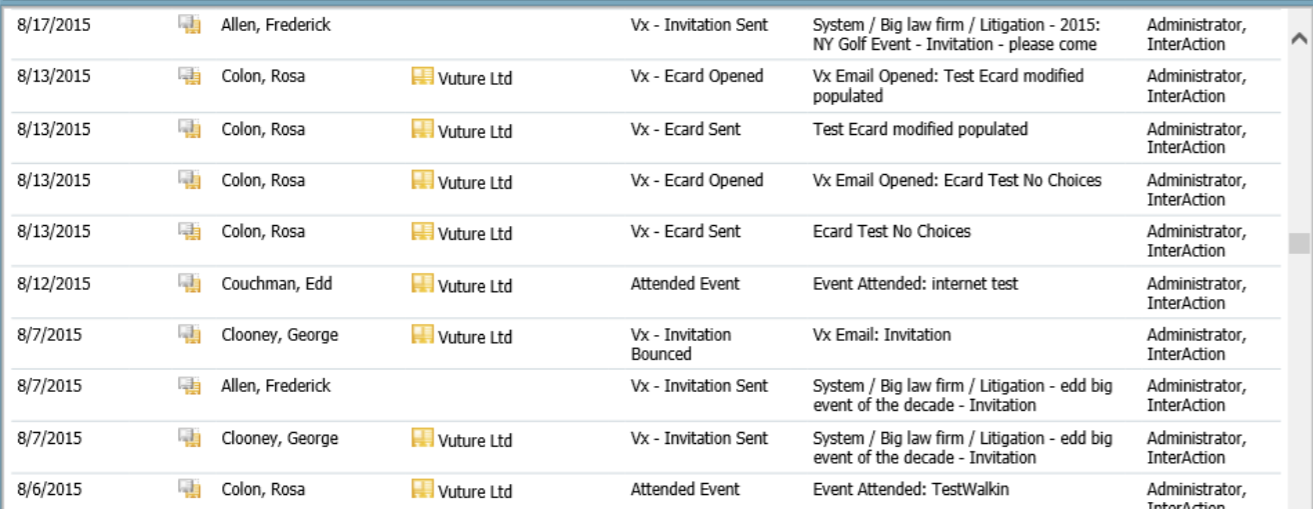
With the addition of a Web Page Visited activity type as well.
