Overview
This dashboard is available to you if you are using Vuture's web tracking for either your main website or a Vuture secure website (i.e. Alumni site).
This dashboard will show you:
- Your most popular web pages and list them in order of popularity (Most popular listed first);
- Most recent forms that were filled in and the number of pages visited;
- Most recent known visitors coming to your website and how many pages they've visited;
- Most recent unknown visitors by IP Address and how many pages they've visited.
Contents
How to use this Dashboard
Please follow the below instructions to use the Web Leads Dashboard.
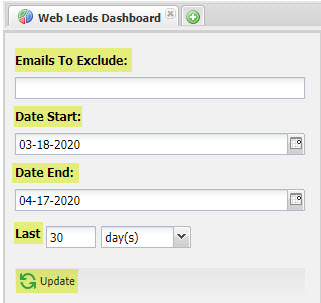
Emails To Exclude: If you wish to see all known and unknown contacts in the 'Most Popular Web Pages' section, leave this field blank.
If you wish to see only known contacts in the 'Most Popular Web Pages' section and want to exclude your internal domain (i.e. vutu.re), then you can enter the following: '*@mycompany.com'. For example, if we wanted to exclude Vuture, we would type in '*@vutu.re' (see screenshot below).

Please note: Entering in emails to exclude will remove the number of unknown contacts from the 'Most Popular Web Pages' section of the Web Leads Dashboard. Only known contacts will be included.
Time/Date Options: By default, the 'Date Start' and 'Date End' will reflect the last week from today's date. You may click on the calendar icon to select a new 'Date Start' and 'Date End'.
Or, you may select the Last # of day(s) or month(s), instead of choosing a 'Date Start' and 'Date End', to select the date-range you wish to see data on for this key client/prospect.
Once you have finished setting your parameters for this dashboard, click 'Update'.
Reports in this dashboard
After you've clicked 'Update', you should see the full Dashboard load. This section of the Help Desk article will run through each section of the Web Leads Dashboard from top to bottom.
Please note, throughout this Dashboard, you'll see little green '+' icons in the top left corner of each section. If you click on the green '+' icon, it will open up a detailed report for you to then be able to export to a CSV file. Within the detailed report, you will see 'Export as a CSV' on the left side of the screen.

Most Popular Web Pages
(133: Most Popular Web Pages)
This section shows you the most visited pages of your site. It is displayed as a pie chart and lists the most popular pages in order of popularity on the right-hand side. The most popular web page is listed first.
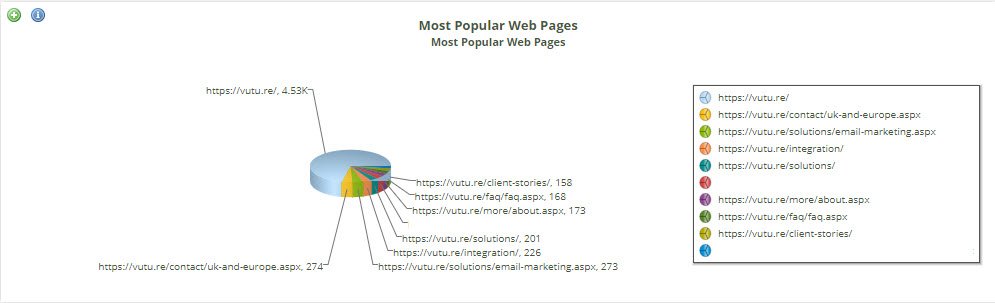
By knowing your most popular web pages, you can strategically place CTAs (call to actions) to subscribe to your mailings and link through to your Vuture Subscription form. Once the subscribe form is submitted, you can send out a welcome email with links to your website. Once the new subscriber clicks on a link to your website (where Vuture's web tracking code is in place), it will drop a cookie onto their machine to begin tracking them as a known visitor. This is a great way to turn your unknown visitors (i.e. only identified by IP Address) into known visitors and build up contacts to track.
Please note, When you click on the green '+' icon to drill down into this report you go to the following report - 134: Most Popular Web Pages.
Most recent forms filled in and the web pages visited
(135: Form Score)
This section shows you the most recent form submissions, along with the details of who completed the form.

Please note, When you click on the green '+' icon to drill down into this report you go to the following report - 136: Form Score.
Most recent known visitor coming to your website
(137: Most recent known visitors coming to your website)
This section shows you the most recent visitors to your site and how many pages they visited. If you click on their email address, you will navigate back to the Premium Individual Activity Dashboard to see the exact pages this contact viewed on your site and for how long.

Please note, When you click on the green '+' icon to drill down into this report you go to the following report - 138: Most recent known visitors coming to your website.
Most recent unknown website visitors
(139: Most recent unknown website visitors)
This section shows you all the unknown recent visitors to your site by their IP address.

Please note, When you click on the green '+' icon to drill down into this report you go to the following report - 140: Most recent unknown website visitors.
