When an email is rejected by a subscriber's email server, it's called a bounce. There are two primary types of bounces, hard bounce and soft bounce. By default, Vuture processes bounces once an hour. Once we've categorised the bounce it will be added to your email campaign report.
When the recipient's servers send us a bounce message there are hundreds of variations we may receive. We categorise these into straightforward subcategories for you.
Hard Bounce
A hard bounce indicates a permanent reason an email cannot be delivered. Below are the reasons why an email may hard bounce. By default, Vuture will suppress any emails that hard bounces 2 times consecutively. For InterAction users, further details on how InterAction handles bounces is found here.
Delivery Time Expired
The system has tried to deliver the email consecutive times and all attempts have failed. This can be indicative of a non-existing or incorrect email address.
General
Any messages that indicate that the email address or the domain is invalid or unavailable.
Mailbox Unreachable
We were unable to reach the recipient's server. This error usually caused by an invalid or non-existent email address.
Message Refused
The recipient's server refused the message.
Mailblocked
Any bounce messages that indicate that the message was blocked, possibly because the server believes the message was spam or poses a security risk.
Soft Bounces
Soft Bounces are temporarily unavailable emails. We will try to deliver to these emails multiple times before classifying them as a soft bounce.
Vuture automatically suppresses any emails that soft bounce consecutively. By default, Vuture will suppress any emails that soft bounce 5 times consecutively. You can check your soft bounce limit any time by using the Email Deliverability Healthcheck, accessed via Help.Healthchecks.
General
A non-specific temporary error occurred that the client's server didn't identify.
Mailbox Full
The recipient's email inbox is full.
Message Too Large
The email message sent is too long for the recipient's server to be able to read it.
Mailblocked
Any bounce messages that indicate that the message was blocked possibly because the server believes the message was spam or poses a security risk.
Mailbox Unreachable
We were unable to reach the recipient's server. This error usually caused by an invalid or non-existent email address.
Auto Reply
There is a third category of bounce which is an Auto-reply. There are different types of automated responses, the most common being out of office messages. These auto-replies are not suppressed at all, unlike soft and hard bounces, and they are not counted as bounces in our reporting nor are they written back as a bounce activity to the client CRM.
Viewing bounces
View bounce for one email
If you want to see which emails bounce when you send an email, click on the relevant email in the sent folder. You will see a summary of the undelivered emails. Below this summary shows all the contacts and the reason why the email was undelivered. You can export this list to Excel if you wish by clicking on Export to Excel.

You may have the newer version of the reporting enabled in your account, in which case you will need to click on on Undeliverables. Again you can export to Excel if you wish.

View all bounces
Global Bouncebacks
The best place to see your bounces is in the Global Bounceback report. Go to Reports and then select Email>Global Bouncebacks.
Select the time frame you want to view and click on Table
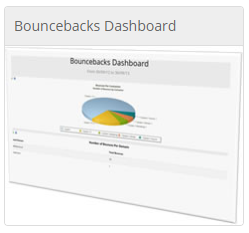
Bouncebacks Dashboard
You can use the Bouncebacks Dashboard. Further information on this dashboard can be found here.
Go to the Vuture home screen and click on Dashboard from the menu.
Click on Bouncebacks Dashboard.