This guide describes how to set up your GoToWebinar account. It is a one-time process.
IMPORTANT: At the end of this process you will be shown your Client Secret on the screen. You must make a secure copy of this Secret immediately. There is no option to return to the screen later and get another copy. You will need the Client Secret to connect your GoToWebinar account with Vuture.
Prerequisites
You will need the following:
- A GoTo account (Any level of GoTo account user can create an account on their developer portal)
- The GoToWebinar module (purchased from your GoTo account manager).
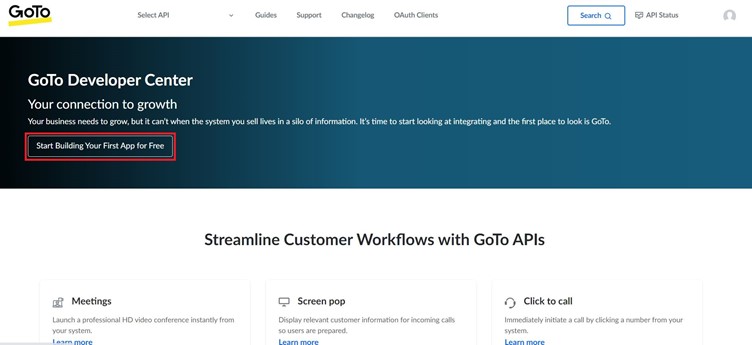
Navigate to https://developer.goto.com/ and click on the highlighted button as shown below: Start Building Your First App for Free.
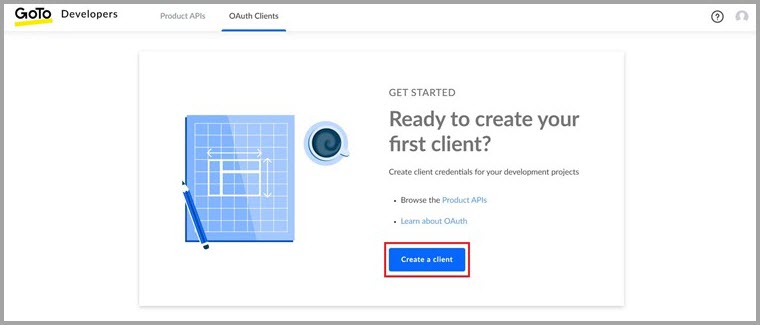
Next select an Oauth clients option, and click on Create a client.
Enter the following information:
Client name (it is recommended that you use “Vuture app” but the name is your choice)
Description (optional)
Redirect URLs (this will be your instance URL with /mvc/webinar/oauth at the end (e.g. https://yourinstance.vuture.net/mvc/webinar/oauth)
In the example image below, the penny instance has been shown but you should use your own instance.
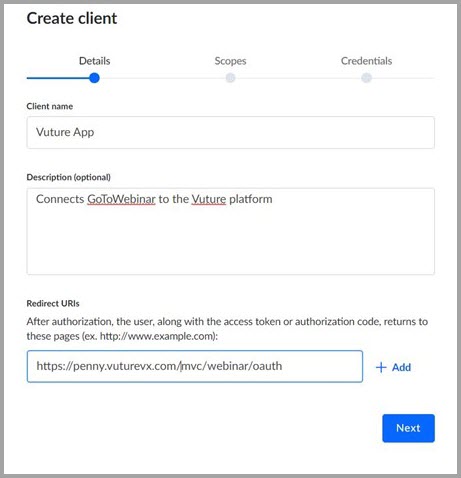
Once complete click Next.
You will now select the scopes for the app.
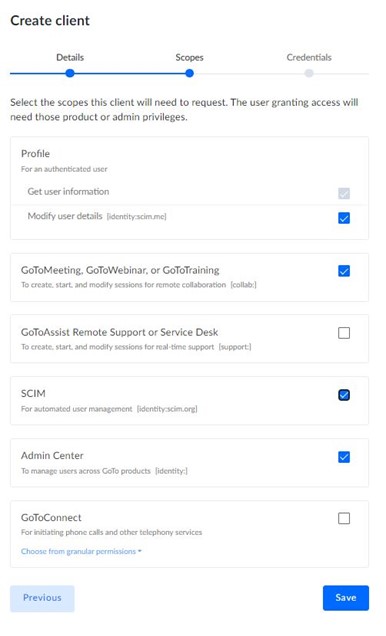
Check the boxes for the following scopes (as shown in the above screenshot).
Profile - Modify user details
GoToMeeting, GoToWebinar, or GoToTraining
SCIM
Admin Center
Once complete click Save.
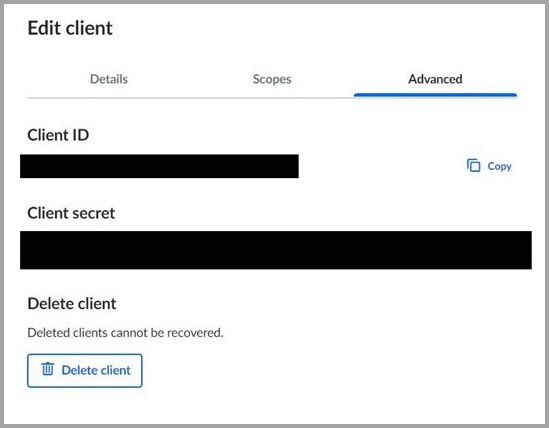
You will now be shown your Client ID and Secret.
IMPORTANT NOTE: Please make a secure note of these details NOW. GoTo will hide your Client Secret once you navigate away from this page.
If you fail to make a note of your Client Secret and navigate away from the page, when you return you will see a message similar to: “Sorry, for security reasons we cannot show you your Client Secret”. If this happens, the quickest way to deal with this is probably to delete the client and start all over again from the beginning, but remembering to make a note of the Secret the second time. So please remember to make a secure copy of your Client Secret now, as soon as you see it displayed on the screen.
This completes the setup in GoToWebinar.
Now navigate to the Webinar set up tool in Vuture, to enter in your Client ID and Secret credentials. There is a Guide for this process here.
