This integration allows you to manage your GoToWebinar event using Vuture invitations and registration forms. Responses will write back to both GoToWebinar and to Vuture, and from Vuture to your CRM.
Note for February 2024: In order to allow Attendance to write back to the crm for all webinars, we have adjusted the code to pull attendee information. We will now also pass back the OrganizerKey of the GTW user who created the webinar.
The code change is that we will store the OrganizerKey against each webinar, as mapped in GTW.
No user will notice any difference when creating a webinar or referencing that webinar on a Vuture form, and no new user actions are required.
This change applies to all crms except for ContactEase and standalone where Attendance activities are not recorded.
Prerequisites
- Create a single user account in GoToWebinar and obtain a Client ID and Secret key. The step to obtain a client ID and secret key is only required once. It is described in an article here.
- If you plan to host webinars with a large number of attendees (500+), you may need to request a higher API rate limit from GoToWebinar. You can do this by dropping an email to developer-support@goto.com, or speaking to your GoToWebinar account manager. Please note that these limits are controlled by GoToWebinar, not Vuture so you must request it from them directly.
- Allow the integration by entering your GoToWebinar client ID and Secret key into Vuture's Webinar Setup Tool. The process for this is described below.
- A scheduled task to write back Attendees to your crm. Your CSM will enable Admin.Services.WebinarEventProcessing Task. The default time for this task to run is 6am.
- Vuture's Form Editor v2. (Your Vuture Client Success Manager will check this for you.)
- Your CRM integrated with Vuture’s Email Module
- Your Vuture Role enabled to display the ID field - at Admin.Roles.Forms.Display GotoWebinar Integration Webinar Id text field (Your Client Success Manager will do this for you)
- GoToWebinar configured for your instance (see Configuration section below - your Client Success Manager will do this for you)
The integration will allow GoToWebinar to send an automatic confirmation email to your contacts, and will also allow you to report on Acceptances and Attendances; either from GoToWebinar's own reporting, or from your CRM, or from Vuture.
Tracking Attendance: It is only possible for Vuture to track (and write back activities for) attendees who register via a Vuture Form. Any users that register for the webinar directly through the webinar provider using a generic audience link will not have an attendance activity written back to the crm. Their attendance will be recorded in the webinar provider's reports.
Please note: The Vuture Scheduled Task to update the CRM is run once a day, by default, which is why you will not see the 'Attended' activity or additional field write back immediately when a contact has joined the webinar. The purpose of this default is to reduce the load on your system. Typically you will work with your Client Success Manager to agree a “quiet time” on your platform, at which to run the scheduled task.
CRMs
The CRMs with which this feature will work are all crms with which we integrate. It will also work standalone with uploaded .csv lists. (Note: ContactEase integration does not have activities integrated with Vuture. They will accept RSVP updates but not event activity records.)
Restrictions
The integration does not allow recordings of the sessions to be sent out to the attendees via Vuture, however you can still provide access to any recordings through the GoToWebinar platform. Please ask your GoToWebinar account manager for more details.
Using the Webinar Setup Tool
The Webinar Setup Tool is the way Vuture has developed to make integration easier, quicker and more secure, plus providing a check at the same time that the ID numbers entered are valid.
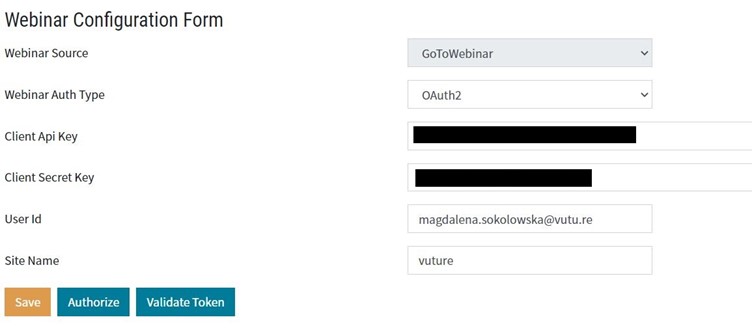
The Webinar Setup Tool will be required to configure the GoToWebinar account. This tool is pictured above.
Enter your Client Key and Secret Key in the boxes provided. Entering them yourself is more secure than emailing them to your CSM.
User Id in this form is the email address of the client firm's main user who set up the integration and obtained the Keys, or the primary email address at your firm for the GoToWebinar account.
Enter as above and click Save.
Important Note for ContactEase clients: There is an additional step required to set up any form of webinar i.e. Webex, Zoom, ON24 or GoToWebinar
- The Vuture CSM or Project Manager should navigate to Admin.System.CrmManager.Crm System Config. Select the instance you want to use for webinars. In most cases this will be ContactEase1.
- Click on System Configs.
- From the Select Crm Setting Field Category: select EnableWebinar and check the Select Crm Setting Field Value box.
- Click Save.
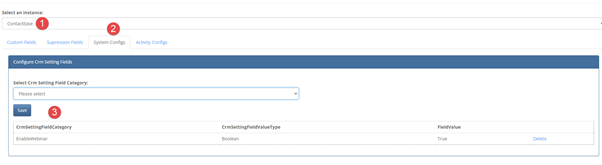
Also ensure that in Admin.System.ContactEase1.ContactEase Connector the config is set to False. It must NOT be switched on.
For all crm clients:
The WebinarEventProcessing task will need to be enabled at Admin.Services by the Client Success Manager. This task processes the attendees.
Creating a GoToWebinar Event
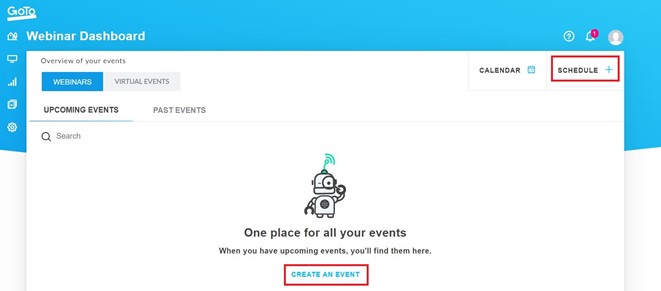
Go to the GoToWebinar site online and sign in.
Once signed in you will need to click on either the Schedule button in the top right of the screen, or the Create an Event button in the main page as shown below.
Next you will need to select the Live event option.
Note: we do not currently support Recorded or Virtual Events.
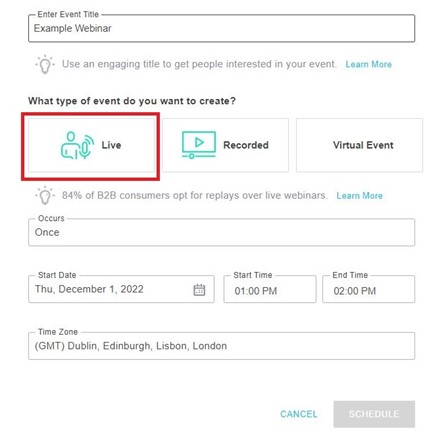
Enter in the name, occurrence, start time/date and the time zone for the event.
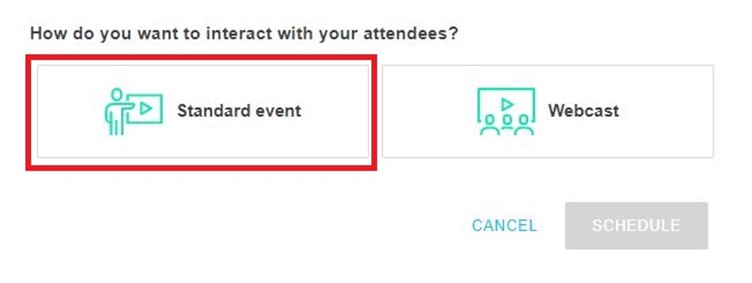
Select ‘standard event’ at the bottom of this page.
Note: Webcast can also be chosen, but this form of webinar does not include any interactivity with the attendees so we advise that you use the standard event option.
Click the ‘Schedule’ button to complete the webinar creation.
You will then be taken to the following event page. This page can also be viewed by looking at your scheduled events from the GoTo home page.
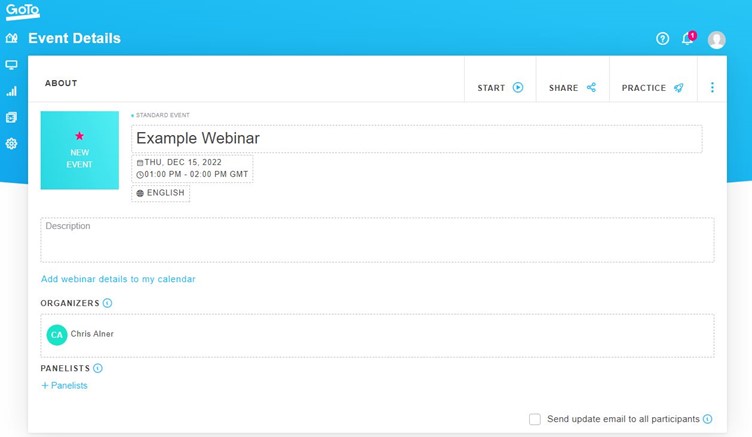
To add this webinar to your Vuture form, you need the event ID for the webinar. This can be found in the URL at the top of this page as shown below.

You can now add the ID to your form as described here.
Confirmations and Reminders
Once contacts accept, GoTo will automatically send out confirmation emails, containing their link to the webinar. GoTo will also send Reminders if you wish. You can select and edit these Reminders under email and branding settings on the event in GoToWebinar, adding your own schedule, wording and logo if you wish.
GENERAL FAQs
These FAQs will be updated as questions come in. Please check back to see new Q and As.
Q. Does the Vuture integration support large lists of attendees?
A. If you plan to host webinars with a large number of attendees (500+), you may need to request a higher API rate limit from GoToWebinar. You can do this by dropping an email to developer-support@goto.com, or speaking to your GoToWebinar account manager. Please note that these limits are controlled by GoToWebinar, not Vuture, so you must request it from them directly.
Q. Does the Vuture integration support webinar recordings?
A. The Vuture integration does not support recordings in our campaigns. However all webinars are recorded by GoTo by default. If you wish to send out the recordings of a webinar to your attendees you will need to send these out from within GoTo. Speak to your GoTo account manager for more details and training.
Q. What is a webinar series and does Vuture support them?
A. A webinar series is a group of webinars normally grouped under a series ID. We do not currently support this function, but we do support multiple single webinars in a single form with a single registration form used to register for all the webinars added in this fashion.
