When editing a form, you can apply some simple stylings to the text in the field headings, or field body (such as an instructions field). This styling includes bold text or italicized text:
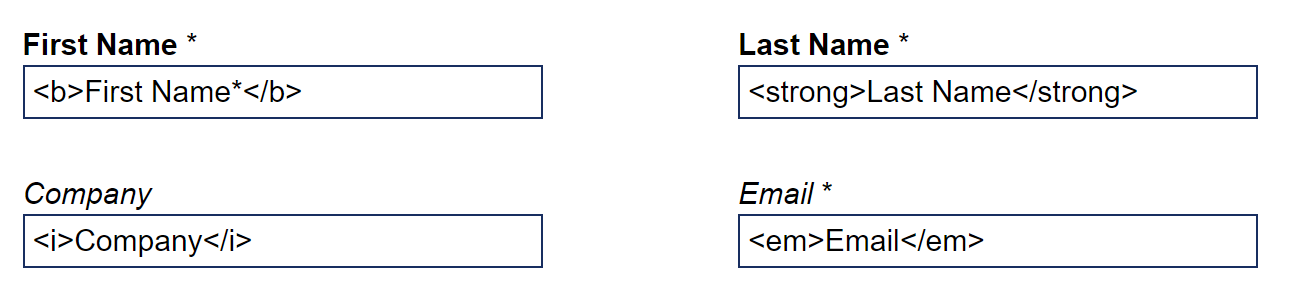
- For bold text, you can wrap the desired text in either <b> or <strong> tags. Use <b> or <strong> to turn on the bold and </b> or </strong> to turn it off again.
- For italicized text, you can wrap text in either <i> or <em> tags. Again use / to turn it off.
The below image shows how the bold or italicized text will look, and how you would write it in the field editor box, just underneath each field:
WARNING: Please limit your formatting to bold and italic and do not try to use tags such as <span>, <h2>, <p>. They will cause the field to not be recognized by the form editor properly., This will result in the field being un-editable, and require Support to edit the landing page's HTML to fix the field.
Below is an example of what happened when the the title was wrapped in a <h2> tag:
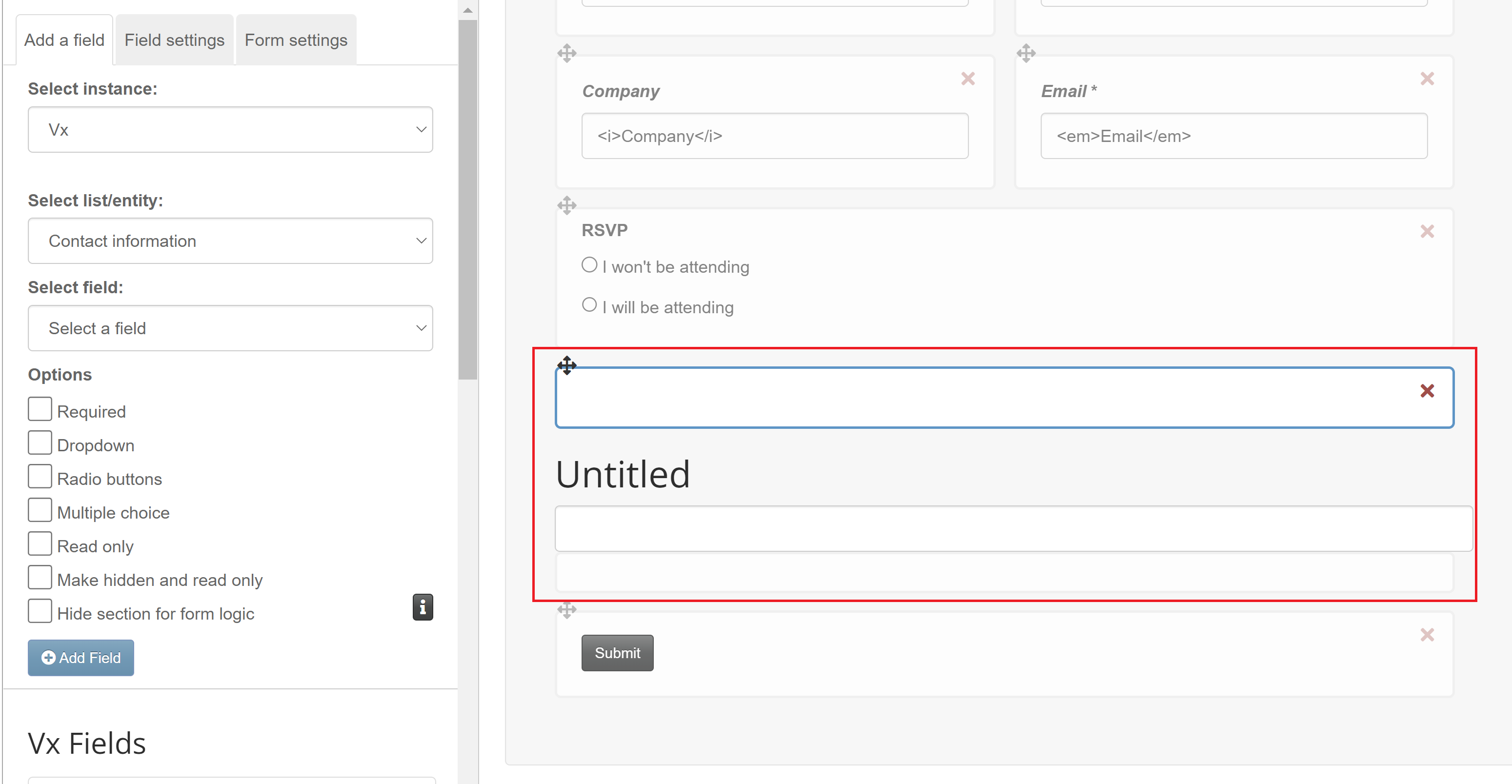
You will see that the field has been split into pieces.
If you do accidentally do this, please reach out to your CSM or raise a ticket with the Technical Support team. They will need to access the page's HTML and either remove the entire field, or remove the problematic tags.
