Check Email Icon
When preparing to send out an email, it is best practice to send Test and send Sample emails first. You can also use Litmus to see how your email will look in various formats. There is an article about the Litmus service here.
In addition, you can use the Check Email icon to see the links* on your email page and ensure that they are working.
Note: *Links to LinkedIn - we are unable to verify these since LinkedIn changed their set up. You can test these manually by hovering over the hyperlink to test that they go to the correct LinkedIn page.
The Check Email icon looks like this:

Clicking this icon opens the Page History. This contains all the saved versions that have been created along the way as you built your email:
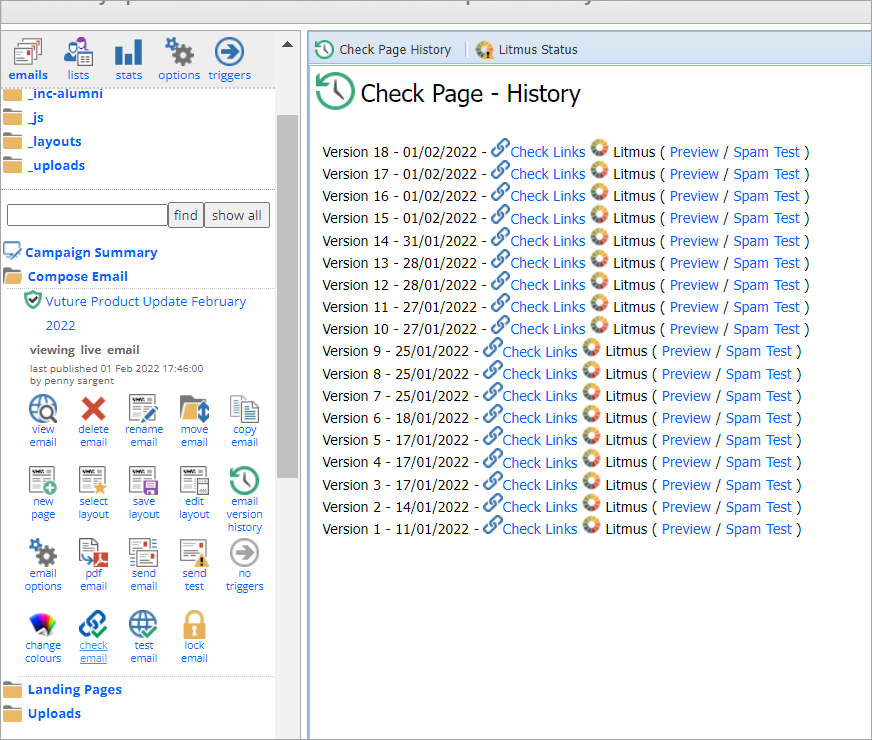
From here you can select the highest Version number to get the latest version and click on Check Links in blue.
If you have any links on the page that need investigation, they will show in red, like this:
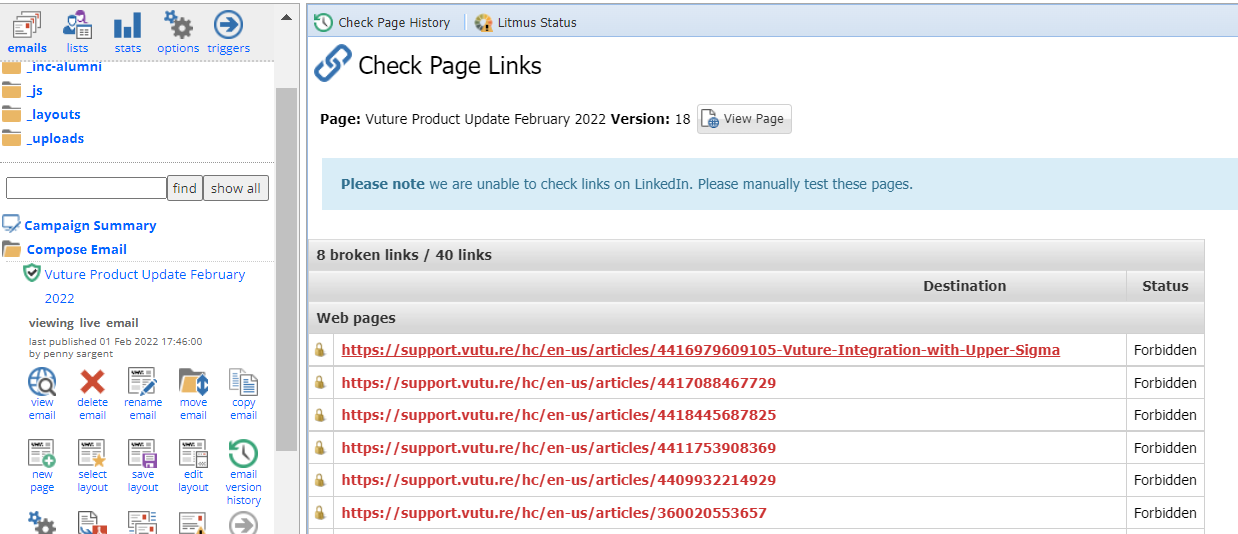
Status is Forbidden?
Vuture would report these links as 'Forbidden' if the site is not accessible or is blocked from access. For example, if the website or web page is only visible to your firm employees and is not visible to the general public due to security restrictions, Vuture would not be able to access the page during the link check and would give it the status of 'Forbidden'.
In the example image above, the links are to Help Desk articles. You have to be logged in to view them. The process that does link checking is not you - it is the instance and it is not logged in, so the destination is "Forbidden". However the links themselves are valid and you can verify this by opening View Page and clicking each one to test manually.
Links that are shown in red with the status of Unknown need further investigation. They may be broken.
