Keywords: count responses; field values; place response numbers on email;
Overview
This article explains how to find the field values and field IDs to be added to a Count formula. The Count formula can then be sued to limit the number of acceptances in a list.
Contents
Finding the field value
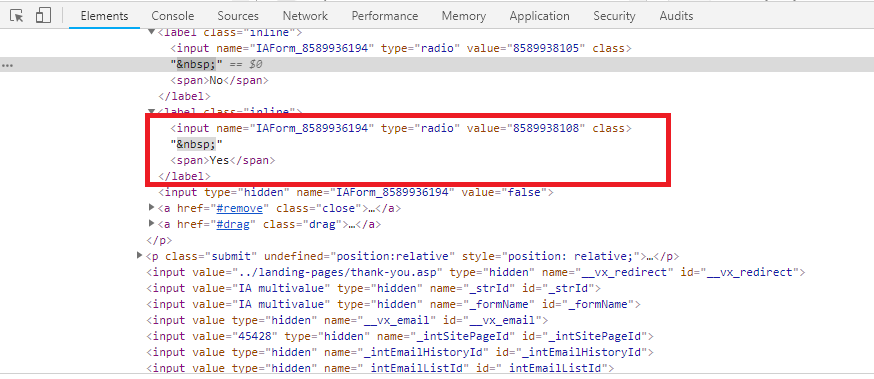
To find the Value, go to the InterAction-connected form in your Vuture campaign, click on the relevant field, right click and choose Inspect from the drop down menu. The Value is visible in the inspect element after the type (see image below). It is typically a 10 digit number, although it may be a text value.
Finding the Field ID
Go to your Vuture campaign and the form you are working with.
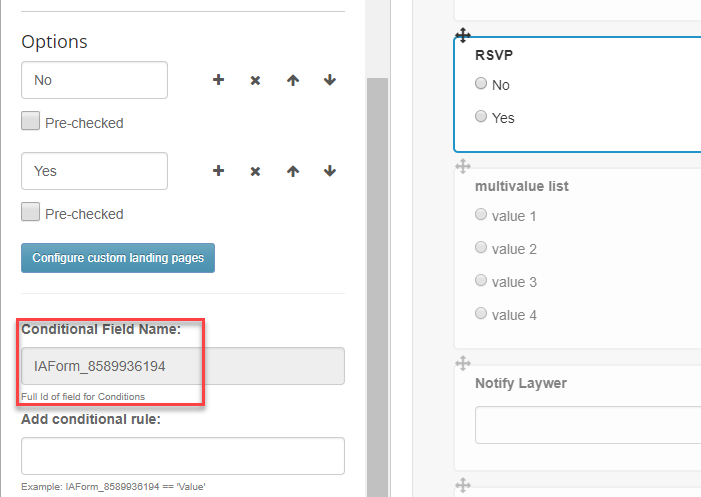
The field ID will typically show as the long number after the IAForm_ as in the image below:
Once you have the Instance number, the field ID and the value ID, you can add the following variable in your email or landing page.
{Count : 'all', Instance : '{IA instance}', Field : '{AdditionalFieldId}', Value : '{ValueId'}}
Where:
- {IA Instance} is the InterAction account your field is stored in. If you are looking in the account associated in Admin.System.InterAction1 then you should replace '{IA Instance}' with '1'. Please contact your account manager if you're unsure of your instance number.
- {AdditionalFieldId} is the ID of your additional field
- {ValueId} is the ID of the value
With your values added, the variable could look something like this:
{Count : 'all', Instance : '1', Field : '8589935894', Value : '8589937202'} (Please note: your values will be different for Instance, Field and Value)
When processed, the variable will be replaced by a number, which is the count of the number of times the value has been submitted for that specific field through a Vuture form.
To use this variable to limit form submissions, you would need to add it into a "Sorry this event is now full" field with a >=50 (if 50 is the number of places at your event). You would then add the same variable in the RSVP conditional field with <50. This would mean that the RSVP field will appear on your form as long as Accepts are less than 50. Once the Accepts get to =50 or more, the Sorry field will appear.
The variable in the RSVP field in this case could look something like this:
{Count : 'all', Instance : '1', Field : '8589935894', Value : '8589937202'} < 50
and the variable in the Sorry field would be the same except for the final items
{Count : 'all', Instance : '1', Field : '8589935894', Value : '8589937202'} >= 50
Section 3
