Please note: Current best practice is to have one folder that houses your Alumni, instead of two folders. This article is intended for clients who have more than one Alumni folder.
Once you have connected users in InterAction to the Alumni App, you will need to use the management tool within Vuture to move them between the specified Alumni folders in InterAction (e.g. changing a user from Current Staff to Alumnus) in order to avoid breaking the connection with the website and the user.
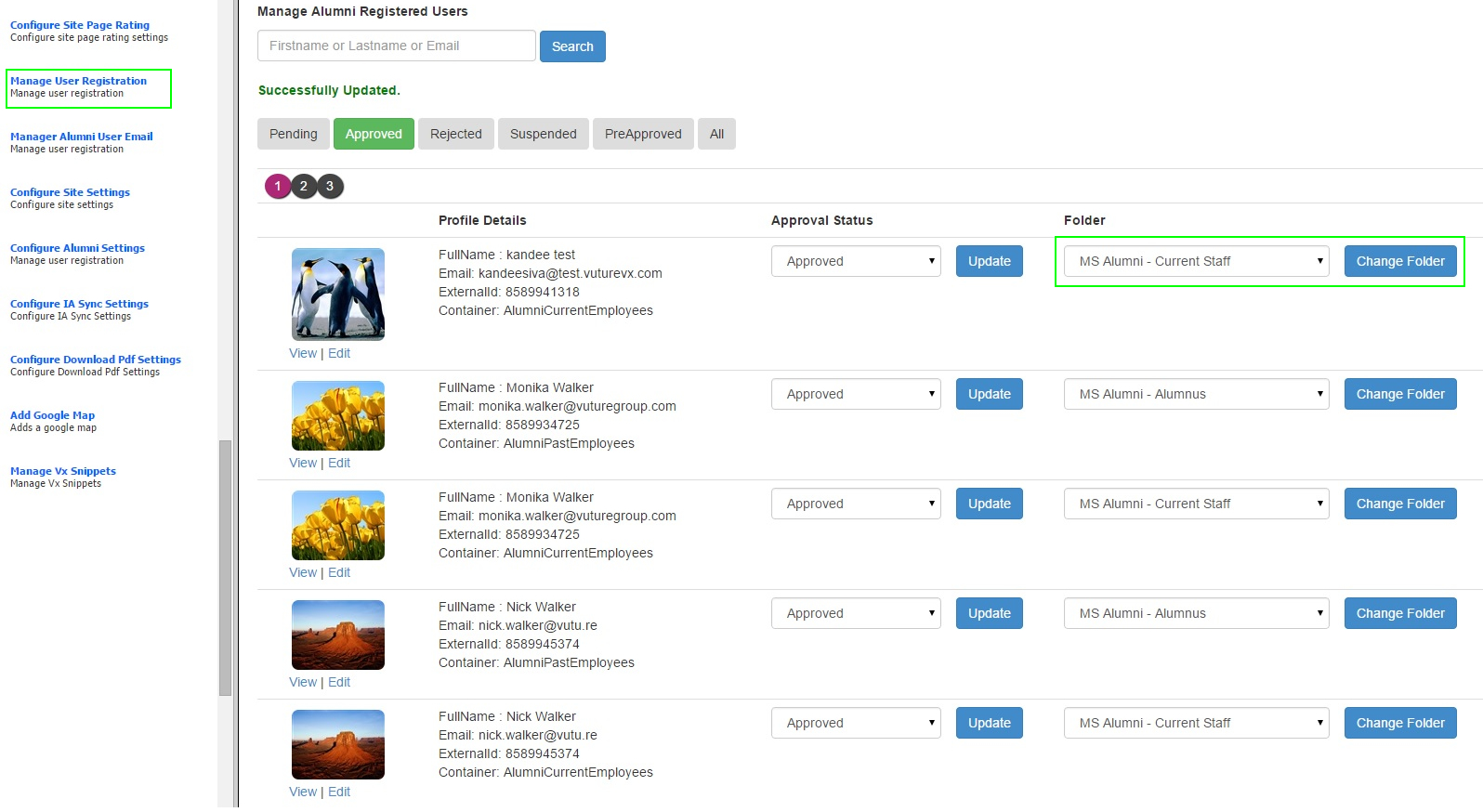
To access the management tool, enter the site within the Vuture tool and press "options" at the top of the left panel.
Click on the "Manage User Registration" link on the left hand side, which will load in a list of live site users. Use the search tool to find the name of the user, or scroll down the page.
When you find the user, you will see a drop down which shows their current Alumni folder in InterAction. Use the dropdown to select a different folder and press the "Change Folder" button.
This will migrate the user between folders in IA, keep all of the profile information and reconnect to the appropriate additional fields in InterAction.
Please note if you simply move the user in InterAction you will break the connection from the Vuture site for that user. In that case you should move the user back to the original folder in InterAction and then use the tool above.
