Vuture as a system collects a wealth of data across a multitude of different areas. We present this data to you in several different ways. You can change filters and export this data either as a CSV or via Vuture’s API.
There is an FAQ section added to the foot of this page.
Sent email report
When you send an email through Vuture you can view the data and results for that specific campaign from the sent campaign screen. Click here to find out more about this report.
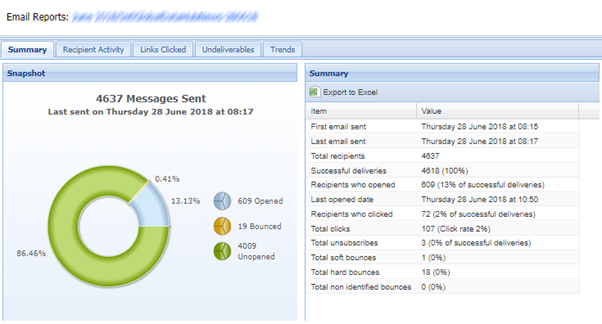
Click here to find out more about the single email report.
Reports
Reports present a specific set of data on a single area of the system. Each report displays data in a table with default data fields. Each report uses a default set of filters. You can further filter the report with specific time frames, containers, or campaigns, depending on the type of report.
You can access all reports by clicking on Reports in the menu on the top right of the home screen.

Dashboards
Dashboards are a logical collection of reports that together tell a story. Alone the reports may not mean too much but a dashboard presents the data to you alongside other relevant data.
Dashboards also present some reports as graphs or charts. These typically give a better visual representation of the data.
Some reports in the dashboards show a smaller subsection of the data. You can drill down into any of the individual dashboard reports to view the full dataset.
You can access the dashboards by clicking on the dropdown menu on the left side of the screen and selecting Dashboard.
You can read an overview of dashboards here.
Other Reports
Some reports in the system do not appear in the report or dashboard section.
Container activity
Click on Container>Activity from the top right menu. This report shows you all the different activity in a specific container.
Admin Reports
Click on Admin>Reports to access these reports. These reports expand on the existing reports. You can export all the data into excel.
Reporting FAQs
Q. When reporting on Emails Sent using the Email Dashboard, I know that an email was sent out on a certain date. However, when I run the Dashboard, using a filter from that date to today, it does not show up. If I start the filter one day earlier it does show up. Why is that?
A. This is because the time zone set in your user settings is different from the time zone of your Vuture server.
Reports (e.g. the Email Dashboard) take only the “day” part of a time as the filter parameter and the day is based on the time zone the server is in (for US clients this is Central Time). No time is passed to the filter so the report has only one understanding of the date and that is the date of the server.
If your user time zone is different to your Vuture server time zone then you may need to expand the date range in the filter to pick up sends in your time zone.
For example if your user is set up in Eastern Time (UTC-5) and your Vuture instance is in the US which is hosted in Central Time (UTC-5) then you will need to include the previous day in the date filter in order to pick up sends that went out after 11pm Eastern time.
Q. Why does my Business Development Dashboard - Individual show more clicks than opens?
A. This can happen when you apply a filter to the report. In Vuture’s Business Development Dashboard – Individual, email opens are filtered by when the email was sent. Clicks, however, are filtered by click date.
For example, an email was sent on 31 August. Later you report on the email, filtering from 1 September to 30 September. If a client opened the email on 2 September and clicked on a link, your filtered report will show the link clicked – because it falls within the date range of 1-30 September. It will not show the Open because opens are filtered on the Sent Date – which is before the beginning of the filter range you have selected.
Q. Is this a bug or a feature?
A. It is neither. It is simply a way of reducing the number of responses in a report. The solution, if you are seeing anomalies in your report numbers, is to increase the date range of your filter to include the date on which the email was sent.
