Keywords: Triggers, Trigger, Reminders, Link Not Clicked Trigger, InterAction, Standalone.
Overview
This article will guide you through how to setup repeated reminder emails utilizing Triggers.
For example, you may wish to send out an email containing a link to a survey for your clients to complete. You may wish to send your clients a reminder, at regular intervals, that the survey is still waiting to be completed - without having to manually search for everyone who completed the survey to then manually send a reminder to the rest.
We'll walk through this specific use case in more detail based on a link not being clicked, using the 'Link Not Clicked' Trigger.
Alternatively, you could also use these steps for a Prefilled Form that has not been submitted, based on the 'Form Not Submitted' Trigger. For full details on how to setup a Form Not Submitted Trigger, click here.
Step by Step Instructions
Step 1 - Create the email you wish to send out with a link to your survey.
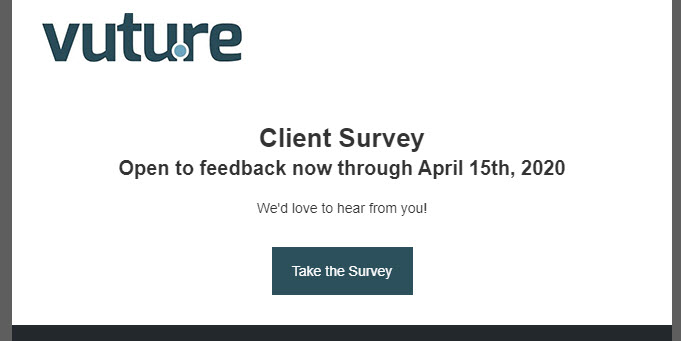
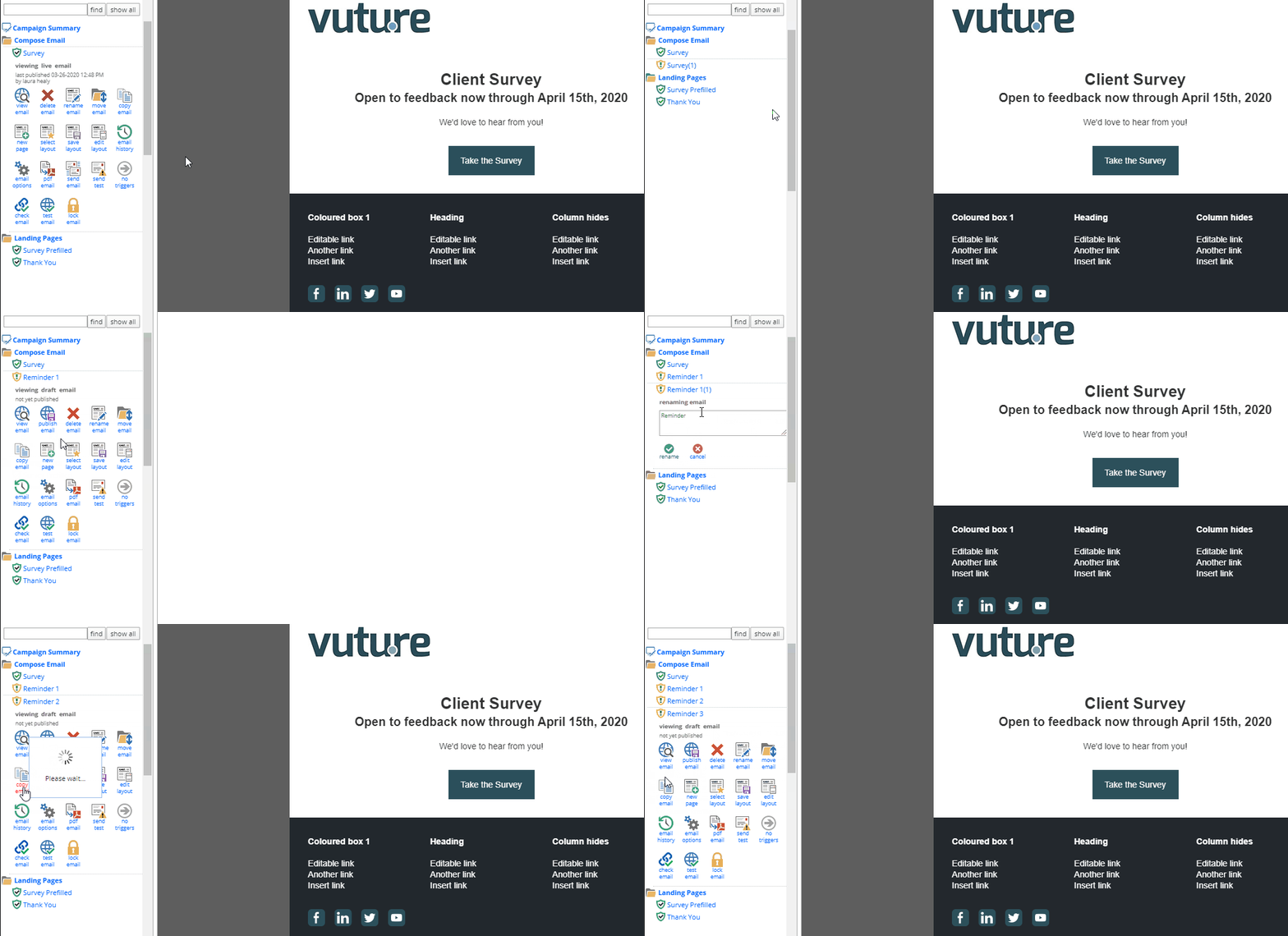
Step 2 - Copy the email and rename it 'Reminder 1'. Then copy 'Reminder 1' and rename is 'Reminder 2'. Then copy 'Reminder 2' and rename it 'Reminder 3'.
Make any changes to the language in these emails. For example, "There's still time to give us feedback".
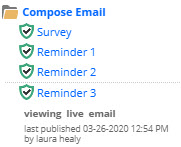
Publish all emails. Your Compose Email Folder should look something like the below.
Note: Unsubscribes will be honored.
Step 3 - Setup the 'Date' Trigger to send the initial email with the link to complete the survey. You will find full instructions on how to set up this trigger here (steps 3 - 12).
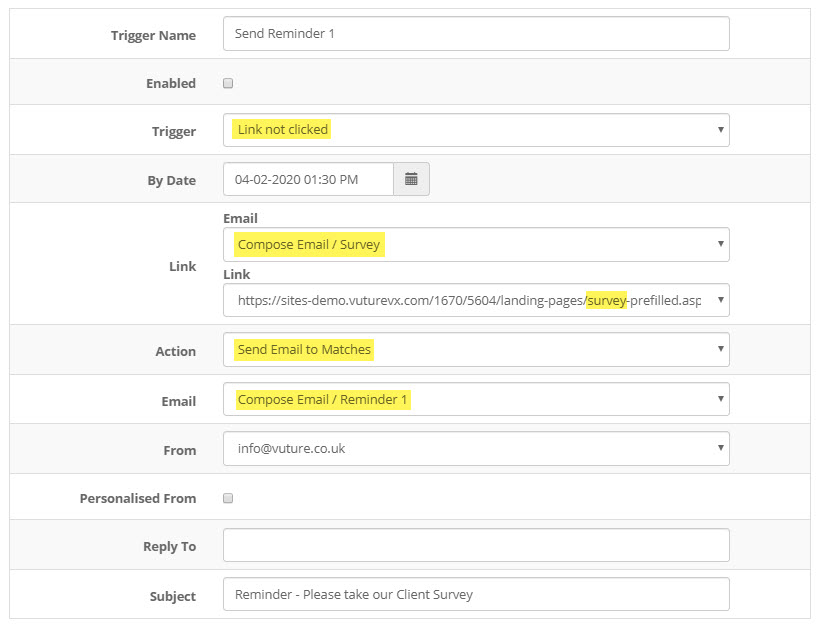
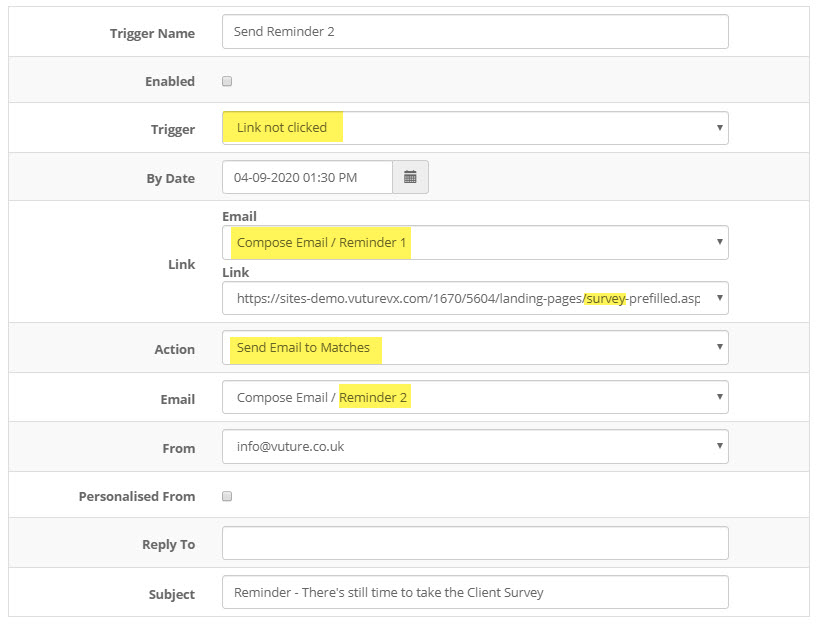
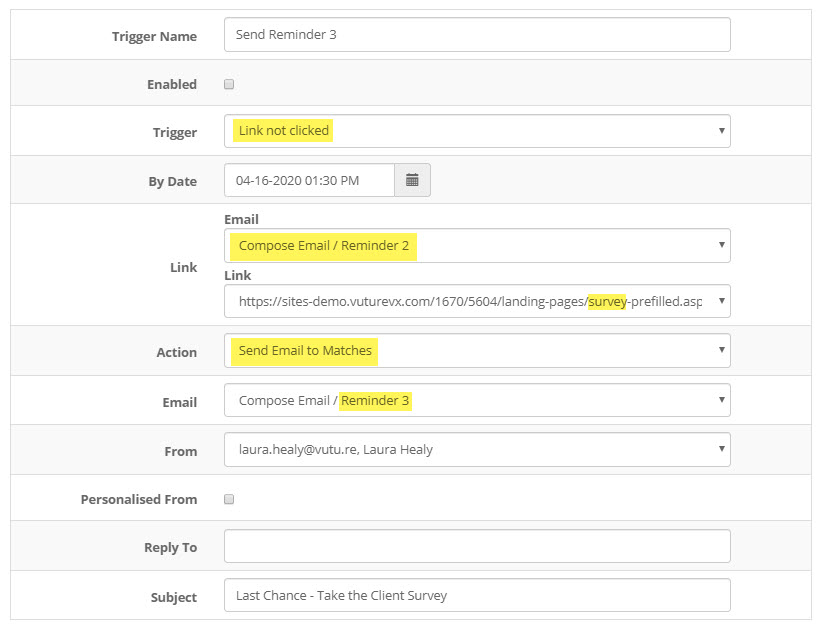
Step 4 - Setup 3 'Link Not Clicked' Triggers to send the 3 reminders. Each of the 3 'Link Not Clicked' Triggers, could be one week apart at the same time you sent the original Survey email.
For full step by step instructions on how to send another email if someone doesn't click on a specific link in the previous email, click here (steps 3-14).
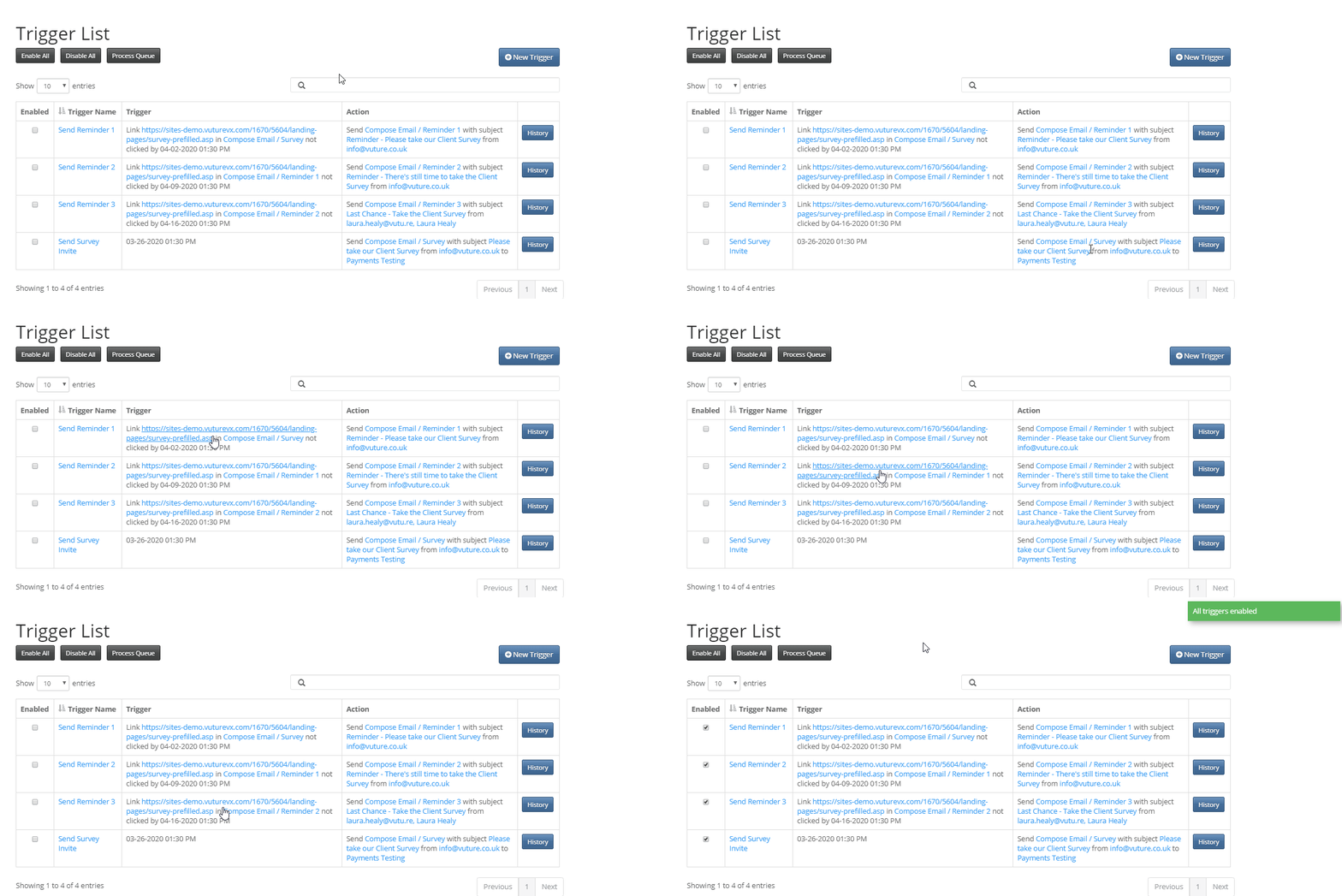
For reference, please see the below 3 screenshots for each Reminder email, using the 'Link Not Clicked' Trigger.
Reminder 1
Reminder 2
Reminder 3
Step 5 - Double check your setup and that everything is correct (i.e. Date, Time, Reminder Email to Send, Subject Line, (etc.). Then when you're ready, from the Trigger List Screen, check the box for 'Enable All' to enable all of your triggers. The trigger will then send the first 'Survey invite' on the date/time you specified and the reminder emails will go out only to those who have not clicked on the Survey link in the time you specified.