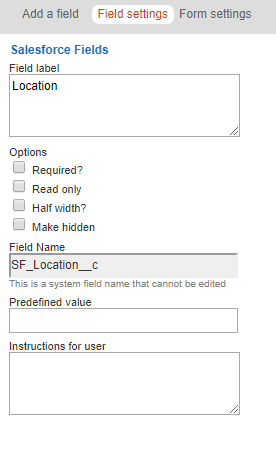
Please note, the information for these fields will be saved as Vx form submission objects, as opposed to basic contact details. To insert contact fields as well as fields from a Function or Publication, please see this article.
The "Custom Field" functionality within the Form Editor allows you to include additional fields in your Vuture form (e.g. Dietary requirements or Workshop choice) and have the responses given by your contacts written back to OnePlace.
Set-up the Custom Fields in Vuture and OnePlace
In order for the new custom field to work in a Vuture Form, you will need to follow the two steps below.
Please note, if the field is added to a Vuture Form but not to OnePlace as a field then the Vuture form will throw an error.
Step 1 - Contact your Account manager, they must create your custom fields as objects in "Admin.System.Salesforce.FormFields".
- Add the new field to "Admin.System.Salesforce.FormFields" as shown in the example:
- Both are case-sensitive. If fields are edited in Salesforce it will create errors.
| Key | Value |
| Wine Preferences | WinePreferences__c |
- Click on "Create Objects" to update the Vuture object in Salesforce with the new fields.
- Click "Validate" to confirm that the fields have been created correctly.
- IMPORTANT: If there is any issue creating or validating the fields, revert the change in the first point above and contact Vuture Technical Services
Step 2 - Enable the fields in Oneplace CRM
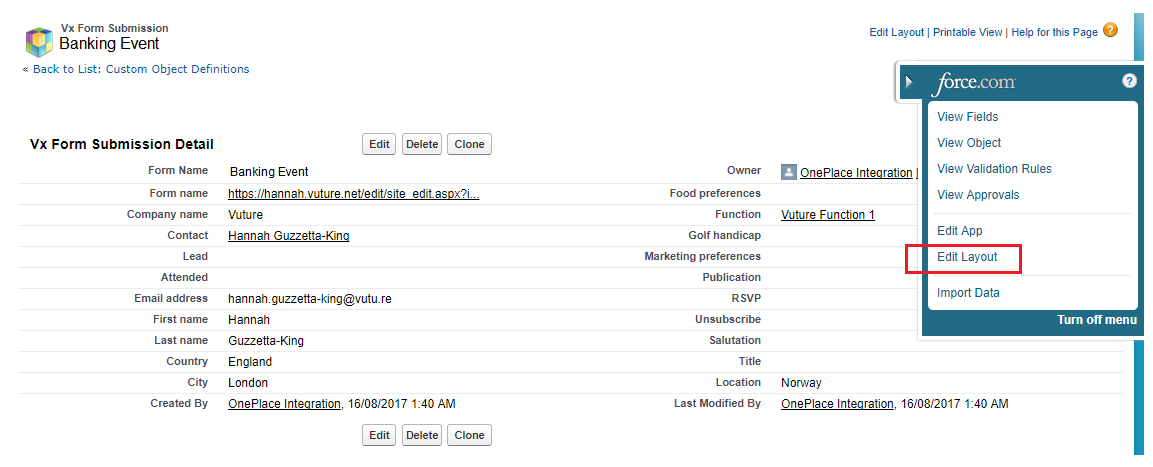
- Go to any contact's Vx Form Submission table and click on a form submission. Once there, "edit layout" to add the new field(s).

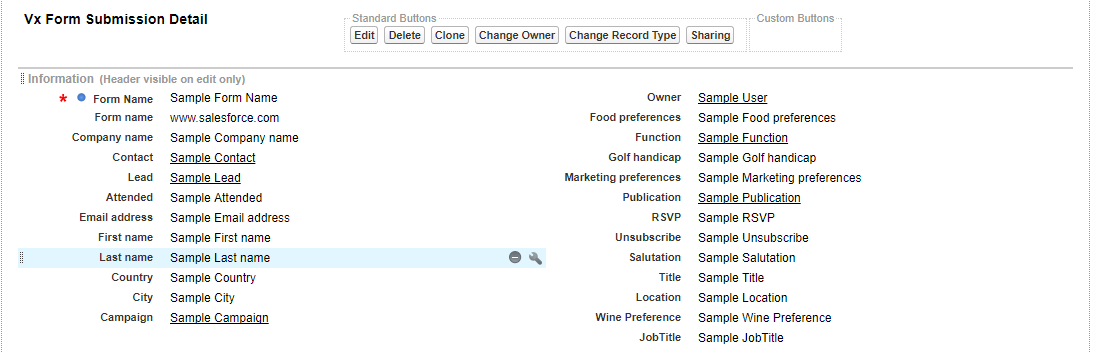
- Drag the field you want to add to the "Vx Form submission " from the field box down to the "Vx Form submission detail" table

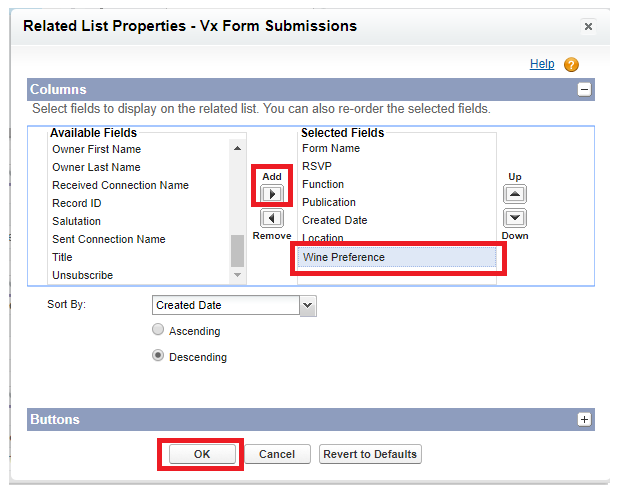
- If you wish to see the field as a column of the Vx Form Submission table, add the new field by editing its layout. This step will have to be applied separately to Contacts "Vx Form Submissions" and Lists "Vx Form Submissions" although the process is the same

Use the New Fields in Vuture Forms
Once you have completed the above, you will be able to add the fields into a Vuture form.
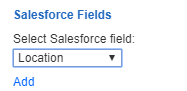
You can edit the text displayed on the form by clicking on the field in the editor and changing the details in “Field Settings”
Field label: This is the text that is displayed next to the form field.
Field name: This is the name of the field which is used for reporting purposes, as the column heading in the Excel export of form submissions and as it will appear in your CRM. Note that field names for custom fields are not editable.
Please note that OnePlace allows a maximum of 100 characters within the text box.