This article covers email automation (Triggers) for Vuture clients using the following CRMs: Fibre, DealCloud and Intapp OnePlace.
August 2021
Update 1. We have added the Recurring trigger for Fibre and DealCloud. See below.
Update 2. For those using triggers with FibreCRM or Dealcloud the system will automatically refresh lists each time a send is executed, including from triggered emails.
If you have a lot of triggers running from the system on a regular basis, this may put quite a large load on your CRM, so we would recommend setting your system to refresh a maximum of once per hour by entering 1 in the relevant config.
This setting can be managed by your CSM or Vuture Project Manager in the CRM metadata tool at Admin>System>CrmManager>Crm System Config>System configs>MaxListRefreshFrequencyHrssetting
What are Triggers?
Triggers are the way we describe email automation at Vuture. When setting up a workflow, you will need a Trigger (such as "the date", for example) and an Action (such as "send an email").
Another example: Using triggers you can instruct your Vuture platform to look at a list of contacts and, on a certain date, if any of those contacts meet your filtering criteria, send them an email.
How do I get Triggers?
Triggers are a premium feature. If you would like to have triggers enabled, please contact your Account Manager. They will enable them via:
"Admin.System.Triggers.Triggers Enabled" and
"Admin.System.Versions.Triggers Version 3" and
"Admin.Roles.Enable Email Triggers Version 3"
Where can I find Triggers?
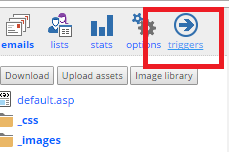
Triggers are associated to campaigns. You can access the Triggers for a certain campaign by selecting the option in the campaign menu.
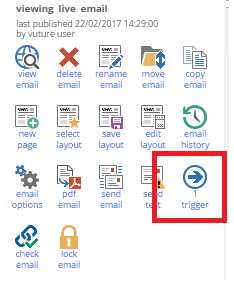
There's also a Triggers button on the menu for each page in the campaign which also shows how many Triggers are related to that email or page.
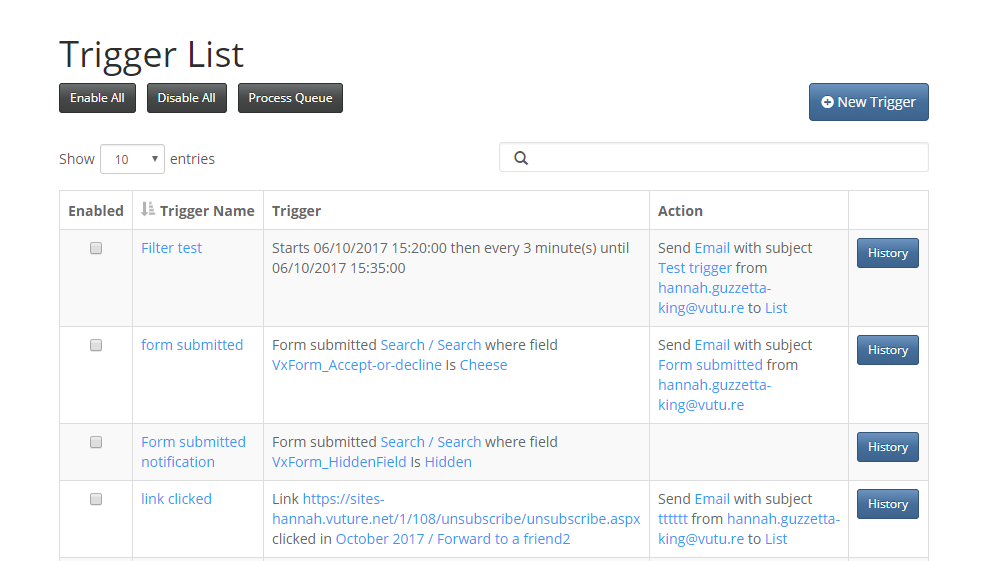
Trigger List Screen
While on the Triggers screen, you are presented with the list of Triggers associated with the current email campaign.
Trigger Commands
While still on the Trigger List screen (see screenshot above), you'll notice three buttons in the top left of the screen: Enable All, Disable All, and Process Queue.
Enable All
Start all Triggers (note that certain kinds of Triggers can only fire once, so even enabled they won't fire again if they have a history value of 1)
Disable All
Stop all Triggers
Process Queue
Process all Triggers right away without waiting for the Trigger Service. This can be used for testing. The Trigger Service is configured by your system administrator to check for Triggers periodically (default is every 5 minutes).
Trigger List Fields
While still on the Trigger List screen (see screenshot above), you'll notice the field names for each trigger in your email campaign.
Enabled
Shows if the Trigger is enabled or disabled
Trigger Name
Trigger's name given by its creator
Trigger
Description of the condition that has to be met for the Trigger to fire
Action
Action that will be performed by the Trigger if the conditions are met
History
How many times the Trigger has already fired.
Creating a Trigger
When you click on the New Trigger button in the triggers screen, you're sent to the Edit Trigger screen where you can create a new trigger or edit an existing one.
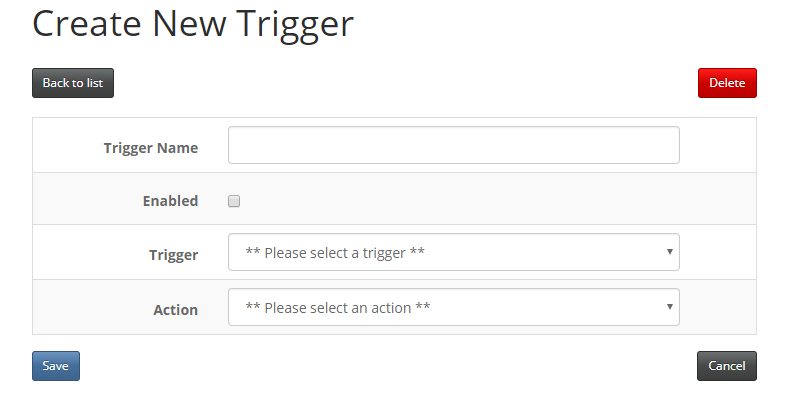
You're presented with 4 items you need to choose to create a Trigger:
Trigger Name
A name so you can easily distinguish the trigger among the others in the trigger list. Try to ensure the name is descriptive and unique. For example, if you want the trigger action to send an email to all contacts who RSVP'd yes, you could call the trigger "Send Confirmations to RSVP = Yes".
Enabled
Determines if the Trigger is started or stopped. Leave the trigger not enabled while you are building it. Enable it only once you are ready.
Trigger
Defines the condition that has to be met in order for the trigger to fire; for example, the date.
Action
Action that is performed when the trigger fires; for example, Send an email.
There are several triggers available to automate emails, for example Date, Form Submitted, or Link Clicked. These triggers cause an Action to be performed, for example Send an Email.
Which Triggers and Actions are available for my CRM?
March 2021: (in release 10.7.9) the following triggers and actions are now available for DealCloud, Fibre and Intapp OnePlace:
Trigger Action
On Date | Send Email
Email Opened | Add to List
Email Opened | Update Field
Link Clicked | Send Email
Link Clicked | Add to List
Link Clicked | Redirect To
Link Clicked | Update Field
Form Submitted | Add to List
Form Submitted | Redirect To
Form Submitted | Send Notification
Email Not Opened | Update Field
Form Not Submitted | Update Field
Link Not Clicked | Update Field
July 2021: (in release 10.8.0) the following additional trigger is now available for DealCloud and Fibre:
Recurring | Send Email
What is a recurring trigger?
A recurring trigger is one which "sweeps" a mailing list, at a frequency defined by you, looking for contacts who meet the filtering criteria. So you could instruct a trigger to look at the invitation list on a daily or hourly basis, look for contacts who have RSVP'd Yes, and if it finds any, send them a confirmation email. The trigger follows all usual Vuture rules, so it will not send the email to the same person twice, and it is useful in the case of adding contacts to a list later, after the initial email went out, or correcting email addresses later, once bounces have been registered.
Send an Email to matches (that is, to any contact who matches the criteria such as clicked a link) based on the following triggers:
- Email Open
- Form Submission - prefilled forms only *(See note below about greater than and less than)
- Link Clicked
- Email Not Opened
- Form Not submitted
- Link Not Clicked
Enable or Disable Triggers. This allows you to select a date and enable all valid triggers, perhaps, in your absence on holiday for example.
*Note: When relying on a Form Submitted trigger to generate an action, it is only possible to use Greater than and Less than with integers, not with dates.
For further information about email automation in general, please refer to this article: https://support.vutu.re/hc/en-us/articles/360020699838-Triggers-Version-3