This Vuture-only article applies to InterAction only. There is a client facing article here.
Actions taken when a client’s CRM database is being monitored for a live connection to Vuture
A step by step guide for AMs - How to enable CRM monitoring - is given in the Instructions section of this document.
Warning: This feature should NOT be used for any instance that has a security certificate exception in place. The problem is that the CRM Healthcheck sees the CRM as down, since we get an invalid response. This will then pause a queue that should not be paused, for example.
Clients who are not using a valid security certificate means that we are connecting to their crm using an IP address and we have a security bypass in place for them. This can be checked at https://[clientname].vuturevx.com/admin/system.aspx#Category.SSL External Allowed List.
To mitigate this, the client should either get a security certificate against the IP address or they should use a domain.
Introduction
If a connection to a client’s CRM is down for more than a set period of time we can now send an automated email to the SystemAdmins of the instance notifying them that we have lost connection.
In the email we can include the details of the instance and the CRM that they will need to troubleshoot.
A “Monitor CRM connections” task looks for CRMs with "Monitor this connection ticked" in the system configs. According to the interval of the task it will then check at those intervals to see if the CRM is responding.
To avoid false positives we will look for two checks in a row not responding (e.g. if the interval is 5 minutes then there would be two sequential checks required to fail, 5 mins apart). If we get a failure then we do two things:
- Mark in our DB that the CRM connection is Down. Any items in the queue for that CRM will check the DB to see if they should attempt to write back or not.
- Send a notification to email addresses entered against each CRM - the notification is an actual Vuture email.
When the CRM connection comes back up we will mark it as “Up” in our DB and send the Up email to the same list of email addresses.
We have some placeholders in the email to pass in the error response and the URL of the CRM. They are
{InstanceUrl} {TimeStamp} {CrmName}.
We have two tables to store the monitored information:
tblCrmState(ExternalSystemId,State,DateTimeCheck) state will hold 1 or 0 to show it is Up or Down. Queues can check this table before making the call.
tblCrmStateLog(ExternalSystemId,state,DateTimeCheck) - this table will store the logs.
Instructions
How to Enable Monitoring of a Client’s CRM Connection
1. Create the notification emails.
You will need to create two emails, to be emailed automatically to the client contact(s).
It is recommended that you create the two emails in the Global Forms area of the Vuture instance, to keep them out of the way of general users (or use any container that is unlikely to be accessed by general users).
Down email - in the event that the connection to their CRM is lost, and
Up email - when the connection is restored.
You have 3 variable placeholders available to use in the emails:
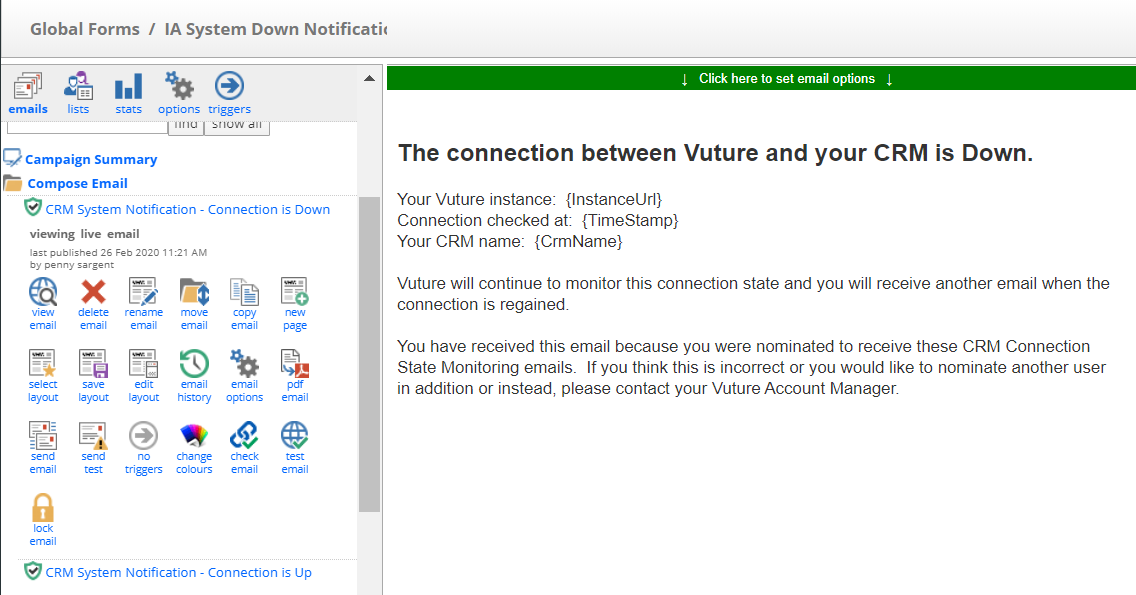
{InstanceUrl} gives the name of the Vuture instance – useful if the client has more than one.
{TimeStamp} gives the date and time when the check for the connection indicates that the connection is Up or Down.
{CrmName} gives the CRM connection affected – useful if the client has more than one.
Here is an example of the notification emails in the Global Forms container:
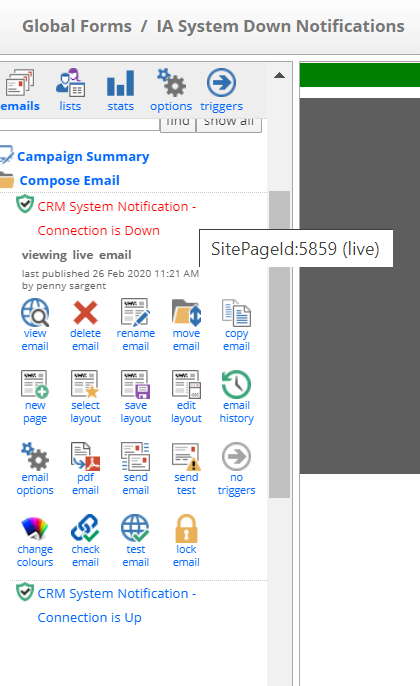
Note: Once you have created the emails, note the SitePageId of each email. You will need to enter these IDs in the config pages. You can find the SitePageId by hovering your mouse over the page name like this:
2. Enable the configurations
Ensure that “Monitor CRM Connections” is enabled. For a single InterAction CRM connection, for example, this is at Admin.System.InterAction1 here:
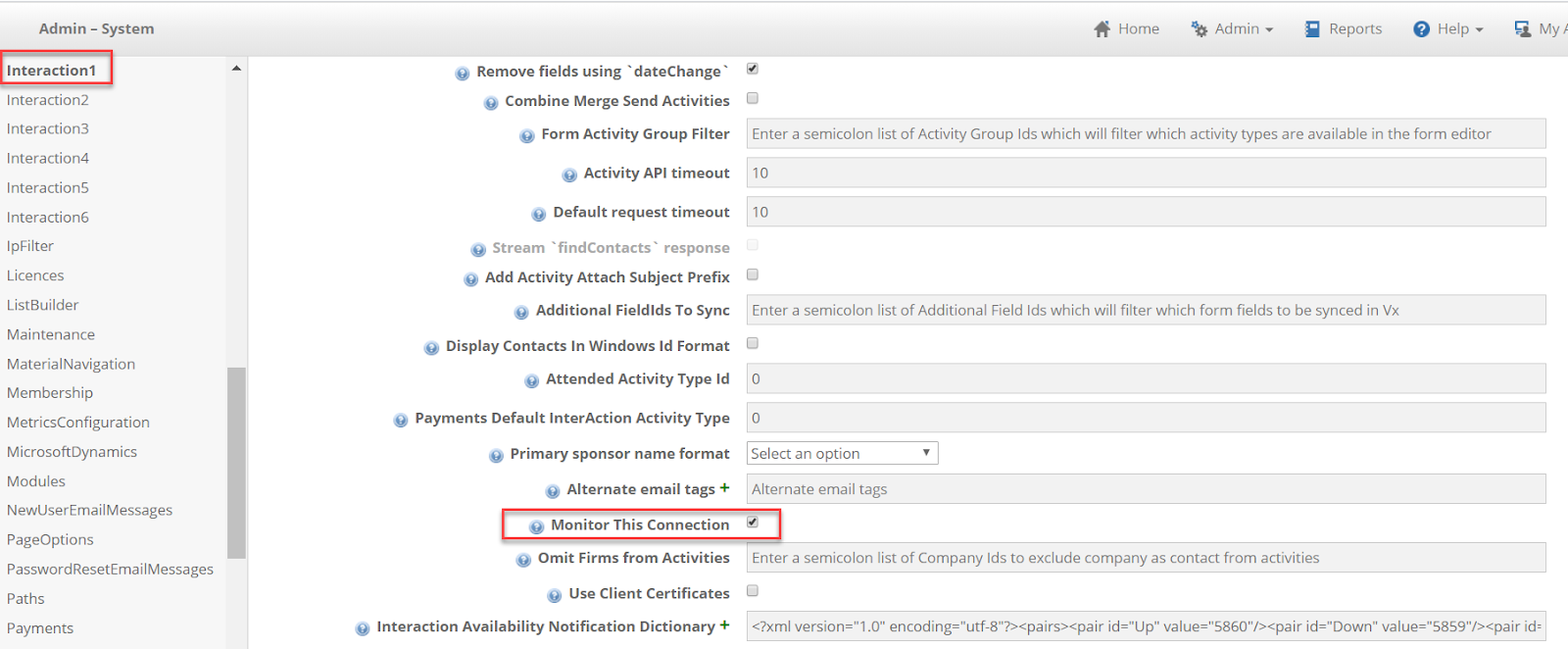
You will need to enable this setting for all CRMs if the client has multiple instances.
Please note: This setting also enables a Notification to be sent to the Nagsatmon/Zabbix software used by the Operation Teams, so it may already be enabled with a blank "Availability Notification Dictionary"
3. Set up the Scheduled Task
Go to Admin.Services.Enable CrmHealthCheckTask and enable it. Set it to run every minute, or as preferred. One minute is the recommended interval.
If you are not confident on setting up Scheduled Tasks, there is a Vuture Only article here.

4. Add the SitePageIds
Go to Admin.System.Interaction(1-6) Using InterAction1 for this example, but go to the CRM that you are connected to, and edit the Availability Notification Dictionary.
This is where you will add, among other items, the comma-separated list of email addresses to whom the notifications will be emailed. The email address(s) entered here should be the client contact who needs to know if the connection is down, plus the Vuture CSM if you wish.
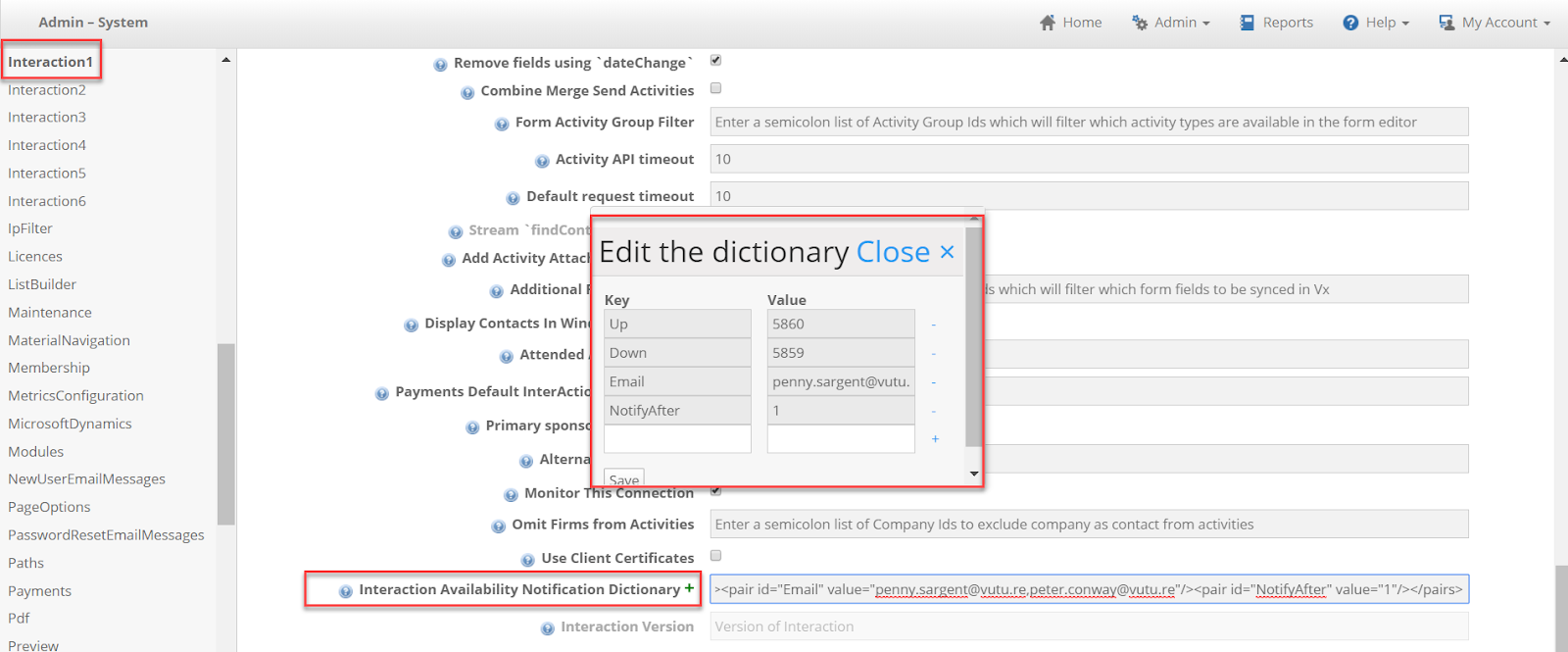
The Dictionary takes 4 keys: Up / Down / Email / NotifyAfter.
Up is the SitePageId of the page that will be emailed when the connection to the CRM state changes from Down state to Up. The place holders will be replaced when the email is sent.
Down is the SitePageId of the page that will be sent when the CRM connection state changes from Up to Down.
Email is the comma-separated list of email addresses to whom the notifications will be emailed. The email address(s) entered here should be the client contact who needs to know if the connection is down, plus the Vuture Account Manager if you wish.
NotifyAfter - When the state changes from Up to Down, it will not be notified at once. The value of this setting will be considered before notifications are sent. If the value is set to 2, the email will be sent only at the second consecutive failure. If no value is set, the default value is considered as 2.
Enter values in each of the four Keys and Save. Then Save again at the foot of the page.
5. Test
Test the new process by working with the client IT team to take the connection down and monitoring for the warning emails being received.
Vuture Tables in Use:
tblCrmState:
State - 0 / 1 (0-crm is down, 1 - crm is up)
Alerted - if 1 then an email is sent.
DownCount - Consecutive CrmDownCount
tblCrmStateHistory:
This contains the history when the state changes from (up to down or from down to up) and also it records every down state.
CrmStatusMessage - This is the error message when the crm is called and an error is returned.
EmailAlertMessage - If there is any failure in sending emails, the error message will be written here. For example, Up,Down sitepageids not configured or EMail address not configured would result in an error and that will be recorded here.
