Overview
Filters are used to send an email to part of your list. For example, to resend an invitation to everyone who has not yet replied, or to send a confirmation to everyone who has replied with an RSVP of Yes.
Contents
Create your reminder email
You can copy the Invitation email once it has been tested and rename and reword it to create a Reminder to Register email, a Last Chance to Register or an Event Reminder email.
Note: It is recommended that you remove RSVP buttons from Event Reminders, to prevent contacts from trying to register again.
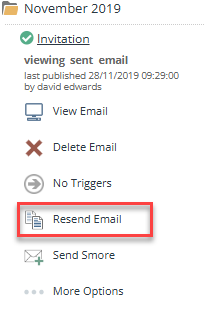
- If the invitation has already been sent, in the Sent items folder, click resend
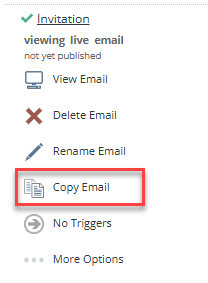
- If you are setting up a reminder ahead of the invitation being sent, in the Compose email folder, click copy email.
- Edit the content of the email, including removing the call to action RSVP button, if they have already registered.
- Publish the email.
Create the filter
- Click send email
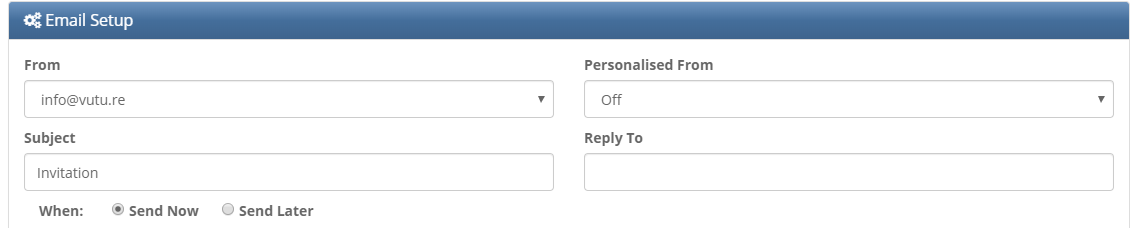
- Complete the From Email Address
- Complete the Subject Line
- Complete the Reply to (if appropriate)
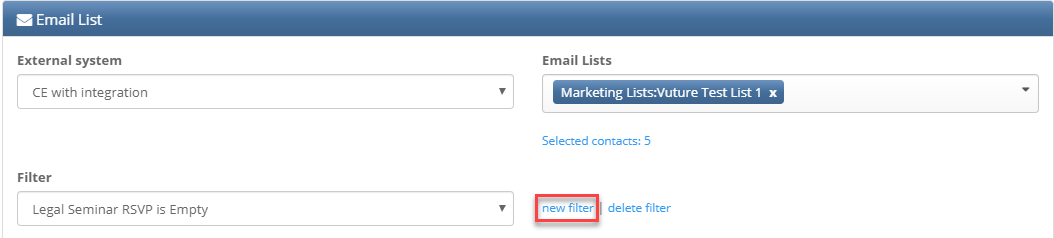
- To specify who on the original email should receive the Email Click new filter
- In the Email list section:
- Select External system and the Email Lists to choose who to send to
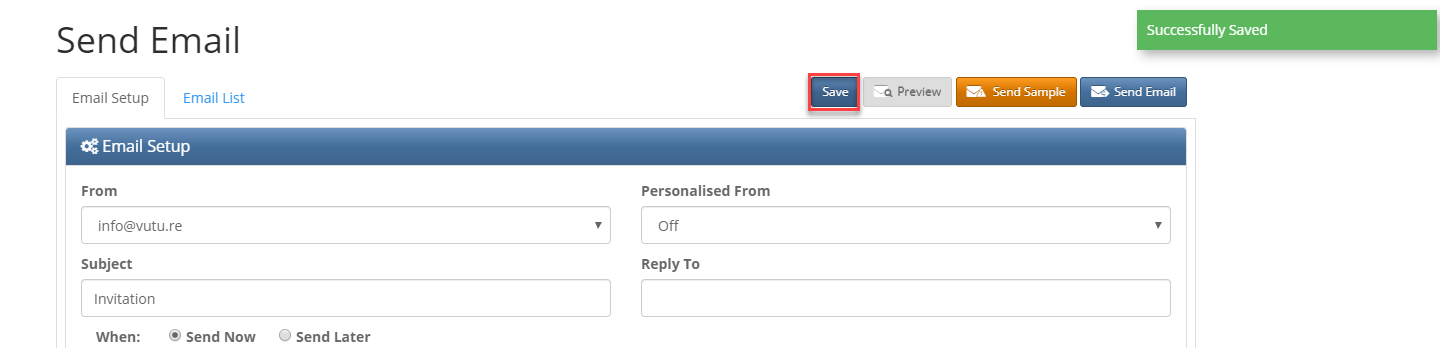
- Click Save prior to creating the filter
- Clicking new filter will open the Add email filter page
Add email filter page
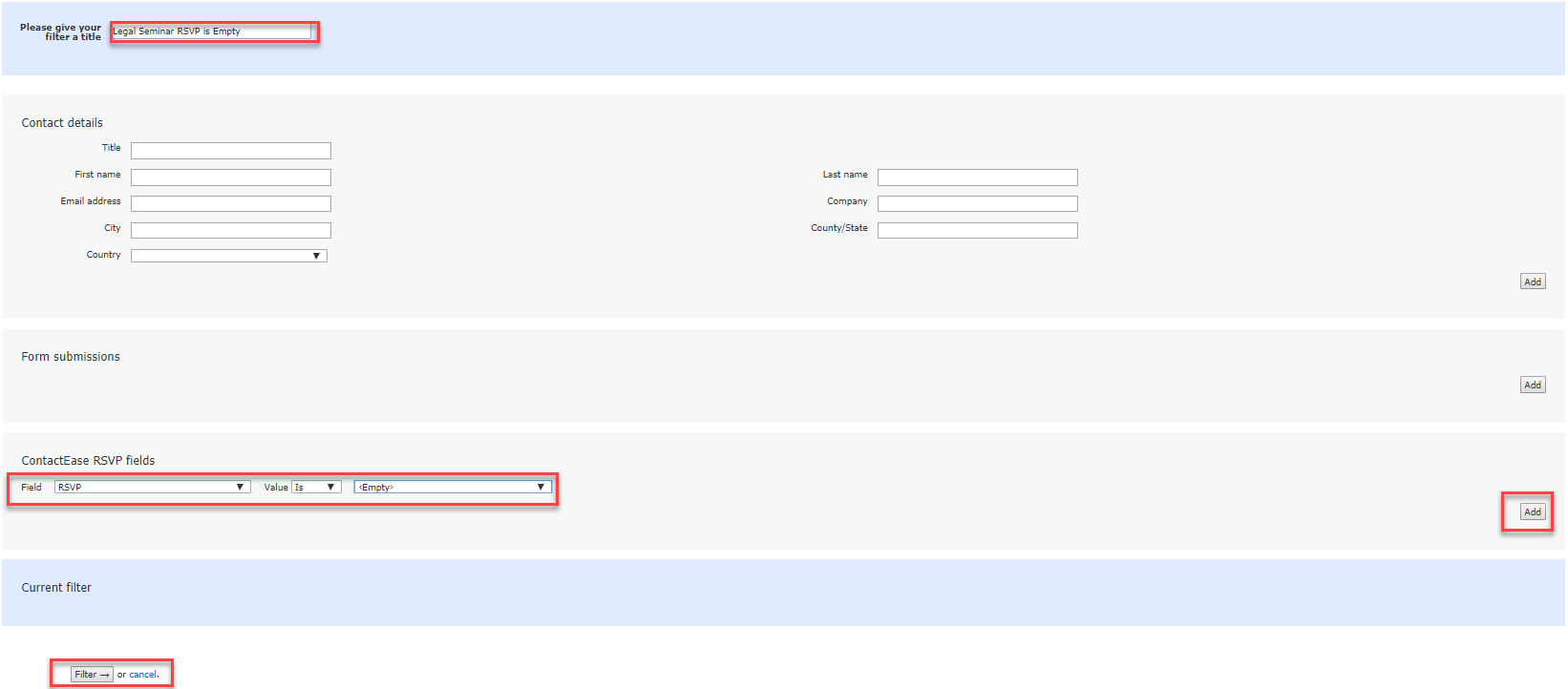
- Type a name for the filter using a clear explanation of what it does
Warning: Include the Campaign name at the beginning of the Filter name, to ensure the correct filter is selected that is pointing to the correct Marketing List.
- From the ContactEase RSVP fields complete the additional fields, field and value as in the screen shot above then click add on the right for example: Field RSVP Value Is <Empty> when sending a Reminder to Register email.
- Click Filter at the bottom left of the screen.
- To send a reminder that the event is tomorrow to anyone who has accepted the invitation the filter would be Field RSVP Value Is <Yes>
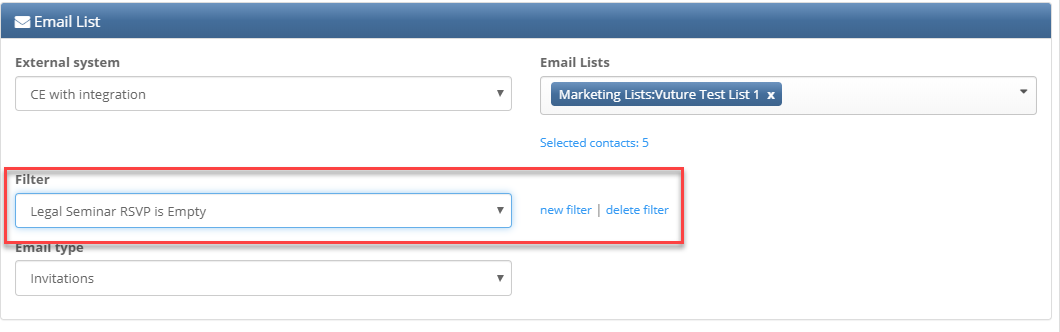
This adds the following confirmation field to the screen:

You will then be returned to the Send email screen and the filter will be displayed:
- Click send email to complete the send.
For more information on creating filters, click here.
