What is the Vuture Connector?
The Vuture Connector is a tool we have developed which allows many different CRM databases to connect to the Vuture platform.
Why would I use the Connector with ContactEase?
Using the Vuture Connector with ContactEase will offer you a seamless and efficient connection between the CRM and your Vuture instance, and enable you to use features such as the Events app with your CRM.
To complete the integration, you will first have to import your ContactEase lists into Vuture. Once that has been done you can continue to use your CRM and the Vuture platform as normal. ( Any subsequent changes you make to your lists in CE will be synced across to Vuture. Any changes you make to your lists in Vuture will be synced back to your CRM when you click Save.)
This article explains how to:
First please ask your Account Manager or Project Manager to enable the integration like this:
- Enable "Admin.System.ContactEase.ContactEaseConnector"
- Enable the "Contacts" module for your user
- Enable Send screen version 2 in "Admin.System.Versions.Send Email Screen Version 2"
- Make sure the correct ContactEase account details are set up in Admin.System.ContactEase
-
Go to "Admin.System.Forms" and enable "Display Instance Dropdown"
Once enabled, go to the Contacts Module and select ContactEase as your CRM source. If it's the first time you are importing a list, you will see no lists in the page. If you have already imported any lists, they will remain in the Contacts module under “Global Lists”.
To import a new list(s), select the list(s) and click “Import List”. The imported lists will appear on the left-hand side in the “Global Lists” section. Lists imported through the Connector are viewed as Global, this means they are available throughout the system, in all containers.
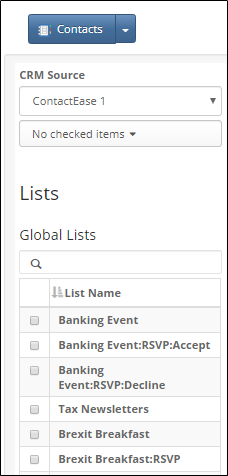
When you select an imported list, you will see all the contacts on the list which are being imported into the Contacts module.
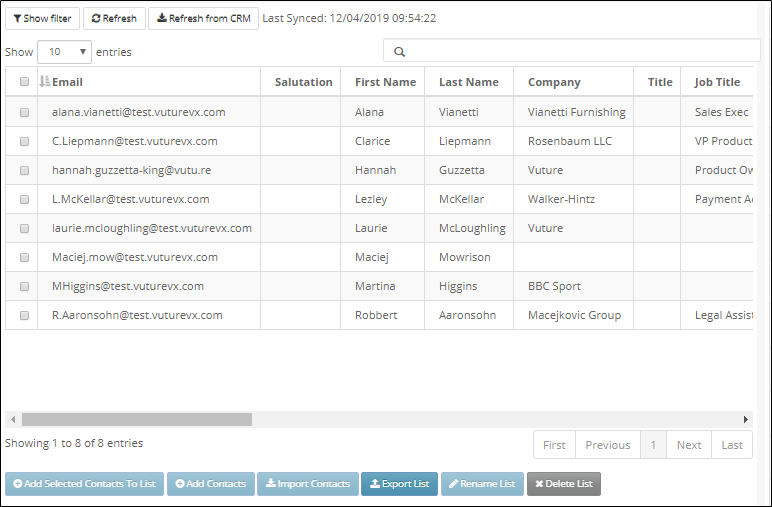
The option buttons above the list will help you to manage the data on the list:
-
Show Filter: this allows you to filter on a specific field (column) in the list
-
Refresh – Refreshes the data using the Vuture database, for example, after a form submission
-
Refresh from CRM – Refreshes the data using your CRM
Note: Last synced date and time are only available after the list has been "Refreshed from the CRM" at least once.
You will notice that contact management options such as "Add Contacts" and "Import Contacts" are greyed out and are not available in the ContactEase integration with the Vuture Connector. This has been designed this way, so that main changes to the list are still made on the CRM side.
When you select a contact from the list, the contact’s core details will be available in the right-hand side panel. The fields available are:
- Email Address – if the data in this field is changed, then the field updated in ContactEase will be the field set in your system (e.g. Email or Business Email). Please contact your Account Manager for confirmation of your system settings, they will find them in "Admin.system.ContactEase"
- Company
- First Name
- Last Name
- Sponsor Email- Doesn't currently match to data in ContactEase
- Salutation
- Job Title
- City
- Country
- Region – Doesn't currently match to data in ContactEase
- Sponsor Name – Doesn't currently match to data in ContactEase
- Contact Type - Doesn't currently match to data in ContactEase
The values of the fields which match to ContactEase can be edited at this point. Once you click on the Save button, the updated data will be sent back to your CRM.
Understanding additional fields in the list
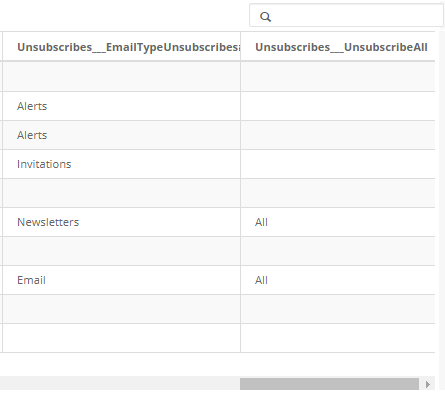
You will notice that your list will most likely have Email type and Unsubscribe fields (columns)
-
Status Field: This will show as "Unsubscribed" for global unsubscribes and "Subscribed" for contacts who are subscribed globally even if they have unsubscribed from an email type.
-
Email Type Unsubscribes: The type of unsubscribe will be displayed in the list (E.g. Newsletters, Events)
-
Global unsubscribes: Whenever a contact has unsubscribed globally, "All" will be displayed.
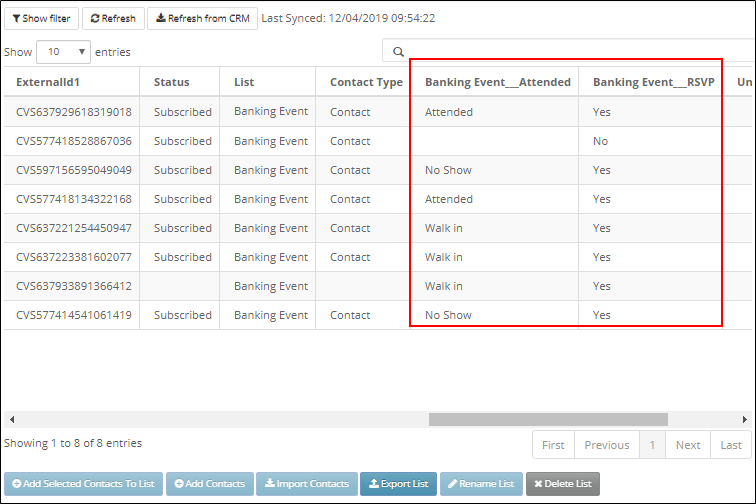
Additionally, if your list has Sub-categories, these will be shown as columns in the main list. When a contact is added, or if a contact adds themselves through a Vuture form to a Sub-category (For example: Banking Event___RSVP___Yes), the value for the RSVP column in the main category for that contact will have the value "Yes".
In your CRM you will still view them as Sub-categories, and view the contacts within the Sub-categories.
Here is a list of other useful articles:
