*Added September 2019, two new reports: Invitations Sent and Breakdown of Responses, and Event Results Overview are ready for release. The Beta versions have been changed. If you still have the superseded Beta reports used in scheduled emails they will still work, but for new emails you should use the latest versions of these reports.
*Added March 2019, two new reports: Invitations Sent and Breakdown of Responses, and Event Results Overview were released in Beta*
You can create a Report Snippet which can be placed into an email or a landing page and will report on data submitted via a Vuture form. This could be useful to send a scheduled email to event stakeholders, for example.
*Please Note: This feature requires some styling customization to your master template as a pre-requisite. This is a premium feature. Please contact your Account Manager for more details. They will find the details of how to add it into your template in this article.
Step 1: Insert the snippet onto the page through the same method you would use to add a regular snippet, whilst editing the layout.
Step 2: Save your chosen layout and the report snippet will appear in your page as shown below. Click on "Configure Report Feed", to choose the desired report and set the appropriate parameters.
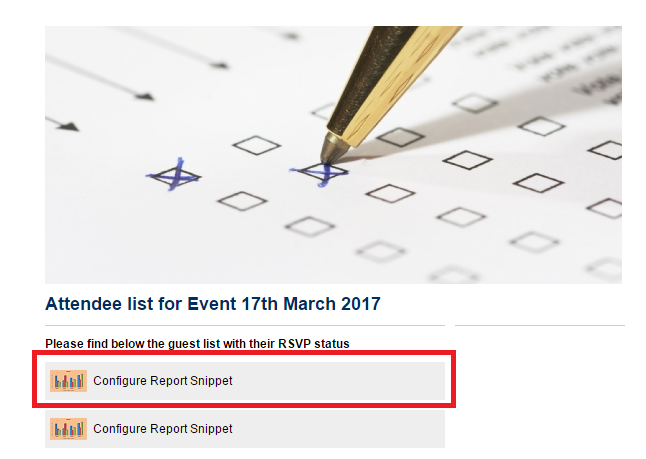
There are two Report Snippets in the image above because I have chosen to add the snippet twice. You could choose to display two (or more) different reports on the same page.
Step 3: Edit the report Name and parameters. Select the report you would like to display. Currently the functionality offers six reports:
To report on any additional fields on one list
-
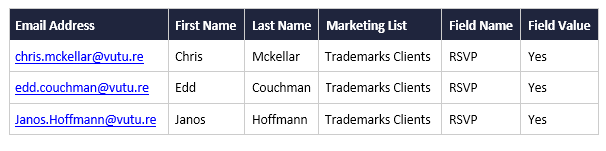
Additional Field Detail (InterAction and Standalone only): This will show the values per contact as recorded in a Vuture form. For example, it will show the RSVP value for a specified list per contact as they have entered their responses in the RSVP form. It could, alternatively, be used to report on the responses for any additional field on a specified list.
-
Additional Field Summary (InterAction and Standalone only): This will show the total for each value in a specific list, as recorded in a Vuture form. For example, it will show the total number of Yes/No/Tentative responses for the RSVP field of a specified list, or, as above, report on the responses for any additional field on a specified list.
To report on Event responses
-
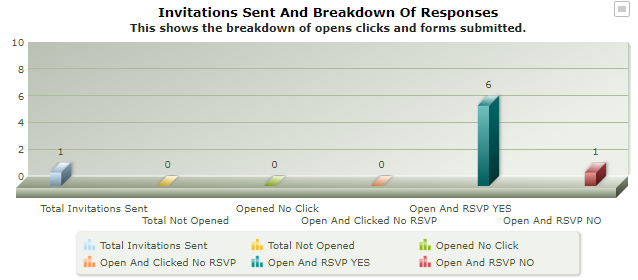
Invitations sent and breakdown of responses (InterAction and Standalone only): This shows the breakdown of opens, clicks and counts of RSVP is Yes or No, related to a specific Vuture Form. Your field must be named "RSVP". Your Account Manager must configure the values for Accept or Decline in Admin.System.Reports.RSVP_YES and Admin.System.Reports.RSVP_NO.
-
Event Result Overview Now re-named Event Result Overview (RSVP) (InterAction and Standalone only): This report will show the total count of RSVP is Yes or No, as well as number of campaigns sent, related to a specific Vuture Form. Note: This report only works with prefilled forms because it is counting an invitation which has been emailed. Your field must be named "RSVP". Your Account Manager must configure the values for Accept or Decline in Admin.System.Reports.RSVP_YES and Admin.System.Reports.RSVP_NO.
These two reports were both in Beta previously but we have now updated them for September 2019. With the release of the new versions, the old versions will no longer work as they did. Users will not be able to create new report snippets, or edit snippets created using the old versions. However, existing snippets created with the old versions will continue to work.
We would advise that any users that were using the Beta version should recreate the emails using the new versions.
To report on Email activity (There is a brief video on this topic here.)
-
Email Overview report: This report displays the numbers of Total Open Rate, Open Rate Excluding Bounces, Bounce Rate, Total Click Rate, Click Rate excluding Bounces, Not Opened Rate, Site Page ID, Domains to Exclude. (Please Note: The number of domains to exclude is limited to 10 domains.)
-
Email Recipient activity report: This report displays Email Address, Email Opened, Links Clicked, Email Domain, Contact ID, Unique Links Clicked, Company, First Name, Last Name, Job Title, Email From. This can be used for reporting on multiple emails together (unlike the Email Dashboard which reports on one email at a time).
Step 4: Choose the Chart Type you would like the report to use. There are three options:
-
Data Table: This will show your data in a table. We recommend this chart type for reports such as "Additional Field Detail" where the data would be better represented as a table
-
MSColumn3d and
-
MSColumn2d: These two charts will display data as a column graph. Recommended for reports which are "Overviews" or "Summaries".
Step 5: Select the CRM instance, CRM list and CRM list fields that you would like to report on. (Note: InterAction and Standalone only where indicated above).
And click Save.
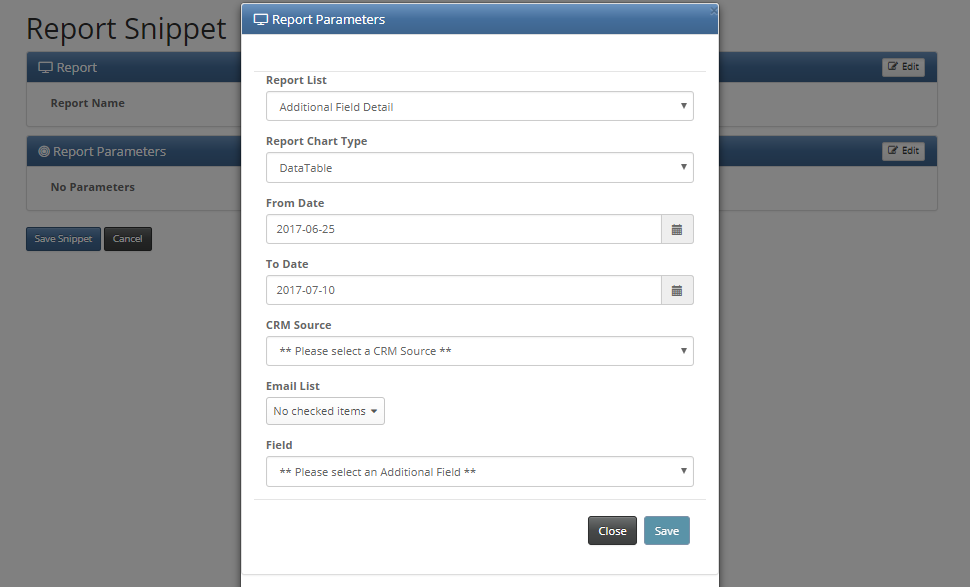
Step 6: The report snippet is now configured. When you're ready, the email can be sent as normal and the recipient will see the report displayed on the page, as in the example below.
This is an example of the Additional Field Detail report snippet in use.
This is an example of the Invitation Sent and Breakdown of responses report snippet in use.
Hiding and Renaming Columns
To learn more about hiding and renaming columns in the report snippet, click here.