Overview
You can edit the underlying HTML of any email or web page by clicking on "email options" or "page options" and "Edit HTML".
Important Note: Please note that the Vuture team will not assist with HTML inquiries. If you choose to edit HTML directly, you accept the risk of causing major formatting issues if not done carefully. When editing HTML directly it is very easy to make changes that break the layout of the page or introduce errors. This may cause the page or email to render incorrectly in browsers and email clients and may cause other pieces of functionality to fail because the page has invalid markup. Make sure you use the "Validate HTML" option to check your markup has no errors. As a final note, if you are not confident editing HTML it is safer to use the normal content editing tools.
How to get access:
Your role needs to have one or more of the following features enabled - contact your Customer Success Manager for assistance with this.
- For editing the HTML in emails that are part of an email campaign: "Admin.Roles.Email Campaigns.Edit HTML"
- For editing the HTML in landing pages that are part of an email campaign: "Admin.Roles.Landing Pages.Edit HTML"
- For editing the HTML in web pages that are part of a website: "Admin.Roles.Web Pages.Edit HTML"
Once the above is enabled, you can click on 'email options' or 'page options' > Edit HTML (see screenshot below).
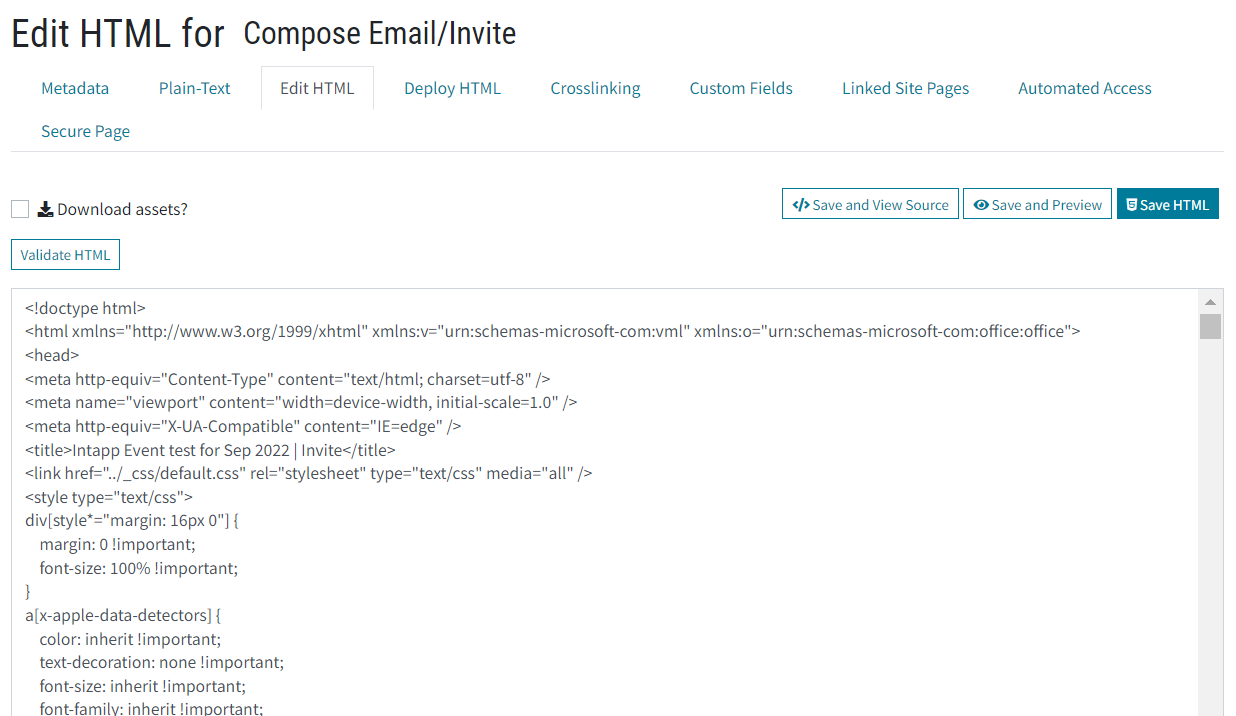
The Edit HTML screen will display the underlying HTML of the page in an editable box. Make any required changes and click "Save HTML" to save your changes - the page will be put into draft mode if not already a draft.
Click "Save and preview" to view the page in a separate browser tab - note that you may need to disable any pop-up blocker.
Click "Save and view source" to view the HTML source in a separate browser tab with the any relative URLs rewritten with the full path.
Click "Validate HTML" to load the page in the W3C HTML validation service which will check for HTML validation errors.
Additionally, you can create your own email template externally to Vuture, and use this by going to Options > Edit HTML > Paste. It is recommended to upload any images for the template directly into the ‘_images’ folder to ensure the images are not compressed or altered.
