Overview
Emails upon arrival in the Events app Version 3 are personalised messages, first created in the Email Campaign as normal emails and then selected when configuring the event. As automatic emails they will be sent out to the sponsor instantly, as the guest arrives at the event.
Note: You can use your existing notification or email templates to create a Sponsor notification email. Should you require a a new template, please contact your account manager who will organise this request, as this would be a premium addition. Alternatively, if you want the email notification to be exactly the same as the existing message, you can edit an email's HTML to have the same format as the current mailing (see below).
Contents
To set up a sponsor notification email you must create a new Notification email page in your Event Campaign. Then change the content type to "Notification" in Email.Options.ContentType.
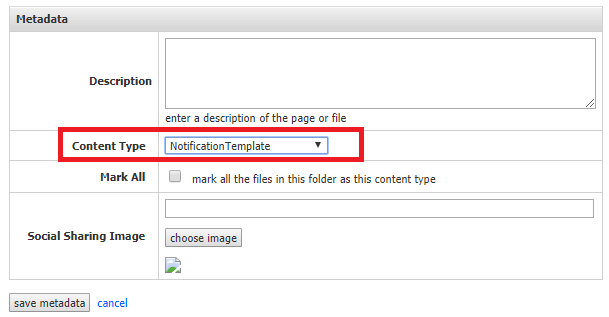
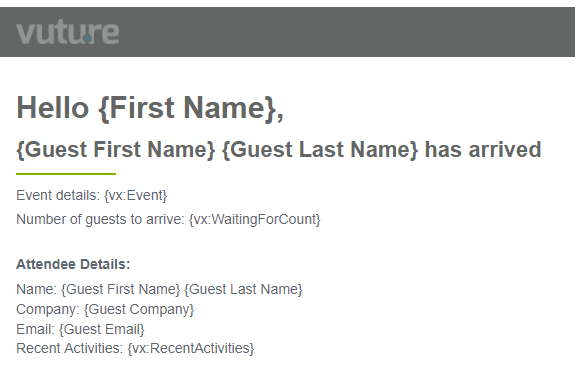
The content of the email will vary as you see fit; it can, for example, use placeholders to personalise the notification email. These placeholders are described in a table, lower down in this article.
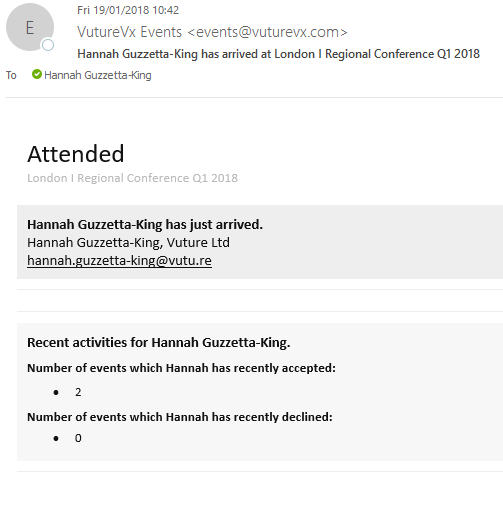
An example Notification on Arrival email
When you configure your event you will select the Notification Email to be sent from the event configuration page, once you select the sponsor who will receive the notification. If the field you choose is empty in the crm, no email will be sent for that contact arriving.

Placeholders in Email Message
The following are placeholders which you could choose to add to your email message:
| Placeholder | Description |
{vx:Event}
| Event name as specified in the events app |
| {vx:Waiting For Count} | Number of guests yet to arrive for sponsor |
{Guest First Name}*
| Guest's first name |
{Guest Last Name}*
| Guest's last name
|
{Guest Company}*
| Guest's company name
|
{Guest Email}*
| Guest's email
|
| {vx:Recent Activities} | Guest's latest 20 Event Accepted or Event Declined activities. *Please note, currently this placeholder only works for InterAction
|
| {vx:Events Accepted} | Number of events accepted by guest (RSVP Yes or Accepted) in the past month, through a Vuture form. |
| {vx:Events Declined} | Number of events declined by guest (RSVP no or declined) in the past month, through a Vuture form |
| {vx:WebPages Visited} | Web pages recently visited by guest. (Only if you have Web Tracking) |
| {First Name}* | Sponsor First Name. *Not available for SalesForce Alternate Sponsor, IA Additional Field or csv lists |
| {Last Name}* | Sponsor Last Name. *Not available for SalesForce Alternate Sponsor, IA Additional Field or csv lists
|
| {Full Name}* | Sponsor Full Name (i.e. First Name + Last Name). Not available for csv lists or IA Additional Field |
*These placeholders are new or have been modified. To use them please contact your Account Manager. "They will enable Admin.System.Events.Enable the notification email placeholders version 2". Please make sure you update your templates after changing this setting, it is a system wide setting.
To Copy HTML code to create the Notification Email
If you wanted to copy the email notification to be exactly as the existing message, you can do the following:
- In your event campaign, compose a new email
- Click "email options" -> "Edit HTML"
- Remove all existing code from the text box and copy the following HTML code
<!DOCTYPE html>
<html lang="en-GB" xmlns="http://www.w3.org/1999/xhtml"" xmlns:v="urn:schemas-microsoft-com:vml" xmlns:o="urn:schemas-microsoft-com:office:office">
<head>
<meta charset="utf-8" />
<title>{Guest First Name} {Guest Last Name} has arrived</title>
<meta name="viewport" content="width=device-width,initial-scale=1,user-scalable=yes" />
<style>
html, body, p, ul, ol, li {
  margin: 0;
  padding: 0;
  width: 100%;
  color: #121212;
  font-family: "Calibri", "Lucida Grande", "Lucida Sans", "Lucida", sans-serif;
}
li {
  margin-left: 50px;
  margin-bottom: 5px;
}
</style>
<!--[if gte mso 9]><xml><o:OfficeDocumentSettings><o:AllowPNG/><o:PixelsPerInch>96</o:PixelsPerInch></o:OfficeDocumentSettings></xml><![endif]-->
</head>
<body>
<table width="100%" cellpadding="0" cellspacing="0" border="0" style="mso-cellspacing:0px;mso-padding-alt:0px 0px 0px 0px">
  <tr>
    <td style="padding:10px"><h1 style="font-weight:400;font-size:26px;color:#121212;margin:0;padding-bottom:5px;">Attended</h1>
      <p style="color:#bbbbbb;font-size:13px;margin:0;padding:0;">{vx:Event}</p></td>
  </tr>
  <tr>
    <td style="height:10px;font-size:1px;line-height:1px"> </td>
  </tr>
  <tr>
    <td style="background:#eeeeee;padding:10px"><p style="color:#121212;;margin-bottom:0px;"><strong>{Guest First Name} {Guest Last Name} has just arrived.</strong></p>
      <p>{Guest First Name} {Guest Last Name}, {Guest Company}<br />
        <a href="{Guest Email}" style="color:#121212;"> {Guest Email}</a></p></td>
  </tr>
  <tr>
    <td style="height:10px;font-size:1px;line-height:1px"> </td>
  </tr>
  <tr>
    <td height="1" style="height:1px;font-size:1px;background-color:#ffffff;line-height:1px;mso-line-height-rule:exactly;border-top:1px solid #eeeeee;"> </td>
  </tr>
  <tr>
    <td style="height:20px; font-size:1px; line-height:1px"> </td>
  </tr>
  <tr>
    <td height="1" style="height:1px;font-size:1px;background-color:#ffffff;line-height:1px;mso-line-height-rule:exactly;border-top:1px solid #eeeeee;"></td>
  </tr>
  <tr>
    <td style="height:10px;font-size:1px;line-height:1px"> </td>
  </tr>
  <tr>
    <td style="background:#f7f7f7;padding:10px"><p style="margin-bottom:8px;"><strong>Recent activities for {Guest First Name} {Guest Last Name}.</strong></p>
      <p style="margin-bottom:5px;margin-bottom:8px;font-size:13px"><strong>Number of events which {Guest First Name} has recently accepted:</strong></p>
      <ul>
        <li style="font-size:13px;margin-bottom:8px;">{vx:Events Accepted}<br />
          <span style="color:#666666"> </span></li>
      </ul>
      <p style="margin-bottom:5px;font-size:13px"><strong>Number of events which {Guest First Name} has recently declined:</strong></p>
      <ul>
        <li style="font-size:13px">{vx:Events Declined}<br />
          <span style="color:#666666"> </span></li>
      </ul></td>
  </tr>
  <tr>
    <td style="height:10px;font-size:1px;line-height:1px"> </td>
  </tr>
  <tr>
    <td height="1" style="height:1px;font-size:1px;background-color:#ffffff;line-height:1px;mso-line-height-rule:exactly;border-top:1px solid #eeeeee;"></td>
  </tr>
  <tr>
    <td style="height:10px;font-size:1px;line-height:1px"> </td>
  </tr>
</table>
</body>
</html>
-
Save the HTML
- Remember to set the Content Type on the Metadata tab to "Notification" so that you can select it from the Events App (see screenshot at top of the page).
The email sent to the sponsor will have the following format: